> For the complete documentation index, see [llms.txt](https://help.glpi-project.org/llms.txt). Markdown versions of documentation pages are available by appending `.md` to page URLs; this page is available as [Markdown](https://help.glpi-project.org/doc-plugins/plugin-glpi-network/cloudinventory.md).
# Cloudinventory
***
## Requirements (self-hosted)
| GLPI Version | Minimum PHP | Recommended |
| ------------ | ----------- | ----------- |
| 11.0.x | 8.2 | 8.4 |
| 12.0.X | 8.3 | 8.5 |
{% hint style="info" %}
A [GLPI Network BASIC](https://services.glpi-network.com/#offers) subscription (or higher) is required. This plugin is also available for all GLPI Network [Cloud instances](https://glpi-network.cloud).
{% endhint %}
***
## Install the plugin
* Go to the marketplace. Download and install the **CloudInventory** plugin.
***
## To know
Currently supported providers and resource types are:
* **OVHcloud**
> * Instances Public Cloud
> * VPS (Serveurs Privés Virtuels)
> * Dedicated servers (Bare Metal)
* **Scaleway**
> * Instances Compute (Machines Virtuelles)
> * Servers Bare Metal
> * Instances Apple Silicon
* **Amazon Web Services (AWS)**
> * Instances EC2 (Elastic Compute Cloud)
* **Microsoft Azure**
> * Virtual Machines
* **Google Cloud Platform (GCP)**
> * Google Compute Engine (Machines Virtuelles)
* **Alibaba Cloud**
> * Elastic Compute Service (ECS)
***
## Providers credentials
Each provider can be configured individually via the plugin interface. Configuration typically includes:
* API access credentials (keys, secrets)
* Region, project, or subscription settings
### OVH
#### Create credentials
* To obtain credential, click the following link:
* For Europe
* For North America
* For the United States
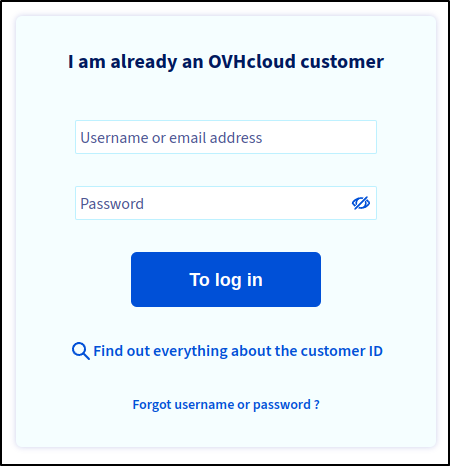
* Sign in with your account
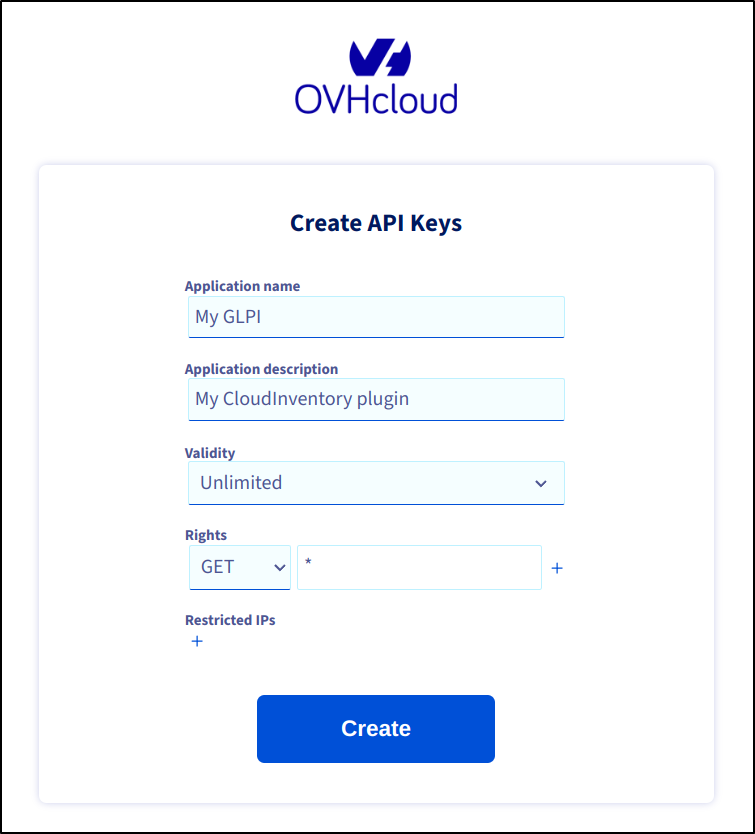
To access the `Create API Keys` form
* Fill in the following information :
* An `Application name` (mandatory)
* An `Application description` (optionnal)
* A `validity` period.
* The `Rights` to restrict the use of the application to certain APIs
GLPI only needs the `GET` right on `*` (to authorise all OVHcloud APIs)
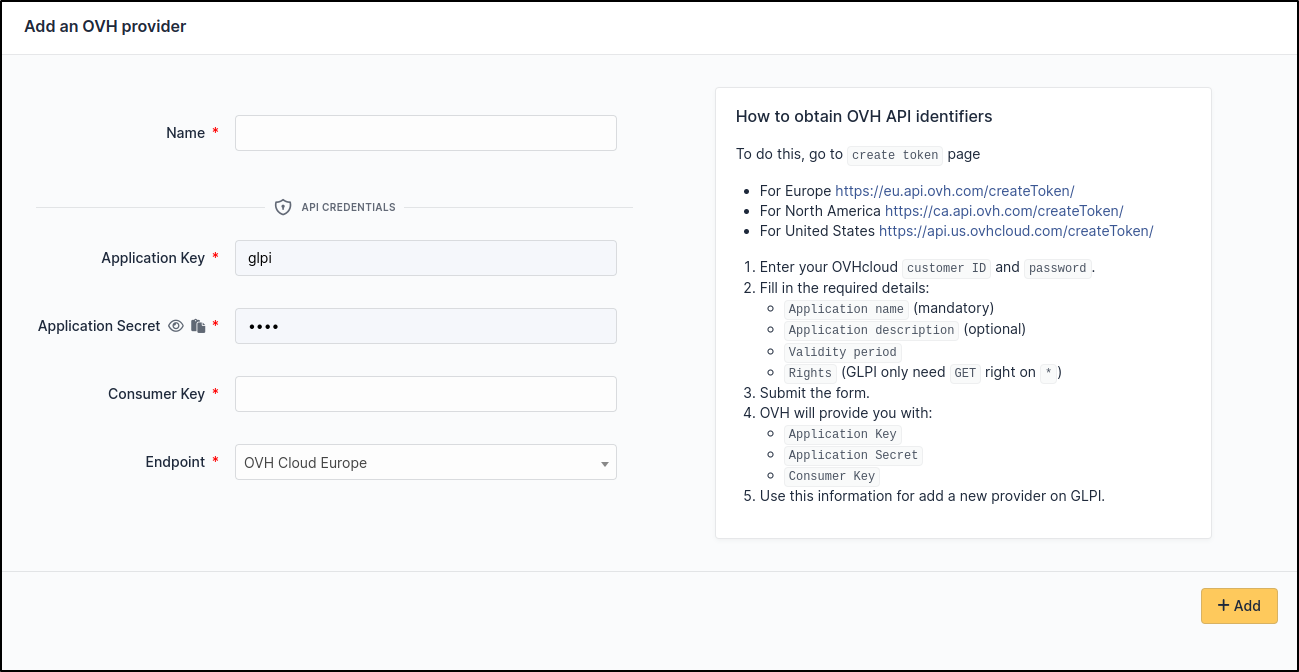
* After submitting, `OVH` will give you :
* `Application Key`
* `Application Secret`
* `Consumer Key`
#### Setup GLPI
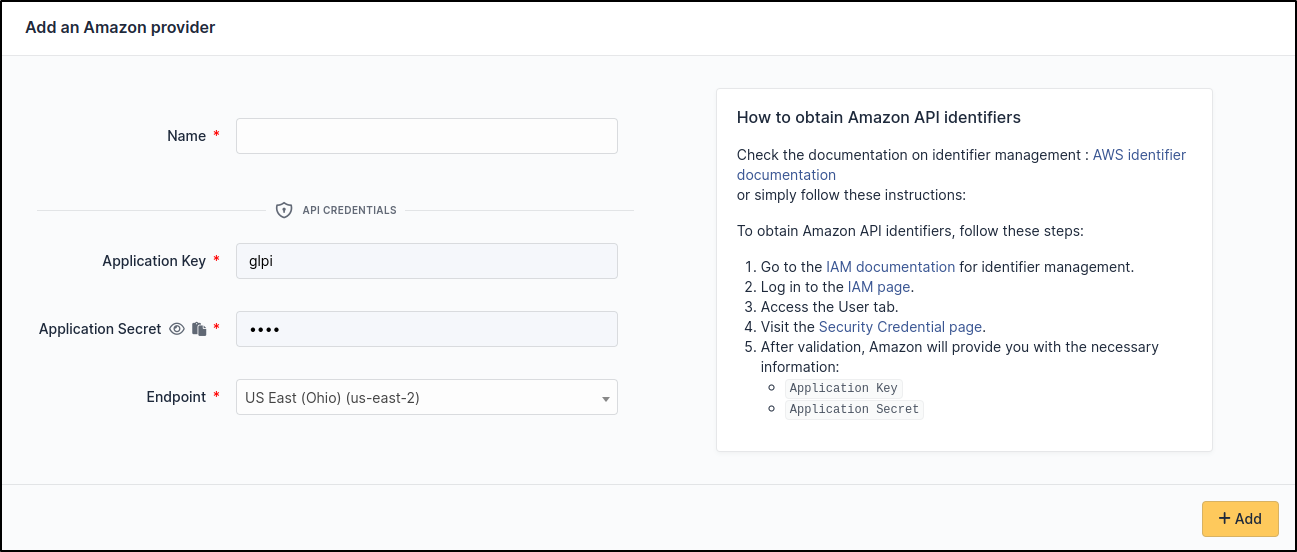
Go to **`Adminsitration`** > **`Cloud inventory`** > **`+Add`**
### Amazon
#### Create credentials
Check the documentation on identifier management : [AWS identifier documentation](https://docs.aws.amazon.com/IAM/latest/UserGuide/id_credentials_access-keys.html)
Or simply follow these instructions:
* Go on the IAM page and sign in with your account : [IAM](https://us-east-1.console.aws.amazon.com/iamv2/home#/home)
* Go on User tab : [User tab](https://us-east-1.console.aws.amazon.com/iamv2/home#/users)
* Check this page : [Security credential page](https://us-east-1.console.aws.amazon.com/iamv2/home#/users/details/USER?section=security_credentials)
After validating the form, `Amazon` will give you the following information :
* `Application Key`
* `Application Secret`
#### Setup GLPI
Go to **`Adminsitration`** > **`Cloud inventory`** > **`+Add`**
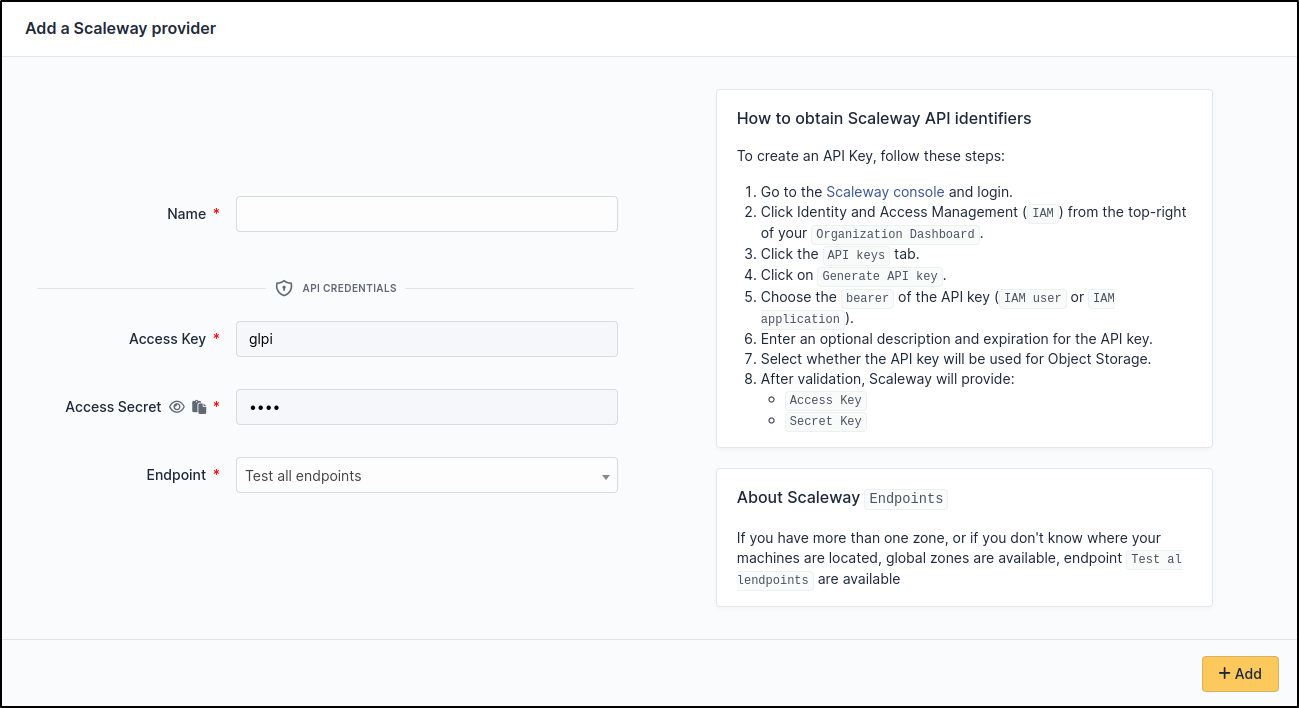
### Scaleway
#### Create credentials
Check the documentation on identifier management : [How to create API Key](https://www.scaleway.com/en/docs/identity-and-access-management/iam/how-to/create-api-keys/)
Or simply follow these instructions:
* Go to Scaleway console and sign in with your account :
* Click **Identity and Access Management (IAM)** from the top-right of your [Organization Dashboard](https://console.scaleway.com/organization)
* Click on the **API Keys** tab.
* Click on **Generate an API key**.
* Choose the **owner** of the API key (**IAM user** or **IAM application**).
* Enter a description (optional) and an expiry date for the API key.
* Select whether the API key will be used for Object Storage → choose **No**
After validating the form, `Scaleway` will give you the following information
* `Access Key`
* `Secret key`
#### Setup GLPI
Go to **`Adminsitration`** > **`Cloud inventory`** > **`+Add`**
### Google
#### Create credentials
Check the documentation on identifier management : [How to manage your key](https://cloud.google.com/anthos/run/docs/securing/service-accounts?hl=fr)
Or simply follow these instructions:
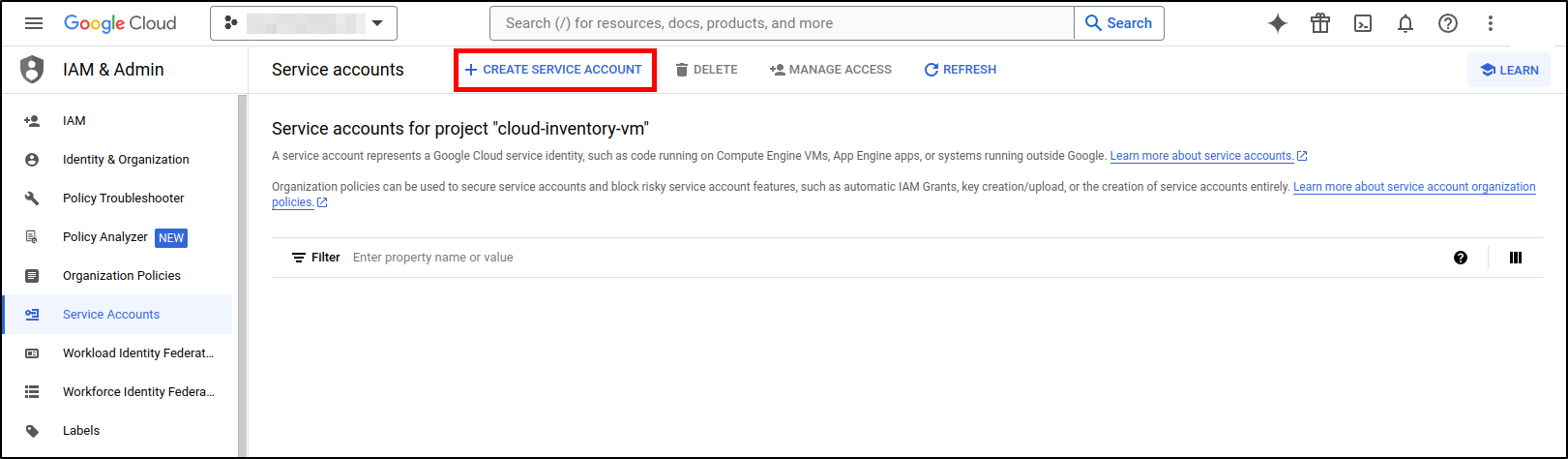
* Go to the [Service Accounts](https://console.cloud.google.com/iam-admin/serviceaccounts?hl=fr&_ga=2.193077034.605580056.1710501828-763263516.1710237390) page in **Google Cloud Console**
* Select the **Project** on which your **Virtual machine** was created
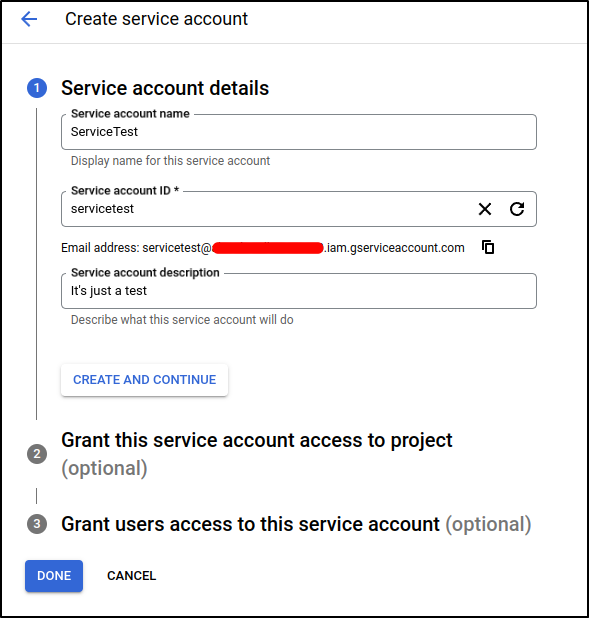
* Create a new **Service Account**
* Fill in the required information, then click on `Done`
* Select your account on the list
* Choose JSON type
Now your key file has been downloaded to your computer
#### Setup GLPI
Go to **`Adminsitration`** > **`Cloud inventory`** > **`+Add`**
### Alibaba
#### Create credentials
Check the documentation on identifier management : [Alibaba Cloud keys documentation](https://www.alibabacloud.com/help/en/ram/user-guide/create-an-accesskey-pair)
Or simply follow these instructions:
* Log on to the [RAM console](https://ram.console.aliyun.com/?spm=a2c63.p38356.0.0.4f8b4688KexBmn) and sign in with your Alibaba Cloud account.
* Move the pointer over the profile picture in the upper-right corner of the page that appears and click **AccessKey Management**.
* In the Note message, read the security tips and click **Use Current AccessKey Pair**.
* On the **AccessKey Pair** page, click **Create AccessKey**.
* In the Create AccessKey message, view the **AccessKey ID** and **AccessKey secret**.
*You can click Download CSV File to download the \*\*AccessKey\** pair or click **Copy** to copy the **AccessKey** pair.\*
* Finally select I have saved the **AccessKey Secret**.
#### Setup GLPI
Go to **`Adminsitration`** > **`Cloud inventory`** > **`+Add`**
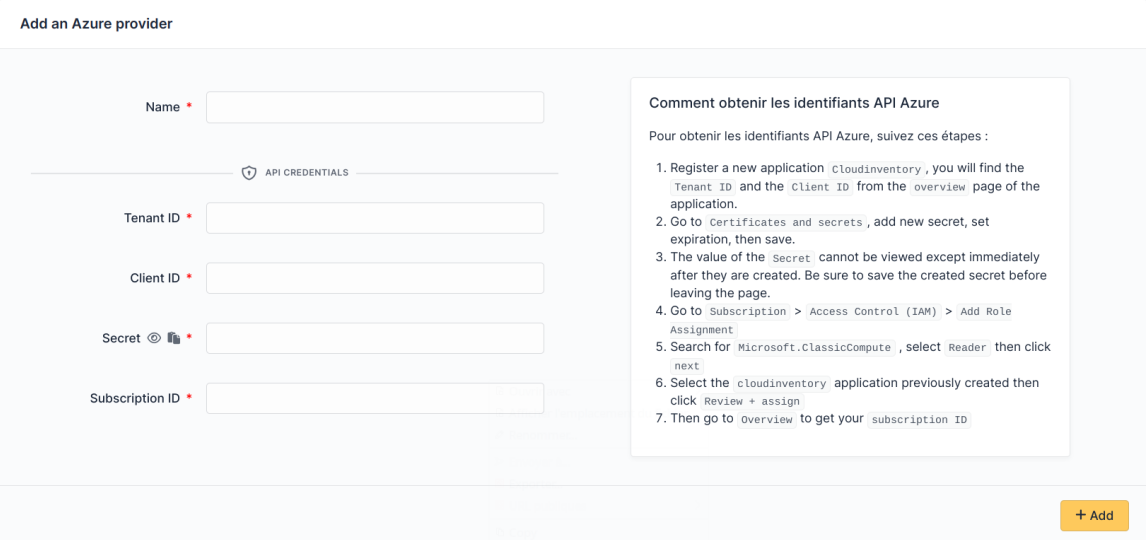
### Entra
#### Create credentials
How to get your `Tenant ID` and `Client ID`
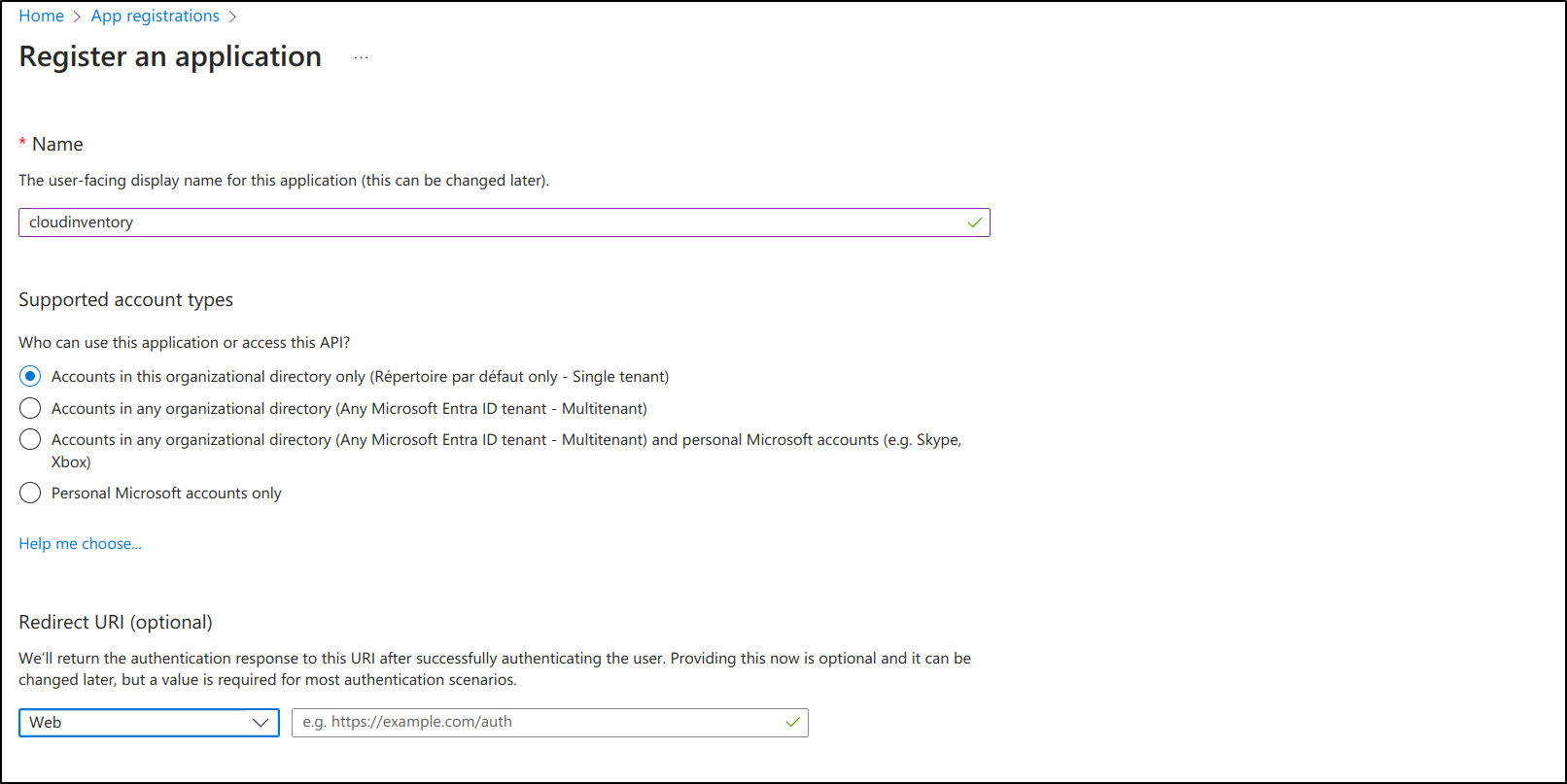
* Go to your Tenant and register a new application
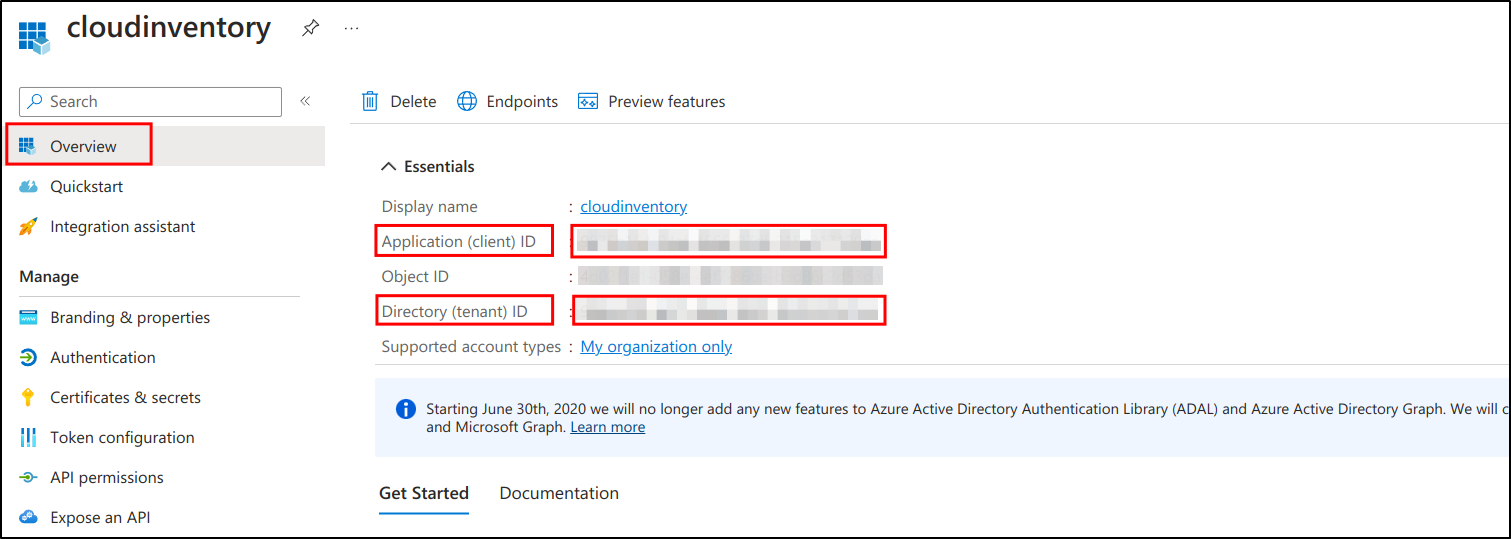
* Go to Overview to get `Tenant ID` and `Client ID`
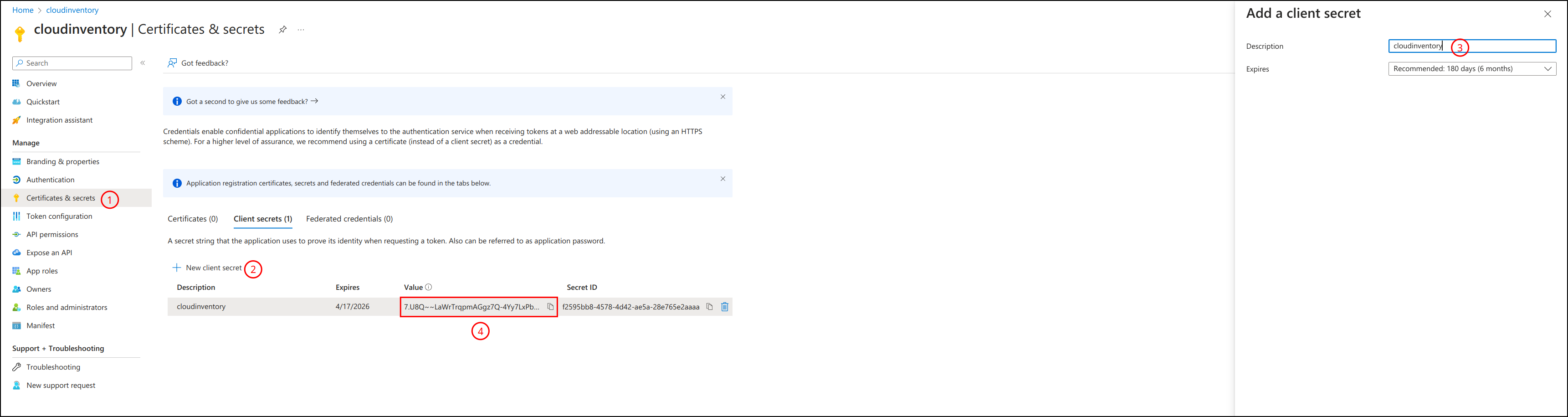
* Go to `Certificates and secrets`
* Add `New client secret`
* Define `expires`
* Then saved
The `Secret` value will be displayed (4)
{% hint style="warning" %}
Client secret value cannot be viewed, except for immediately after creation. Be sure to save the secret when created before leaving the page
{% endhint %}
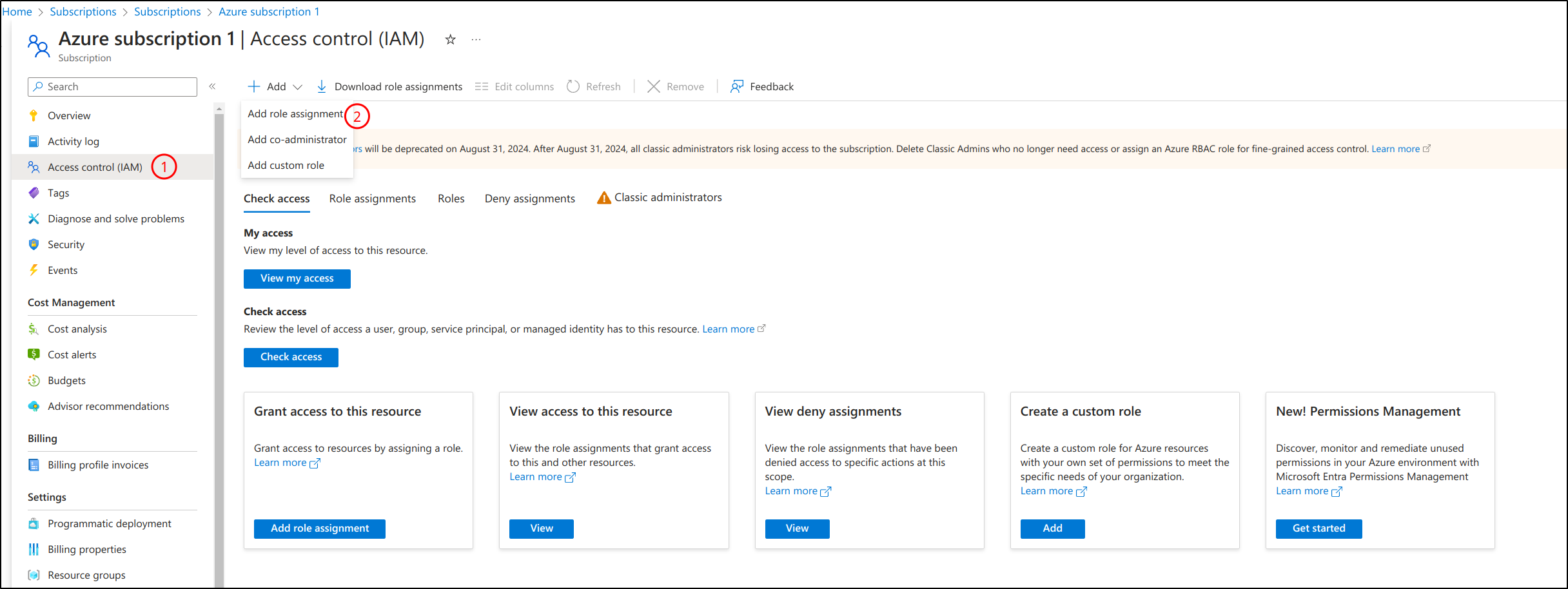
* Go to **`Subscription`** > **`Access Control (IAM)`** > **`Add Role Assignment`**
* Search for `Microsoft.ClassicCompute`
* Select `Reader`
* Then `next`
* Select `cloudinventory` (application) previously created
* Then click on `Review + assign`
#### Setup GLPI
Go to **`Adminsitration`** > **`Cloud inventory`** > **`+Add`**
{% hint style="info" %}
In some cases, `global Endoints` are available.
If you have more than one zone, or if you don't know where your machines are located, `global Endoints` are available:
* `Test all endpoints` groups all the `endpoints`
* `Only Europe endpoints` groups `endpoints` located in `Europe`
* etc.
This means that synchronisation will take longer.
{% endhint %}
***
## Right
The plugin offers complete rights management.
Go to `Administration` > `Profiles` > `Cloud Inventory`
* **Provider**
* Read
* Update
* Delete
* Purge
* Run discovery
* **CloudInstance**
* Update
* Sync
* Get date from API
* Purge
* **Dashboard**
* See dashbaord
***
## Discovery
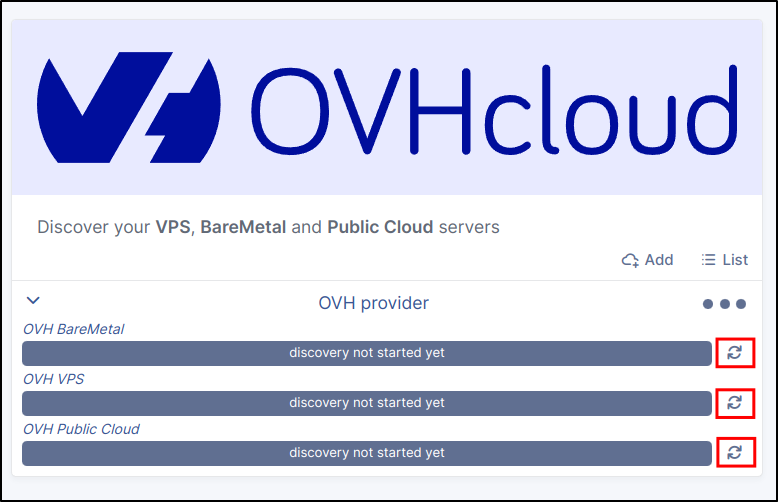
Now that our provider has been created into GLPI, we can start working on the cloud inventory.
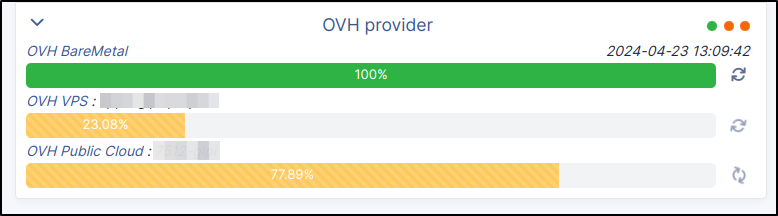
* For each provider you can manually trigger synchronisation here :
* You will be able to visualize the progress of the discovery.
* Or simply configure related automatic actions (you can filter by provider name (e.g. OVH)) (see see [CronTask](https://glpi-plugins.readthedocs.io/en/latest/cloudinventory/crontask.html))
***
## Cloud Instance
Each cloud asset found is registered in the plugin in a `CloudInstance` object
* You can find the list of `CloudInstance` here
* Or from the provider (and dedicated tab)
{% hint style="info" %}
The `refresh` action lets you manually execute synchronisation for a CloudInstance
{% endhint %}
{% hint style="info" %}
The status of the related *CronTask* is displayed (see [CronTask](#crontask)) A button allows you to `activate` or `deactivate` it
{% endhint %}
* Click on `CloudInstance` link to get more information :
{% hint style="warning" %}
Synchronised `Cloud Instances` are automatically assigned to the same `entity` as the `Provider` from which they originate.
{% endhint %}
* **GLPI Computer**
* Related GLPI Computer found
* Reconciliation type for this *CloudInstance* (name or MAC)
{% hint style="info" %}
**Unknown GLPI computer**
There are several reasons for this :
* The computer does not yet exist in GLPI (you can then install the GLPI agent to bring it up and then restart the discovery of cloud instances to make the link).
* Reconciliation (using the MAC or the name of the cloud instance) couldn't find a computer.
* Check that the MAC address or name exists in GLPI
* You can manually select the corresponding computer (Don't forget to lock the computer to prevent the next discovery from overwriting your selection.)
* Contact us to improve the reconciliation method
{% endhint %}
* **Provider**
* provider name (link to GLPI provider form)
* Button to synchronize this instance now
* **Cloud Instance**
* Instance name
* Instance display name
* Instance ID
* Project ID
* Projcet name
* Model
* State
* Location
* Datacenter
* **Backups**
* Has backup ?
* Backup state
* List of backups
* Scheduled
A final section, `API data`, gives you direct access to the `API` information for related `Cloud Instance`.
***
## Crontask
For each provider and each instance type, a dedicated automatic task enables regular synchronisation between the data from the APIs and the data from GLPI.
***
## Search
The plugin adds new criteria to computer search engine.
From the list of computers it is possible to filter the result on data from related `CloudInstance` (if `CloudInstance` is linked to it).
***
## Dashboard
The `CloudInventory` plugin offers a dashboard to display a summary of `CloudInstance`
***
## Rules asset
The plugin adds new criteria to the `Business Rules for asset`
Each time a computer is updated (manually or dynamically), if it is linked to a `CloudInstance`, the engine will receive the following data (when available)
* `CloudInventory - Instance ID`
* `CloudInventory - Instance Display name`
* `CloudInventory - Instance Name`
* `CloudInventory - Project Name`
* `CloudInventory - Has backup`
* `CloudInventory - State`
* `CloudInventory - Location`
* `CloudInventory - Datacenter`
* `CloudInventory - Instance type`
***
## Log
If debug mode is enabled for a dedicated provider
A new log file will be automatically created and will contain various information following execution of the synchronisation
Ex : for `Ovh` provider and `VPS` synchronisation a file named `ovh-{{instance-type}}-{{provider_name}}-error.log` will be created in the `glpi/files/_log/` folder and will contain the errors encountered during its execution
***
## FAQ
If you have any questions about using the plugin, please consult our FAQ
Go to FAQ
---
# Agent Instructions
This documentation is published with GitBook. GitBook is the documentation platform designed so that both humans and AI agents can read, navigate, and reason over technical content effectively. Learn more at gitbook.com.
## Querying This Documentation
If you need additional information that is not directly available in this page, you can query the documentation by asking a question.
Perform an HTTP GET request on the following URL with the `ask` and `goal` query parameters:
```
GET https://help.glpi-project.org/doc-plugins/plugin-glpi-network/cloudinventory.md?ask=&goal=
```
`ask` is the immediate question: it should be specific, self-contained, and written in natural language.
`goal` is what the user is ultimately trying to achieve, the reason they need the answer. Sharing it helps GitBook give you a better, more relevant answer. A goal is most helpful when it describes the outcome the user wants rather than restating the question. For example, with `ask=how do I create an API token`, a goal like `automate deployments from our CI pipeline` lets GitBook tailor the answer to that use case.
The response will contain a direct answer to the question and relevant excerpts and sources from the documentation.
Use this mechanism when the answer is not explicitly present in the current page, you need clarification or additional context, or you want to retrieve related documentation sections.








 {% endhint %}
* Click on `CloudInstance` link to get more information :
{% endhint %}
* Click on `CloudInstance` link to get more information :


