> For the complete documentation index, see [llms.txt](https://help.glpi-project.org/llms.txt). Markdown versions of documentation pages are available by appending `.md` to page URLs; this page is available as [Markdown](https://help.glpi-project.org/doc-plugins/plugin-glpi-network/collaborative-tools.md).
# Collaborative tools
## Requirements (self-hosted)
| GLPI Version | Minimum PHP | Recommended |
| ------------ | ----------- | ----------- |
| 11.0.x | 8.2 | 8.4 |
| 12.0.X | 8.3 | 8.5 |
{% hint style="info" %}
A [GLPI Network BASIC](https://services.glpi-network.com/#offers) subscription (or higher) is required. This plugin is also available for all GLPI Network [Cloud instances](https://glpi-network.cloud).
{% endhint %}
***
## Install the plugin
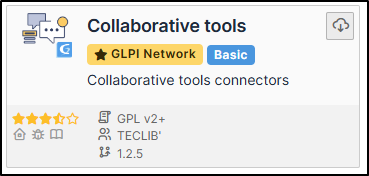
* Go to the marketplace. Download and install the plugin **Collaborative tools**.
***
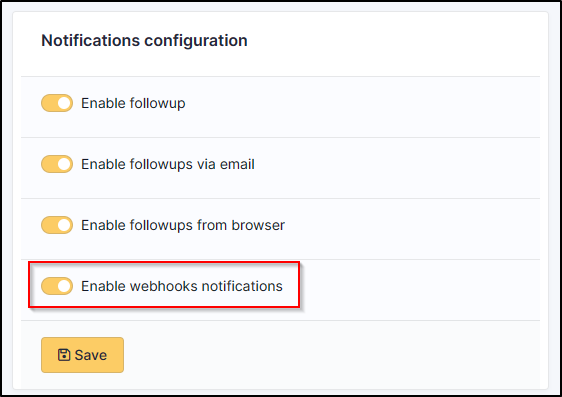
## Activate webhooks
* In the tab **Setup > Notifications** activate Webhooks notifications
***
## Mattermost
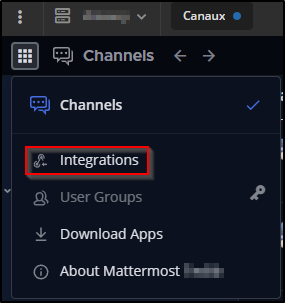
* From a Mattermost administrator account, go to the menu at the top left,
* Then Integrations
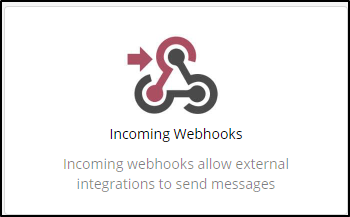
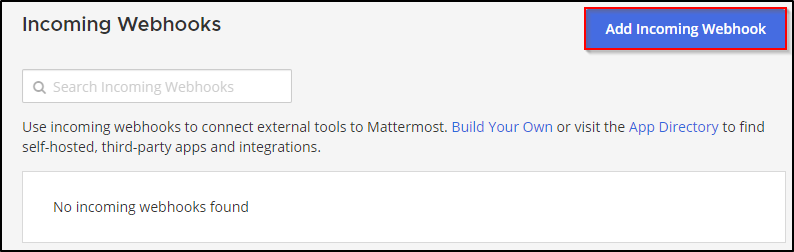
* Select **Incoming Webhooks**
* Then **Add a new incoming webhook**.
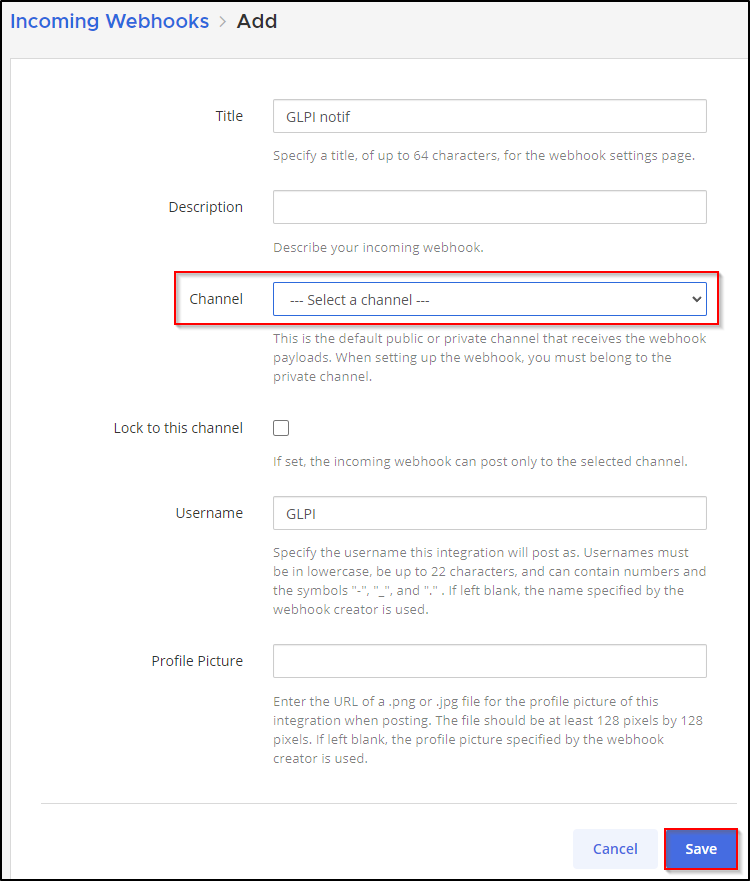
* Fill in the necessary fields and select the channel that will receive the notifications
* Then click on **Save**.
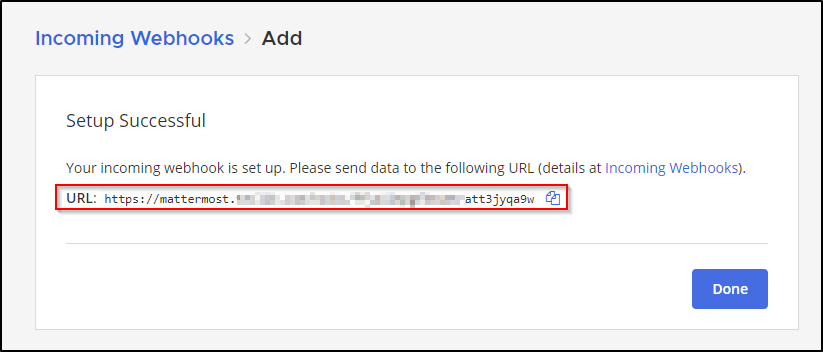
* You will then be sent the link to your Webhook:
* Go to `setup the webhook in GLPI `{.interpreted-text role="doc"}
***
## Telegram
* From Telegram, start a new chat with the bot **@BotFather** and run the following command **/newbot**
* Answer the few questions you will be asked to set up your bot
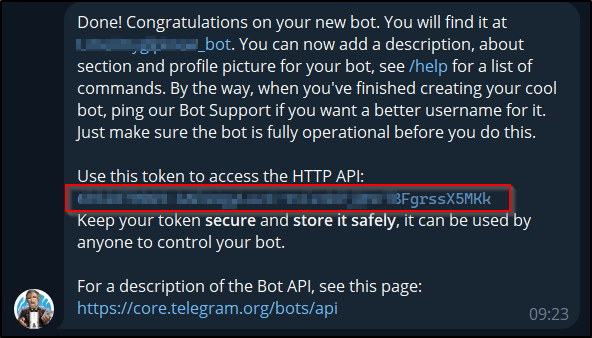
* Once finished, a token will be sent to you:
* If you have already created a dedicated channel to receive GLPI notifications, add your bot to it.
* Otherwise, create your own channel
* add the newly created bot
* Send a message in the channel created to initiate a conversation and generate the various IDs we will need.
* From your browser, enter the following URL:
\[
Replace *mytoken* with the value of the token generated above
{% hint style="info" %}
Telegram bot URLs take the form ****
{% endhint %}
* You should see a similar result:
```yaml
"ok": true,
"result": [
{
"update_id": 816584684,
"my_chat_member": {
"chat": {
"id": -541684658463,
"title": "GLPI Ticket",
"type": "channel"
},
"from": {
"id": 1546610935,
"is_bot": false,
"first_name": "xxxxxxx",
"last_name": "xxxxxxx"
},
"new_chat_member": {
"user": {
"id": 7468746847,
"is_bot": true,
"first_name": "glpi",
"username": "xxxxxx_bot"
```
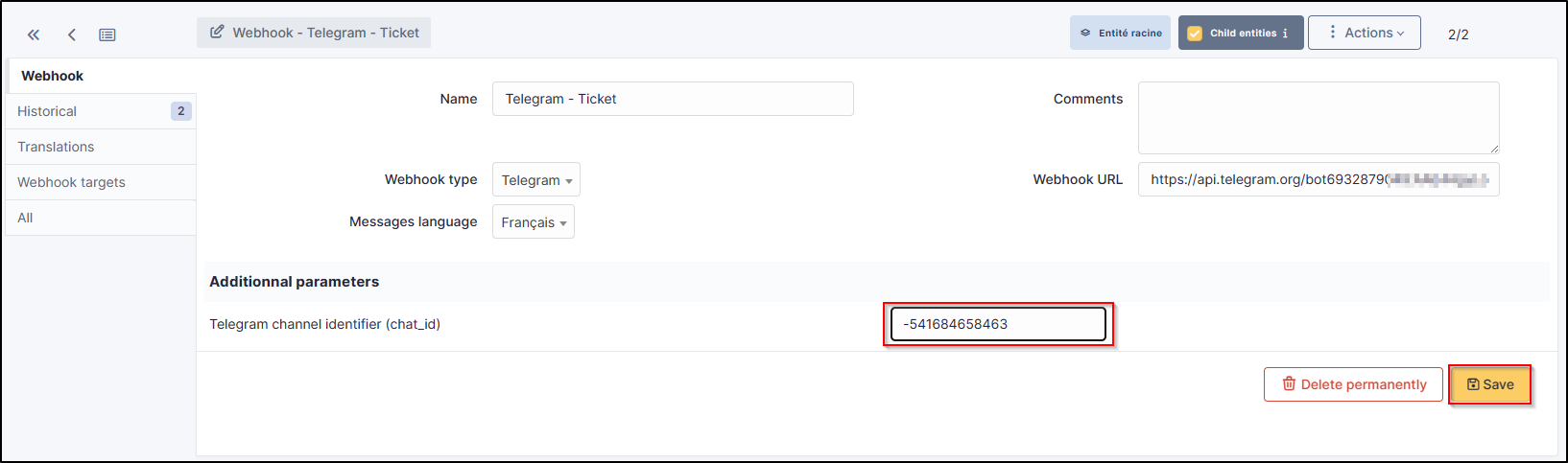
* In the **my\_chat\_member** copy the **ID** value of the **chat**.
{% hint style="warning" %}
The negative sign **-** must also be copied
{% endhint %}
* Go to `setup the webhook in GLPI`
***
## Teams
{% hint style="warning" %}
Following the end of O365 connectors, Microsoft is imposing a new method of setting up your webhooks using workflows. This procedure must be implemented before August 15th. After this date, your webhooks will no longer function. Your webhooks used by incoming Webhooks (old method) will no longer be available
{% endhint %}
{% hint style="info" %}
The channel used must be public. Microsoft does not currently allow webhooks with Workflows from a private channel.
{% endhint %}
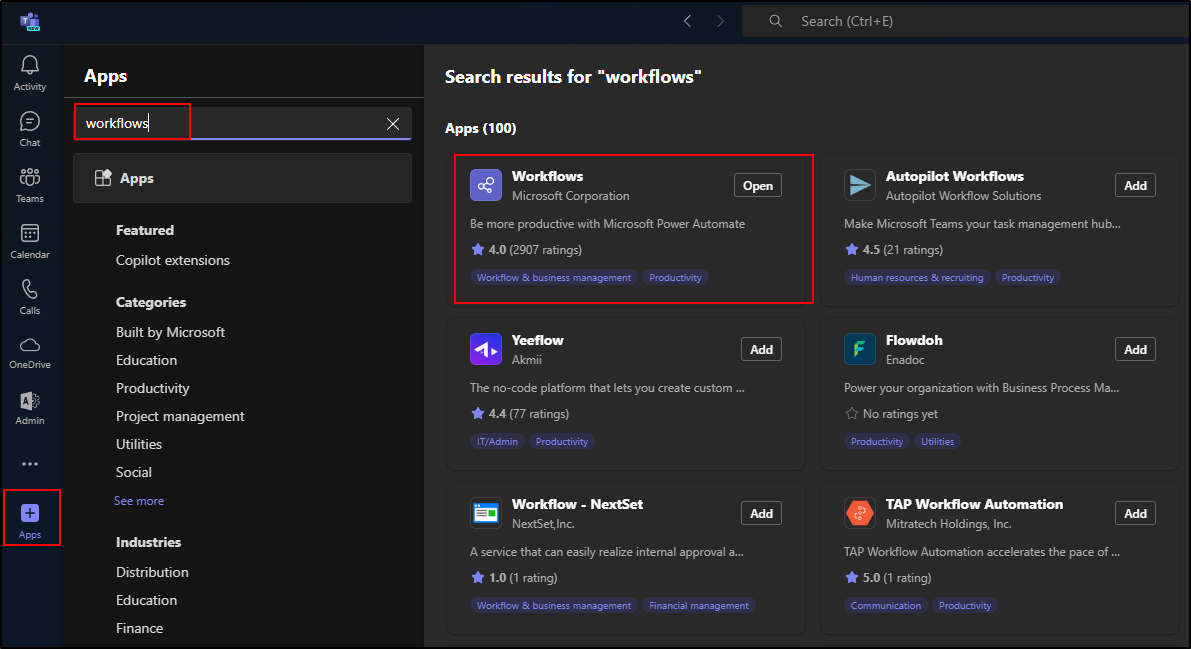
* From **Teams**, go to **Apps**
* In the search box, enter **Workflows**
* In the list of applications, click on **Add**
{% hint style="info" %}
Some information may take a while to appear, so please be patient between each step and wait for the information to appear on the screen before moving on to the next step.
{% endhint %}
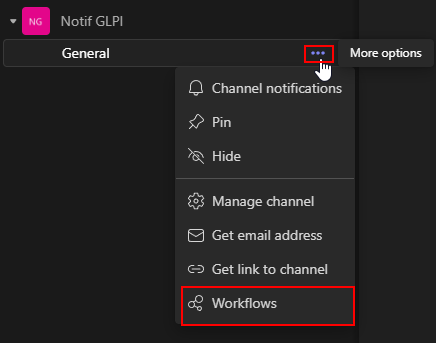
* From the desired Teams channel, click on the **···** menu
* Click on **Workflows**
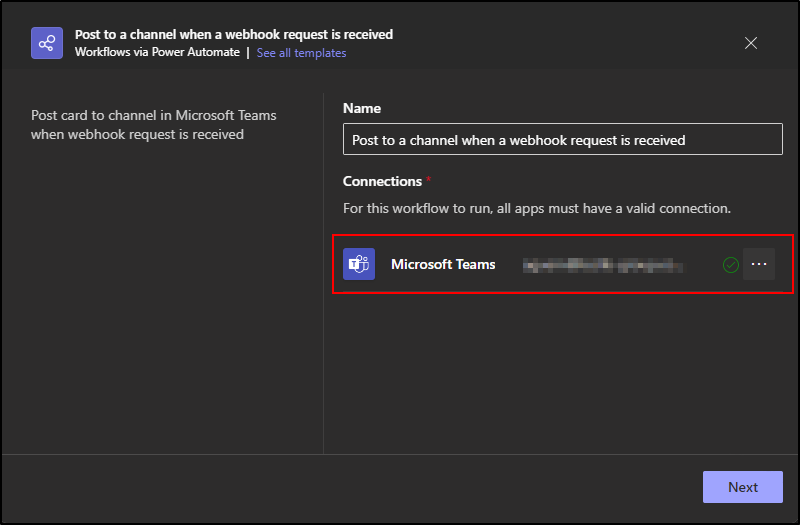
* Choose "**Post to a channel when a webhook request is received**"
* In the new window, make sure that the current account has a sufficient licence to send webhooks
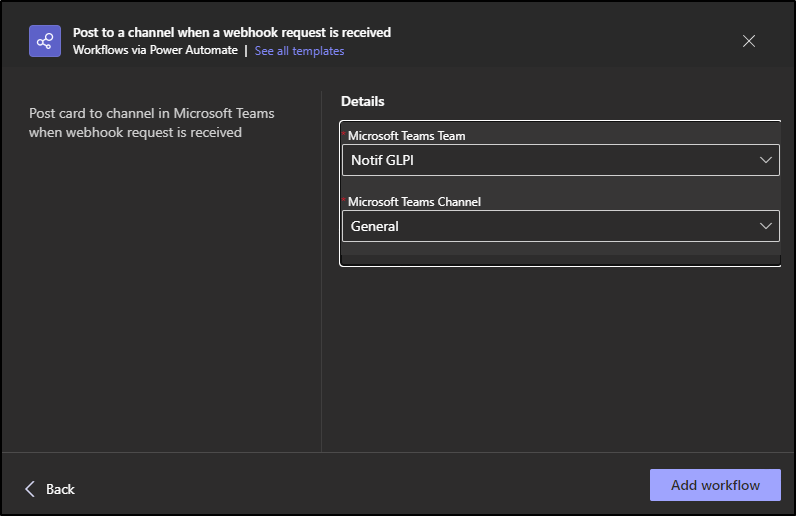
* Teams will give you a summary of the selected channel. If you've got it right, click on Add Workflows
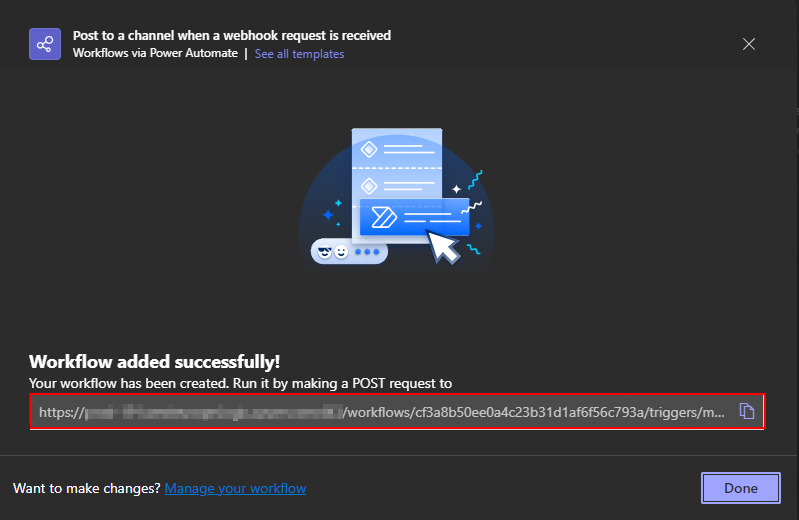
* The URL of your workflow appears. Copy it and keep it, it will be used to configure GLPI.
* Go to `setup the webhook in GLPI`
{% hint style="success" icon="lightbulb-on" %}
If your webhook is not working, remove the `:443` port from the URL and test again.
{% endhint %}
***
## Rocket
* You need to add an application to your team (the link is present in the bottom of the left sidebar) and select incoming-webhook
* Add a new configuration, select the channel where you want notifications and you will get the webhook url.
* You can optionally setup a name and a logo for your hook.
* Go to `setup the webhook in GLPI`
***
## Slack
* As a logged team administrator, go to the administration menu
* click on Integrations menu item
* Click on the New integration button
* Select incoming webhooks, and define webhook parameters
* After save, you will get the url of the webhook.
* Go to `setup the webhook in GLPI`
***
## Set up the webhook in GLPI
* Fill in the requested information and select the channel on which you want the notifications to be sent.
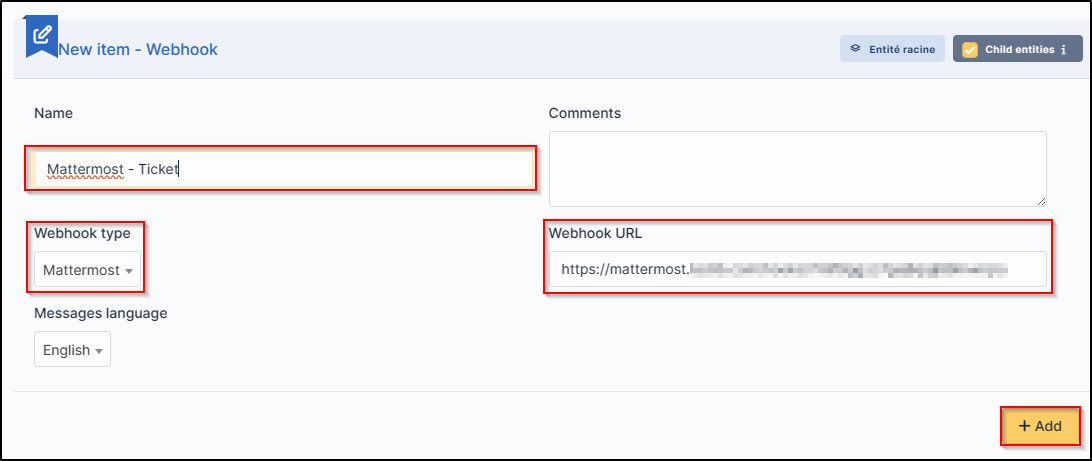
* Once registered, a link will be sent to you. Copy this link and transfer it to **`Setup`** > **`Notifications`** > **`Configuration of notifications by webhooks`**
* Click on + and enter :
* Webhook name,
* the type,
* the URL.
* Click on **Add**
{% hint style="warning" %}
For Telegram, you will need to re-enter the webhook and add the **chat\_id** you selected earlier
{% endhint %}
* You can test how it works by selecting your webhook and clicking on **Send notification**
***
## Recipients
* You now need to determine which notifications will be affected by the sending of a Webhook and assign them a template.
* Go to **`Setup`** > **`Notifications`** > **`Notifications`**
* Select the 1st notification concerned by Webhooks (here **New ticket**)
* In the **Recipients** tab, add your Webhook then **Update**.
***
## Templates
* In the tab **Templates** click **Add a template**
* Choose **Webook** in the **Notification method** and **New** in the **Notification template**
> Your Webhook is ready to use. You can customise the template by clicking on **New** so that it matches your requirements.
***
## FAQ
If you have any questions about using the plugin, please consult our FAQ
Go to FAQ
---
# Agent Instructions
This documentation is published with GitBook. GitBook is the documentation platform designed so that both humans and AI agents can read, navigate, and reason over technical content effectively. Learn more at gitbook.com.
## Querying This Documentation
If you need additional information that is not directly available in this page, you can query the documentation by asking a question.
Perform an HTTP GET request on the following URL with the `ask` and `goal` query parameters:
```
GET https://help.glpi-project.org/doc-plugins/plugin-glpi-network/collaborative-tools.md?ask=&goal=
```
`ask` is the immediate question: it should be specific, self-contained, and written in natural language.
`goal` is what the user is ultimately trying to achieve, the reason they need the answer. Sharing it helps GitBook give you a better, more relevant answer. A goal is most helpful when it describes the outcome the user wants rather than restating the question. For example, with `ask=how do I create an API token`, a goal like `automate deployments from our CI pipeline` lets GitBook tailor the answer to that use case.
The response will contain a direct answer to the question and relevant excerpts and sources from the documentation.
Use this mechanism when the answer is not explicitly present in the current page, you need clarification or additional context, or you want to retrieve related documentation sections.
 {% endhint %}
* You can test how it works by selecting your webhook and clicking on **Send notification**
{% endhint %}
* You can test how it works by selecting your webhook and clicking on **Send notification**


