# OAuth SSO

## Requirements (self-hosted)

| GLPI Version | Minimum PHP | Recommended |
| ------------ | ----------- | ----------- |
| 10.0.x       | 8.1         | 8.2         |
| 11.0.x       | 8.2         | 8.4         |

{% hint style="info" %}
A [GLPI Network BASIC](https://services.glpi-network.com/#offers) subscription (or higher) is required. This plugin is also available for all GLPI Network [Cloud instances](https://glpi-network.cloud).
{% endhint %}

{% hint style="warning" %}
**For Google and OKTA** : only accepts public AND secure (https) URLs. If your GLPI URL is not accessible from the internet, this procedure will not apply.

**For Entra and Keycloak** : Accepts private URLs (not available on the internet) but must be secured (https).
{% endhint %}

***

## Install the plugin

* Go to the marketplace. Download **Oauth SSO** and enable it

<div align="left"><figure><img src="https://3573604317-files.gitbook.io/~/files/v0/b/gitbook-x-prod.appspot.com/o/spaces%2FuUCcURk2xlvtpVGbiRZf%2Fuploads%2FoNoslLGeVb44IhfoLFeR%2Foauth-sso-install-plugin.png?alt=media&#x26;token=63ec772e-874c-4667-9ae2-bb44aaf8e1e7" alt=""><figcaption></figcaption></figure></div>

***

## External Authentication

The plugin uses GLPI's **External Authentication** functionality and to be functional, it needs some initial Setup.

* Go to **Setup > Authentication > Other authentication methods**
* In the **Other authentication transmitted in the HTTP request** section
* The **Storage fields for the identifier in the HTTP request** field must be defined, usually **HTTP\_AUTH\_USER**.
* The **Delete the domain from identifiers of the form identifier\@domain** field can be set to **Yes** or **No**.

{% hint style="info" %}
In the case of authentication via SSO, the option **Delete the domain of identifiers in the form identifier\@domain** can be set to **Yes**, which will allow 2 user records to be merged if they are already present in the database (internal or LDAP(S)).

{% hint style="warning" %}
Be careful because this option is subject to identity theft. If your application is open to users other than your own, it is possible that one user could be merged with another. For example, **<john.doe@mondomaine.fr>** has a namesake but a different email address **<john.doe@unautredomaine.fr>**. By deleting the domain, the 2 records will be merged and the John Does will have the same account.
{% endhint %}
{% endhint %}

The users who are going to authenticate themselves will not be known to GLPI, so it is necessary to populate certain fields to create their record in GLPI with a minimum of information.

The fields that can be retrieved by SSO are as follows:

* Last name : **givenName**
* First name: **familyName**
* Email: **email**
* Email2: **email2**
* Telephone number: **phone**
* Mobile: **mobile**
* Title: **title**
* Language: **language**

<figure><img src="https://3573604317-files.gitbook.io/~/files/v0/b/gitbook-x-prod.appspot.com/o/spaces%2FuUCcURk2xlvtpVGbiRZf%2Fuploads%2Fgit-blob-dc80fa438d6f9d5794b553f5dd356cd62dcff472%2Foauhtsso-3.png?alt=media" alt="images/oauhtsso-3.png"><figcaption></figcaption></figure>

* Save your Setup

You must also activate the automatic addition of users in GLPI to create them in GLPI at the time of authentication

* In the **Setup > Authentication > Setup** menu
* The **Automatically add users from external authentication sources** field must be changed to **Yes**

<figure><img src="https://3573604317-files.gitbook.io/~/files/v0/b/gitbook-x-prod.appspot.com/o/spaces%2FuUCcURk2xlvtpVGbiRZf%2Fuploads%2Fgit-blob-037e566f03ac0820f0981a4b2da7a5198c7f0589%2Foauhtsso-4.png?alt=media" alt="images/oauhtsso-4.png"><figcaption></figcaption></figure>

***

## Fetch information from user profile option

You can choose if you want to retrieve informations from the user profile. In **setup > Oauth SSO applications** select yes or no as required.

{% hint style="danger" %}
If **OAuth SSO** is your **only source of authentication AND provisioning**, we recommend that you set the **Fetch information from user profile option** to **Yes** so that user information can be fetched. Please note that claims must also be set correctly on the provider side.

If you are using an **external provisioning source** such as SCIM, we recommend that you set the **Fetch information from user profile option** to **No** so that user information is not overwritten and replaced by that of the OAuth SSO plugin.
{% endhint %}

***

## Apple

### Create a new identifier

* Go to this page to configure the [Apple provider](https://developer.apple.com/account/resources/certificates/list)
* Create a new "Identifier" in the `Identifiers` tab.

<figure><img src="https://3573604317-files.gitbook.io/~/files/v0/b/gitbook-x-prod.appspot.com/o/spaces%2FuUCcURk2xlvtpVGbiRZf%2Fuploads%2Fgit-blob-587b572a4028cffcb1339e9ee05ead1e31b70b8b%2Fapple_identifier.png?alt=media" alt="images/apple_identifier.png"><figcaption></figcaption></figure>

* Select `Apps IDs`

<figure><img src="https://3573604317-files.gitbook.io/~/files/v0/b/gitbook-x-prod.appspot.com/o/spaces%2FuUCcURk2xlvtpVGbiRZf%2Fuploads%2Fgit-blob-4222ad9e82838334cfcbf3db77a399aac71e70fe%2Fapple_apps_id.png?alt=media" alt="images/apple_apps_id.png"><figcaption></figcaption></figure>

* Then continue
* Select `type` => `App`

<figure><img src="https://3573604317-files.gitbook.io/~/files/v0/b/gitbook-x-prod.appspot.com/o/spaces%2FuUCcURk2xlvtpVGbiRZf%2Fuploads%2Fgit-blob-960f46aad0e12baeac7304d3bc94a5d4fb8e9fd7%2Fapple_app_type.png?alt=media" alt="images/apple_app_type.png"><figcaption></figcaption></figure>

* Then continue
* Select `Sign in with Apple` capability

<figure><img src="https://3573604317-files.gitbook.io/~/files/v0/b/gitbook-x-prod.appspot.com/o/spaces%2FuUCcURk2xlvtpVGbiRZf%2Fuploads%2Fgit-blob-32e024618cee5f05b22d90b1f988f902101ca00a%2Fapple_sign_in.png?alt=media" alt="images/apple_sign_in.png"><figcaption></figcaption></figure>

* `Team ID` can be found here (1).
* `Client ID` can be found here (2).

<figure><img src="https://3573604317-files.gitbook.io/~/files/v0/b/gitbook-x-prod.appspot.com/o/spaces%2FuUCcURk2xlvtpVGbiRZf%2Fuploads%2Fgit-blob-38da0775b237a05cfdc9ca4dd39bb7632136f337%2Fapple_edit_conf.png?alt=media" alt="images/apple_edit_conf.png"><figcaption></figcaption></figure>

### Key File and Key ID

* Go here to create [Key file](https://developer.apple.com/account/resources/authkeys/list)

<figure><img src="https://3573604317-files.gitbook.io/~/files/v0/b/gitbook-x-prod.appspot.com/o/spaces%2FuUCcURk2xlvtpVGbiRZf%2Fuploads%2Fgit-blob-a351715225969a818e322da0a06b097679f45a27%2Fapple_key.png?alt=media" alt="images/apple_key.png"><figcaption></figcaption></figure>

* Enter a name and description (1).

<figure><img src="https://3573604317-files.gitbook.io/~/files/v0/b/gitbook-x-prod.appspot.com/o/spaces%2FuUCcURk2xlvtpVGbiRZf%2Fuploads%2Fgit-blob-717c28a1ae6b66bdf7818b877909f791b2862212%2Fapple_sign_in_key.png?alt=media" alt="images/apple_sign_in_key.png"><figcaption></figcaption></figure>

* Select `Sign in with Apple`
* Click on `Configure` (2) to select `Apps ID` previously created

<figure><img src="https://3573604317-files.gitbook.io/~/files/v0/b/gitbook-x-prod.appspot.com/o/spaces%2FuUCcURk2xlvtpVGbiRZf%2Fuploads%2Fgit-blob-d7dc45cdae582a96f05b191200d9edc2be59d967%2Fapple_conf_key.png?alt=media" alt="images/apple_conf_key.png"><figcaption></figcaption></figure>

After registering your app, you will be able to retrieve:

* `Key File` (1)
* `Key ID` (2)

<figure><img src="https://3573604317-files.gitbook.io/~/files/v0/b/gitbook-x-prod.appspot.com/o/spaces%2FuUCcURk2xlvtpVGbiRZf%2Fuploads%2Fgit-blob-df70eb77681c18d04f77f8771443fa6df09e864f%2Fapple_download_key.png?alt=media" alt="images/apple_download_key.png"><figcaption></figcaption></figure>

You now have all the necessary information to configure your provider in the OauthSSO plugin.

{% hint style="warning" %}
**Please note**: Processing of the Apple identifier and key may take some time on Apple's side; potentially, up to 48 hours.
{% endhint %}

Warning about fetching user information

***

{% hint style="info" %}
For now, only the `email`, `subject identifier` (sub), `firstname`, and `lastname` can be retrieved from the identity provider.
{% endhint %}

{% hint style="warning" %}
Concerning `firstname` / `lastname` fetching. Please note that this information is only available **during the user's first login**, provided that the user **consents to sharing their information**. For subsequent logins, **only the user identifier** will be retrieved.
{% endhint %}

## Entra

### Register your application in Entra

First, register your application with your Entra Active Directory (Entra AD) client. This will provide you with an application ID for your application and allow it to receive tokens.

* Connect to the [Entra portal](https://entra.microsoft.com/#home)
* Choose your Entra AD tenant by selecting your account in the top right corner of the page. Then select the **Change directory** navigation bar, then the desired tenant
* Skip this step if you only have one Entra AD tenant under your account or if you have already selected one

<div align="left"><figure><img src="https://3573604317-files.gitbook.io/~/files/v0/b/gitbook-x-prod.appspot.com/o/spaces%2FuUCcURk2xlvtpVGbiRZf%2Fuploads%2Fgit-blob-1a1a2c230959518e7d6b58a960013625a73e9d1f%2Foauth-Entra-1.png?alt=media" alt="images/oauth-Entra-1.png"><figcaption></figcaption></figure></div>

* In the Entra Portal, search for and select **Entra Active Directory**
* From the left-hand **Active Directory** menu
* select **Application Registrations**
* Then **New Registration**.

<figure><img src="https://3573604317-files.gitbook.io/~/files/v0/b/gitbook-x-prod.appspot.com/o/spaces%2FuUCcURk2xlvtpVGbiRZf%2Fuploads%2Fgit-blob-33940ffedcfbed3396d2111beb7f670bcd867abe%2Foauth-Entra-2.png?alt=media" alt="images/oauth-Entra-2.png"><figcaption></figcaption></figure>

* Enter **web** in the redirect URI and paste the return URL of your GLPI instance:

<figure><img src="https://3573604317-files.gitbook.io/~/files/v0/b/gitbook-x-prod.appspot.com/o/spaces%2FuUCcURk2xlvtpVGbiRZf%2Fuploads%2Fgit-blob-161278fa80fbc3f729e1c8f08964d8119491930c%2Foauth-Entra-3.png?alt=media" alt="images/oauth-Entra-3.png"><figcaption></figcaption></figure>

<figure><img src="https://3573604317-files.gitbook.io/~/files/v0/b/gitbook-x-prod.appspot.com/o/spaces%2FuUCcURk2xlvtpVGbiRZf%2Fuploads%2Fgit-blob-3ab4607bc9fdd2f09a46b2e7f56c03f420bc50b9%2Foauth-Entra-4.png?alt=media" alt="images/oauth-Entra-4.png"><figcaption></figcaption></figure>

### Secret and certificate

* In the **certificates and secrets** tab, create a new secret that will need to be transferred to your Oauth SSO application on the GLPI side:

<figure><img src="https://3573604317-files.gitbook.io/~/files/v0/b/gitbook-x-prod.appspot.com/o/spaces%2FuUCcURk2xlvtpVGbiRZf%2Fuploads%2Fgit-blob-d20e4d5fcc8f7f76e7083266dfe159cddf96e076%2Foauth-Entra-5.png?alt=media" alt="images/oauth-Entra-5.png"><figcaption></figcaption></figure>

{% hint style="warning" %}
When you click on **add**, **the secret will only be available once**. As soon as you leave this page, **the secret will be hidden** and we will no longer be able to access it. Remember to **store it in a safe place** as we will need it later

<img src="https://3573604317-files.gitbook.io/~/files/v0/b/gitbook-x-prod.appspot.com/o/spaces%2FuUCcURk2xlvtpVGbiRZf%2Fuploads%2Fgit-blob-18fe77a53e577b49509f2a885f67d8fe23370d86%2Foauth-Entra-5bis.png?alt=media" alt="" data-size="original">
{% endhint %}

### Claims

{% hint style="warning" %}
If you are using **SSO V2**, an additional step is required. The **claims** on the Entra side **must be entered manually** and should preferably be of type **ID**.
{% endhint %}

* In the **Token configuration** tab
* Click on **Add an optional claim**
* Add the 4 claims below:

<div align="left"><figure><img src="https://3573604317-files.gitbook.io/~/files/v0/b/gitbook-x-prod.appspot.com/o/spaces%2FuUCcURk2xlvtpVGbiRZf%2Fuploads%2Fgit-blob-fc84d494536b9636570542ac8b6e36b92fabcb67%2Foauth-Entra-7.png?alt=media" alt="images/oauth-Entra-7.png"><figcaption></figcaption></figure></div>

### API authorisations

GLPI must be able to read user information in order to use it for connection - In **API permissions** - Click on the API already present (Microsoft Graph for our example)

<div align="left"><figure><img src="https://3573604317-files.gitbook.io/~/files/v0/b/gitbook-x-prod.appspot.com/o/spaces%2FuUCcURk2xlvtpVGbiRZf%2Fuploads%2Fgit-blob-c93429bb04dbe723abf3d702c66122b0b113a9a5%2Foauth-Entra-12.png?alt=media" alt="images/oauth-Entra-12.png"><figcaption></figcaption></figure></div>

<figure><img src="https://3573604317-files.gitbook.io/~/files/v0/b/gitbook-x-prod.appspot.com/o/spaces%2FuUCcURk2xlvtpVGbiRZf%2Fuploads%2Fgit-blob-bb48cefa19246520a6f4254c6f6a822d12961542%2Foauth-Entra-13.png?alt=media" alt="images/oauth-Entra-13.png"><figcaption></figcaption></figure>

Select :

* email
* offline\_access
* profile
* user.read
* Then remember to save your changes.

### Setup GLPI

* Entra AD provides a description with the essential information you need:

<figure><img src="https://3573604317-files.gitbook.io/~/files/v0/b/gitbook-x-prod.appspot.com/o/spaces%2FuUCcURk2xlvtpVGbiRZf%2Fuploads%2Fgit-blob-74064df1941382a9e31a663802ccd67b232bcc56%2Foauth-Entra-6.png?alt=media" alt="images/oauth-Entra-6.png"><figcaption></figcaption></figure>

* Specify an application **name** visible to end users.

<figure><img src="https://3573604317-files.gitbook.io/~/files/v0/b/gitbook-x-prod.appspot.com/o/spaces%2FuUCcURk2xlvtpVGbiRZf%2Fuploads%2Fgit-blob-92c45616eba341c1ec7743fe57250062348b5aec%2Foauth-Entra-4bis.png?alt=media" alt="images/oauth-Entra-4bis.png"><figcaption></figcaption></figure>

Copy the values from the fields above:

* Application ID
* The holder ID
* The **value** of the secret copied in the previous step

{% hint style="warning" %}
Please check that the **value** of the secret is filled in correctly.If the ID of the secret is copied, your application will fall into error.
{% endhint %}

### Explanation of ID field

* 3 values are available in this insert:

<div align="left"><figure><img src="https://3573604317-files.gitbook.io/~/files/v0/b/gitbook-x-prod.appspot.com/o/spaces%2FuUCcURk2xlvtpVGbiRZf%2Fuploads%2Fgit-blob-96cf613e89d42d03b2cd85e6aa639666f60c5289%2Foauth-Entra-8.png?alt=media" alt="images/oauth-Entra-8.png"><figcaption></figcaption></figure></div>

1. **User Principal Name (UPN)**: this option will show the full username of the user logging in (<nom.prenom@mondomaine.com> for example). If you want only the username to be visible (without the @mondomaine.com, see the **XXXXXXXXXX** paragraph).
2. **Entra user ID (OID)**: this option takes the object ID from the Entra AD. This ID will be used for the user login

<div align="left"><figure><img src="https://3573604317-files.gitbook.io/~/files/v0/b/gitbook-x-prod.appspot.com/o/spaces%2FuUCcURk2xlvtpVGbiRZf%2Fuploads%2Fgit-blob-32eca233686bcd8e080e999c04de8fcd7724e668%2Foauth-Entra-9.png?alt=media" alt="images/oauth-Entra-9.png"><figcaption></figcaption></figure></div>

3. **Email address**: This option specifies the user's email address. This field will be used for the login. If it is empty, the UPN will be used.

If you need to find your application in the Entra portal, select **Application subscriptions**, then **Display all applications**.

***

## Google

### Creating a project

* From your [Google console](https://console.cloud.google.com/) (administrator access is required)
* Go to your organisation then new project
* Enter the name of your project
* Click on **Create**

<div align="left"><figure><img src="https://3573604317-files.gitbook.io/~/files/v0/b/gitbook-x-prod.appspot.com/o/spaces%2FuUCcURk2xlvtpVGbiRZf%2Fuploads%2Fgit-blob-6be36402f8cf7db3144c44319454ad8e013f016f%2Foauth-sso-google-2.png?alt=media" alt="images/oauth-sso-google-2.png"><figcaption></figcaption></figure></div>

* Return to your organisation,
* Select your project

<figure><img src="https://3573604317-files.gitbook.io/~/files/v0/b/gitbook-x-prod.appspot.com/o/spaces%2FuUCcURk2xlvtpVGbiRZf%2Fuploads%2Fgit-blob-8176b8b40938b8f1bc00d417d44eef3f864bda69%2Foauth-sso-google-3.png?alt=media" alt="images/oauth-sso-google-3.png"><figcaption></figcaption></figure>

### Setup OAuth access

* From the menu, click on **`APIs & Services`**
* Then **`OAuth consent screen`**

<div align="left"><figure><img src="https://3573604317-files.gitbook.io/~/files/v0/b/gitbook-x-prod.appspot.com/o/spaces%2FuUCcURk2xlvtpVGbiRZf%2Fuploads%2Fgit-blob-4fa4966bc534ad1cb953a4f6f49fdd78264c06b3%2Foauth-sso-google-4.png?alt=media" alt="images/oauth-sso-google-4.png"><figcaption></figcaption></figure></div>

#### **Application Information**

* From the preview, click **`Get started`**
* Enter the application name and the user support email (users will be able to contact you with questions regarding their consent)

<figure><img src="https://3573604317-files.gitbook.io/~/files/v0/b/gitbook-x-prod.appspot.com/o/spaces%2FuUCcURk2xlvtpVGbiRZf%2Fuploads%2FueMwqsTeqC1bJC1gL5vd%2Foauth-sso-create-project.png?alt=media&#x26;token=f67a4765-1874-4108-9f81-9963b81d2210" alt=""><figcaption><p>Application information</p></figcaption></figure>

#### **Audience**

* Indicate what type of audience will be able to use this application (here internal because the user who will be using the imap services is a user of the organization)

<figure><img src="https://3573604317-files.gitbook.io/~/files/v0/b/gitbook-x-prod.appspot.com/o/spaces%2FuUCcURk2xlvtpVGbiRZf%2Fuploads%2FGZdFKIDWcNBGr2eihHhS%2Foauth-imap-audience.png?alt=media&#x26;token=9dcee09b-6213-43bb-8548-54788a7abb86" alt=""><figcaption><p>Audience settings</p></figcaption></figure>

#### **Contact information**

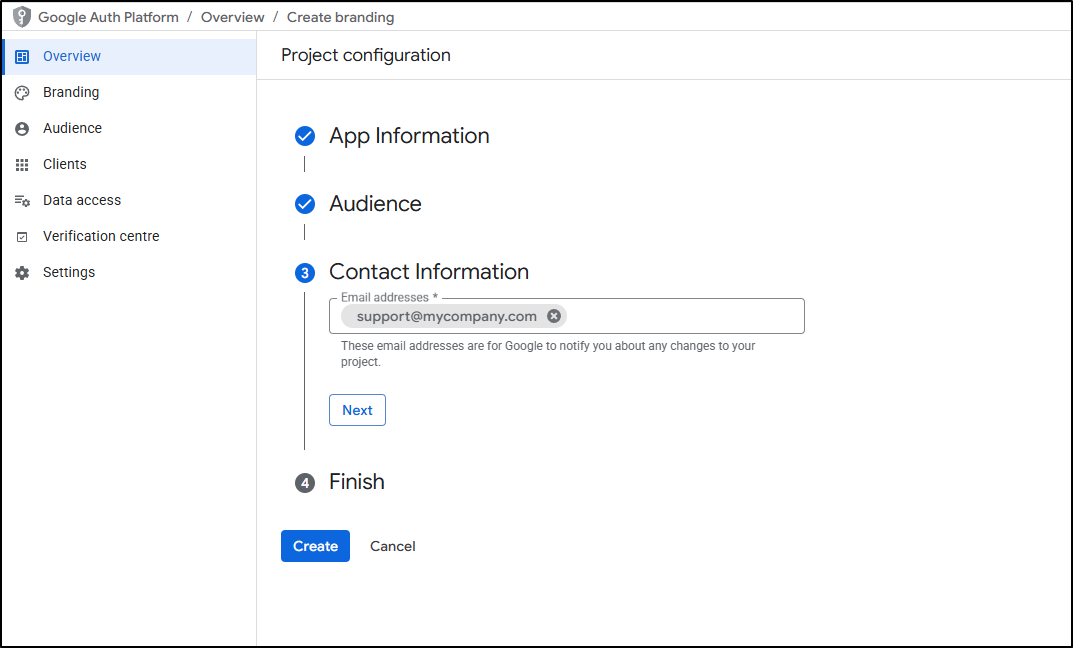
* Enter the contact name (this contact is notified of changes made to the application)

<figure><img src="https://3573604317-files.gitbook.io/~/files/v0/b/gitbook-x-prod.appspot.com/o/spaces%2FuUCcURk2xlvtpVGbiRZf%2Fuploads%2FsE8MzU4aZ4WwKjDLAOP2%2Foauth-imap-contact.png?alt=media&#x26;token=bf323344-1b12-4b46-b28a-3758a9adbd57" alt=""><figcaption><p>Application contact</p></figcaption></figure>

#### Google API Services User Data Policy <a href="#google-api-services-user-data-policy" id="google-api-services-user-data-policy"></a>

* Accept the Google API Services User Data Policy and click **`Continue`** and **`Create`**

<figure><img src="https://3573604317-files.gitbook.io/~/files/v0/b/gitbook-x-prod.appspot.com/o/spaces%2FuUCcURk2xlvtpVGbiRZf%2Fuploads%2FNYga5W5idwMKZ5cmacnb%2Foauth-imap-data-policy.png?alt=media&#x26;token=435abce4-1bdc-4b37-9ee4-d0722fc99e2b" alt=""><figcaption><p>Application finalization</p></figcaption></figure>

#### **Application Type**

You now need to create an application client that will connect Google to your GLPI instance using an application ID and a client secret.

* In the **Clients** tab, click **`Create a client`**.
* Select **Web Application** as the application type.
* Enter a name for your application.

<figure><img src="https://3573604317-files.gitbook.io/~/files/v0/b/gitbook-x-prod.appspot.com/o/spaces%2FuUCcURk2xlvtpVGbiRZf%2Fuploads%2FmWgpigLTFWlViV4NEUGo%2Foauth-sso-create-app.png?alt=media&#x26;token=2a637646-887c-4004-8c25-7933162ba417" alt=""><figcaption><p>Added the web application</p></figcaption></figure>

#### **Authorised redirect URIs**

The callback URL must be specified here. This URL is found in GLPI under **`Configuration`** > **`OAuth SSO`**.

**Getting the callback URL in GLPI**

* From **`Setup`** > **`OAuth SSO`** > **`+ Add`**
* Name your application
* Specify the **OAuth Provider**
* Click **`+ Add`**

<figure><img src="https://3573604317-files.gitbook.io/~/files/v0/b/gitbook-x-prod.appspot.com/o/spaces%2FuUCcURk2xlvtpVGbiRZf%2Fuploads%2Fti6NDN9y3FJfWwZOrIbG%2Foauth-sso-create-app-glpi.png?alt=media&#x26;token=7117f50d-3ef3-4a39-b227-1caab96fb5ba" alt=""><figcaption><p>Application creation</p></figcaption></figure>

* On the next screen, retrieve the callback URL

<figure><img src="https://3573604317-files.gitbook.io/~/files/v0/b/gitbook-x-prod.appspot.com/o/spaces%2FuUCcURk2xlvtpVGbiRZf%2Fuploads%2FiOcV73h7dRaQ4YpMkuSo%2Foauth-sso-url-callback.png?alt=media&#x26;token=b9f14a44-f2b8-43b6-9c69-2859d4f8af65" alt=""><figcaption><p>Retrieving the callback URL</p></figcaption></figure>

* Copy and paste this URL into your Google app.

<div align="left"><figure><img src="https://3573604317-files.gitbook.io/~/files/v0/b/gitbook-x-prod.appspot.com/o/spaces%2FuUCcURk2xlvtpVGbiRZf%2Fuploads%2FeRqk5PG7mWCz6QBUqWwu%2Foauth-sso-authorized-uri.png?alt=media&#x26;token=d3f1e62b-0b33-405f-84cb-89e208b8f1af" alt=""><figcaption><p>Authorized URIs</p></figcaption></figure></div>

* Click **`Create`** to validate your application.

### Application Information

{% hint style="warning" %}
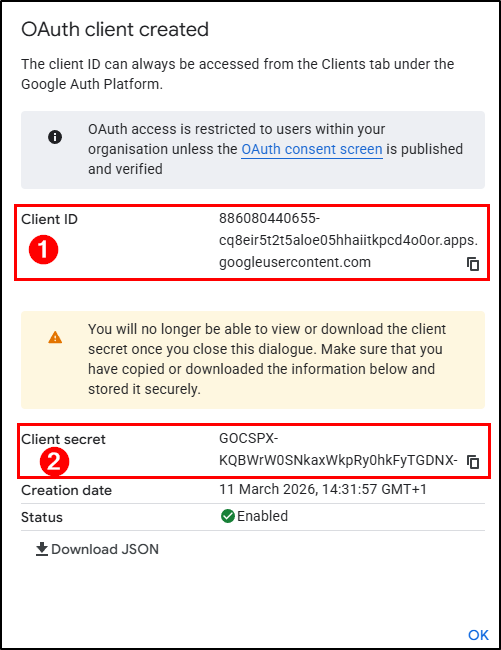
In the next step, the **client secret** will be displayed. Once you leave this screen, it will no longer be available. Remember to save it in a safe place.
{% endhint %}

The application is now created. The screen displays the application ID and client secret, which you will need to enter in GLPI.

<div align="left"><figure><img src="https://3573604317-files.gitbook.io/~/files/v0/b/gitbook-x-prod.appspot.com/o/spaces%2FuUCcURk2xlvtpVGbiRZf%2Fuploads%2FURGLou3pt3onjpLzt7FA%2Foauth-sso-secret.png?alt=media&#x26;token=3aa00129-642a-4c58-8673-3ed83411df34" alt=""><figcaption><p>Application ID and secret</p></figcaption></figure></div>

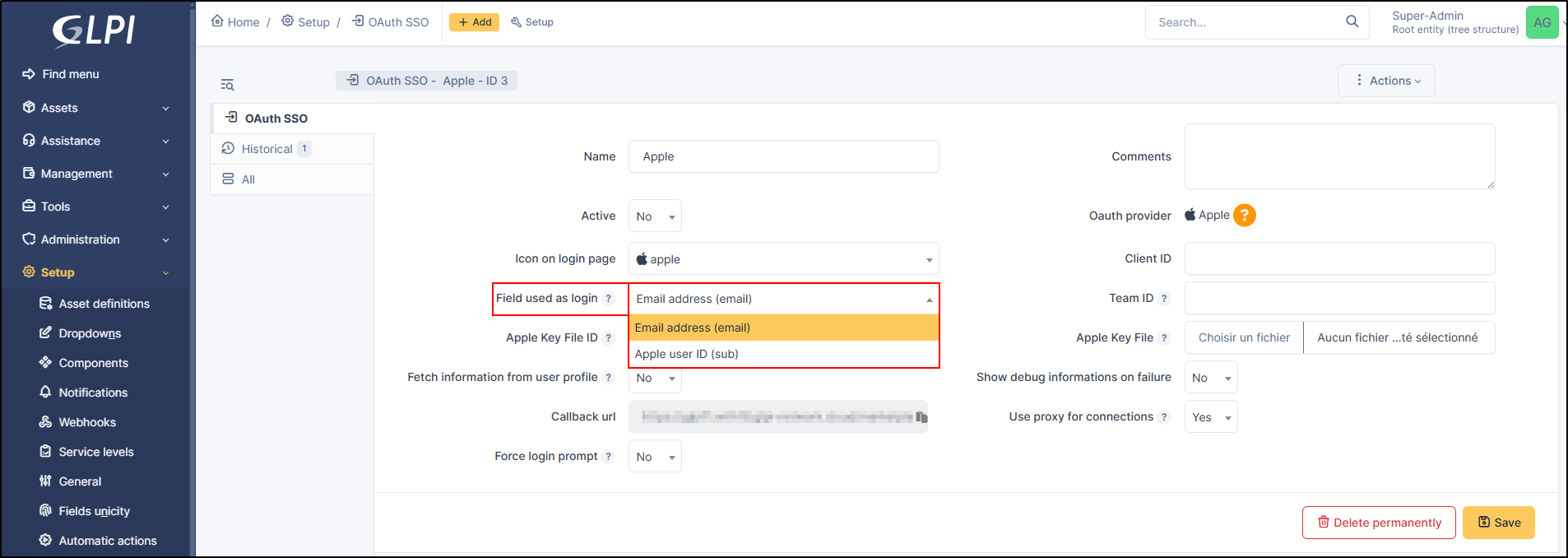
<figure><img src="https://3573604317-files.gitbook.io/~/files/v0/b/gitbook-x-prod.appspot.com/o/spaces%2FuUCcURk2xlvtpVGbiRZf%2Fuploads%2FhM2VxgTR7K1F0f7M1yJO%2Foauth-sso-config-glpi.png?alt=media&#x26;token=ef2b87a4-ee07-43b2-90a2-c10a061bdb48" alt=""><figcaption><p>ID and application secret from GLPI</p></figcaption></figure>

* Save your entry

### Optional information

If you enable fetch of profile information from OAuth single sign-on, additional information will be required for it to be visible to GLPI.

* From the **Data Access** tab, click **`Add or remove scopes`**
* Add the following levels:
  * **auth/userinfo.email**
  * **auth/userinfo.profile**
  * **openid**

<figure><img src="https://3573604317-files.gitbook.io/~/files/v0/b/gitbook-x-prod.appspot.com/o/spaces%2FuUCcURk2xlvtpVGbiRZf%2Fuploads%2FrroKTBkLbO3ji2F5NUKy%2Foauth-sso-scope.png?alt=media&#x26;token=92f0ff43-7c1f-4a09-ba65-a7743fcb4a78" alt=""><figcaption><p>Scopes adding</p></figcaption></figure>

* From the home page, the new Oauth SSO login option will be visible:

<figure><img src="https://3573604317-files.gitbook.io/~/files/v0/b/gitbook-x-prod.appspot.com/o/spaces%2FuUCcURk2xlvtpVGbiRZf%2Fuploads%2Fgit-blob-ca2da70f06aa8758b2009503437ab6d3b4754107%2Foauth-sso-google-11.png?alt=media" alt="images/oauth-sso-google-11.png"><figcaption><p>GLPI homepage with OAuth SSO</p></figcaption></figure>

{% hint style="info" %}
The first time a user logs on, they will be asked to accept access authorisations for their profile
{% endhint %}

***

## OKTA

### Create application

* First, go to GLPI and download the Oauthsso plugin
* Navigate to the **Setup > Oauth SSO applications**
* Click on **Add**

<div align="left"><figure><img src="https://3573604317-files.gitbook.io/~/files/v0/b/gitbook-x-prod.appspot.com/o/spaces%2FuUCcURk2xlvtpVGbiRZf%2Fuploads%2Fgit-blob-66468a86f153e388333c2564b0981d799dcacbe7%2Fokta-2.png?alt=media" alt="images/okta-2.png"><figcaption></figcaption></figure></div>

* Keep this window active and retain the callback URL :

<figure><img src="https://3573604317-files.gitbook.io/~/files/v0/b/gitbook-x-prod.appspot.com/o/spaces%2FuUCcURk2xlvtpVGbiRZf%2Fuploads%2Fgit-blob-273cdbff8b0bbb2225b6394c8ee9a2e0fffa1bb2%2Fokta-3.png?alt=media" alt="images/okta-3.png"><figcaption></figcaption></figure>

* In your OKTA interface, go to **Applications**
* **Create App Integration**

<figure><img src="https://3573604317-files.gitbook.io/~/files/v0/b/gitbook-x-prod.appspot.com/o/spaces%2FuUCcURk2xlvtpVGbiRZf%2Fuploads%2Fgit-blob-e268ac9635db22fbb4cd85804d6901cc9245d737%2Fokta-4.png?alt=media" alt="images/okta-4.png"><figcaption></figcaption></figure>

* Select option **OIDC -- OpenID Connect** in the 1st insert and **Web Application** in the second
* Click on **Next**

<figure><img src="https://3573604317-files.gitbook.io/~/files/v0/b/gitbook-x-prod.appspot.com/o/spaces%2FuUCcURk2xlvtpVGbiRZf%2Fuploads%2Fgit-blob-81e38eec5347bc398301a0a7a8de5b1269f59894%2Fokta-5.png?alt=media" alt="images/okta-5.png"><figcaption></figcaption></figure>

* Enter an application name and check the box **Client credentials**

<div align="left"><figure><img src="https://3573604317-files.gitbook.io/~/files/v0/b/gitbook-x-prod.appspot.com/o/spaces%2FuUCcURk2xlvtpVGbiRZf%2Fuploads%2Fgit-blob-e4713bf968bd7b30411e50812624540c9ed19fd2%2Fokta-6.png?alt=media" alt="images/okta-6.png"><figcaption></figcaption></figure></div>

* Enter the return URL, retrieved above, in Sign-in redirect URIs.

<figure><img src="https://3573604317-files.gitbook.io/~/files/v0/b/gitbook-x-prod.appspot.com/o/spaces%2FuUCcURk2xlvtpVGbiRZf%2Fuploads%2Fgit-blob-dea99a31efd53148545722566b1e30260db2535b%2Fokta-7.png?alt=media" alt="images/okta-7.png"><figcaption></figcaption></figure>

### Assignments

* In the last box, select the option that suits you best (here we authorize all users present in OKTA)
* Finally, click on **Save**

<figure><img src="https://3573604317-files.gitbook.io/~/files/v0/b/gitbook-x-prod.appspot.com/o/spaces%2FuUCcURk2xlvtpVGbiRZf%2Fuploads%2Fgit-blob-b3433f868c1e7c7636dfad8569d575f27f516e50%2Fokta-8.png?alt=media" alt="images/okta-8.png"><figcaption></figcaption></figure>

### Setup GLPI

* In GLPI, go back to the Oauth SSO plugin configuration window and enter your OKTA tenant information :

<figure><img src="https://3573604317-files.gitbook.io/~/files/v0/b/gitbook-x-prod.appspot.com/o/spaces%2FuUCcURk2xlvtpVGbiRZf%2Fuploads%2Fgit-blob-87cf4a5e8d460f4ce5c67f264ba82b8b6ecf9cc6%2Fokta-9.png?alt=media" alt="images/okta-9.png"><figcaption></figcaption></figure>

1. Give your provider a name, which will appear on the login page.
2. Indicate this as active
3. Enter OKTA as provider Oauth
4. Enter the application ID found in the application previously created in OKTA

<div align="left"><figure><img src="https://3573604317-files.gitbook.io/~/files/v0/b/gitbook-x-prod.appspot.com/o/spaces%2FuUCcURk2xlvtpVGbiRZf%2Fuploads%2Fgit-blob-6268efac85494a9dec1ba9c9cf15cd2be762f2ce%2Fokta-10.png?alt=media" alt="images/okta-10.png"><figcaption></figcaption></figure></div>

1. Specify the ID field to be mapped with OKTA
2. Specify the customer secret available in OKTA in the previously created application

<div align="left"><figure><img src="https://3573604317-files.gitbook.io/~/files/v0/b/gitbook-x-prod.appspot.com/o/spaces%2FuUCcURk2xlvtpVGbiRZf%2Fuploads%2Fgit-blob-6f64766aad9d09b79b4b7f39ac4557af8ac87d57%2Fokta-11.png?alt=media" alt="images/okta-11.png"><figcaption></figcaption></figure></div>

7. Enter the name of your OKTA instance ([https://XXXXXXXXX.okta.com](https://xxxxxxxxx.okta.com)), available in the account creation confirmation e-mail.

* Click on **Add**
* In the plugin, you will see the approval message:

<div align="left"><figure><img src="https://3573604317-files.gitbook.io/~/files/v0/b/gitbook-x-prod.appspot.com/o/spaces%2FuUCcURk2xlvtpVGbiRZf%2Fuploads%2Fgit-blob-55f789719581c2739dc9240a7aebd8e6bb152fe9%2Fokta-12.png?alt=media" alt="images/okta-12.png"><figcaption></figcaption></figure></div>

Now that the configuration is complete, you can test it with a user.

<figure><img src="https://3573604317-files.gitbook.io/~/files/v0/b/gitbook-x-prod.appspot.com/o/spaces%2FuUCcURk2xlvtpVGbiRZf%2Fuploads%2Fgit-blob-56137925150223a6cfcf5000269a0cb81a826535%2Fokta-13.png?alt=media" alt="images/okta-13.png"><figcaption></figcaption></figure>

<figure><img src="https://3573604317-files.gitbook.io/~/files/v0/b/gitbook-x-prod.appspot.com/o/spaces%2FuUCcURk2xlvtpVGbiRZf%2Fuploads%2Fgit-blob-8dbfd53bb90527c589d73533e2497e6d939d8fdd%2Fokta-14.png?alt=media" alt="images/okta-14.png"><figcaption></figcaption></figure>

***

## Keycloak

### Create a REALM

* After installing keycloak, go to the admin console:

[http://XXXXXXXXXX:8080/admin](http://xxxxxxxxxx:8080/admin) or [https://XXXXXXXXXX:8080/admin](https://xxxxxxxxxx:8080/admin)

* Create your **realm** by clicking on **master** at the top left of your screen
* Then **create Realm**
* Give it a name that suits you
* Click on **Create**

<div align="left"><figure><img src="https://3573604317-files.gitbook.io/~/files/v0/b/gitbook-x-prod.appspot.com/o/spaces%2FuUCcURk2xlvtpVGbiRZf%2Fuploads%2Fgit-blob-d50282c9fa4af4b0b9713348db8e4caf9f55a064%2Fkeycloak-2.png?alt=media" alt="images/keycloak-2.png"><figcaption></figcaption></figure></div>

### Create user

* Then go to the **Users** tab
* Then **Create new user** (we'll use a local user, but you can synchronize your LDAP if necessary)

<div align="left"><figure><img src="https://3573604317-files.gitbook.io/~/files/v0/b/gitbook-x-prod.appspot.com/o/spaces%2FuUCcURk2xlvtpVGbiRZf%2Fuploads%2Fgit-blob-00c0743504cefa4a077ddab875eae2c2e6a17dda%2Fkeycloak-3.png?alt=media" alt="images/keycloak-3.png"><figcaption></figcaption></figure></div>

* Create your user according to your needs, remembering to check the Email verified box
* Click on **Create** once you've entered your details.

<figure><img src="https://3573604317-files.gitbook.io/~/files/v0/b/gitbook-x-prod.appspot.com/o/spaces%2FuUCcURk2xlvtpVGbiRZf%2Fuploads%2Fgit-blob-da3cfc4381b90e8ae5b6c4c4919968aeda5c9fa8%2Fkeycloak-4.png?alt=media" alt="images/keycloak-4.png"><figcaption></figcaption></figure>

* Stay in your user file and click on **Credentials**
* Then **Set pasword**

<figure><img src="https://3573604317-files.gitbook.io/~/files/v0/b/gitbook-x-prod.appspot.com/o/spaces%2FuUCcURk2xlvtpVGbiRZf%2Fuploads%2Fgit-blob-4bba8fc52554de9835852f9a6b0fc81b7289b5ad%2Fkeycloak-5.png?alt=media" alt="images/keycloak-5.png"><figcaption></figcaption></figure>

* Configure the user password, taking care to indicate that the password is not temporary
* Click on save then **Save password**

<figure><img src="https://3573604317-files.gitbook.io/~/files/v0/b/gitbook-x-prod.appspot.com/o/spaces%2FuUCcURk2xlvtpVGbiRZf%2Fuploads%2Fgit-blob-f47479eede5c082e488cf1a61331e2f89f3c75ca%2Fkeycloak-6.png?alt=media" alt="images/keycloak-6.png"><figcaption></figcaption></figure>

You can check that your configuration is correct by logging on to the user account console:

[http://XXXXXXXXXXX/realms/GLPI/account/#/](http://xxxxxxxxxxx/realms/GLPI/account/#/) or [https://XXXXXXXXXXX/realms/GLPI/account/#/](https://xxxxxxxxxxx/realms/GLPI/account/#/)

(Remember to adapt the realm name if you haven't named it GLPI).

You will then be able to connect to the record of the previously created user or one of your LDAP users.

### Create client

Now we can register our GLPI application with Keycloak

* Go to **Clients**
* Create client

<figure><img src="https://3573604317-files.gitbook.io/~/files/v0/b/gitbook-x-prod.appspot.com/o/spaces%2FuUCcURk2xlvtpVGbiRZf%2Fuploads%2Fgit-blob-749a11a5b1a4493071a8ee2bb93f40cb382ea35e%2Fkeycloak-7.png?alt=media" alt="images/keycloak-7.png"><figcaption></figcaption></figure>

* Give your application a client ID, which you'll need to pass on to your GLPI Oauth SSO configuration
* Click on next and make sure on the next page that the **standard flow** and **client authentication** options are active
* Click on **Save**

Keep this page active, we'll come back to it later.

<figure><img src="https://3573604317-files.gitbook.io/~/files/v0/b/gitbook-x-prod.appspot.com/o/spaces%2FuUCcURk2xlvtpVGbiRZf%2Fuploads%2Fgit-blob-5226b70073a31f435d7539425b38bb13d0c73e9c%2Fkeycloak-8.png?alt=media" alt="images/keycloak-8.png"><figcaption></figcaption></figure>

### Setup GLPI

* Go to GLPI
* In **Setup > Oauth SSO applications click on add** (at the top of your screen)

<figure><img src="https://3573604317-files.gitbook.io/~/files/v0/b/gitbook-x-prod.appspot.com/o/spaces%2FuUCcURk2xlvtpVGbiRZf%2Fuploads%2Fgit-blob-83efc13174a745cf8d0a79a34d557bcec6cab062%2Fkeycloak-10.png?alt=media" alt="images/keycloak-10.png"><figcaption></figcaption></figure>

* Start by retrieving the return URL and pasting it into Keycloak's **valid redirect URIs** field

<figure><img src="https://3573604317-files.gitbook.io/~/files/v0/b/gitbook-x-prod.appspot.com/o/spaces%2FuUCcURk2xlvtpVGbiRZf%2Fuploads%2Fgit-blob-3aa789b876ded419ab28cdb30d79d3ac85224d93%2Fkeycloak-11.png?alt=media" alt="images/keycloak-11.png"><figcaption></figcaption></figure>

* Back in GLPI's Oauth SSO plugin configuration, fill in the required fields:

<figure><img src="https://3573604317-files.gitbook.io/~/files/v0/b/gitbook-x-prod.appspot.com/o/spaces%2FuUCcURk2xlvtpVGbiRZf%2Fuploads%2Fgit-blob-45048bc5e18a9c8114eff4cfdd389fb0f9fc8ec9%2Fkeycloak-12.png?alt=media" alt="images/keycloak-12.png"><figcaption></figcaption></figure>

1. Give your provider a name, which will appear on the login page for users
2. Activate this plugin so that it is visible and usable on the login page
3. Choose Keycloak as your Oauth provider
4. Enter the client name set above
5. Retrieve client secret from Keycloak (client, client\_name, credentials)

<figure><img src="https://3573604317-files.gitbook.io/~/files/v0/b/gitbook-x-prod.appspot.com/o/spaces%2FuUCcURk2xlvtpVGbiRZf%2Fuploads%2Fgit-blob-1c23dba2ab7ab93e1daf7ace5769d2231522f425%2Fkeycloak-13.png?alt=media" alt="images/keycloak-13.png"><figcaption></figcaption></figure>

6. Enter the discovery URL: <http://mondomaine/realms/monrealms/.well-known/openid-configuration>.

* Click on **Add**

In the plugin, to see the approval message:

<figure><img src="https://3573604317-files.gitbook.io/~/files/v0/b/gitbook-x-prod.appspot.com/o/spaces%2FuUCcURk2xlvtpVGbiRZf%2Fuploads%2Fgit-blob-67db1780c0a04094cb6e1311ebfd3b12127f24cc%2Fkeycloak-14.png?alt=media" alt="images/keycloak-14.png"><figcaption></figcaption></figure>

Now that configuration is complete, you can test the connection with the user you created earlier, or with your LDAP user.

<figure><img src="https://3573604317-files.gitbook.io/~/files/v0/b/gitbook-x-prod.appspot.com/o/spaces%2FuUCcURk2xlvtpVGbiRZf%2Fuploads%2Fgit-blob-9cba8ed46a4c458c8097b880c59c0ecae043b2c6%2Fkeycloak-15.png?alt=media" alt="images/keycloak-15.png"><figcaption></figcaption></figure>

<figure><img src="https://3573604317-files.gitbook.io/~/files/v0/b/gitbook-x-prod.appspot.com/o/spaces%2FuUCcURk2xlvtpVGbiRZf%2Fuploads%2Fgit-blob-566c4d8d887604965282e52d892bfb15850ef0fc%2Fkeycloak-16.png?alt=media" alt="images/keycloak-16.png"><figcaption></figcaption></figure>

<figure><img src="https://3573604317-files.gitbook.io/~/files/v0/b/gitbook-x-prod.appspot.com/o/spaces%2FuUCcURk2xlvtpVGbiRZf%2Fuploads%2Fgit-blob-f62cbd6ee026f7608f714a75f580366a61b0a61e%2Fkeycloak-17.png?alt=media" alt="images/keycloak-17.png"><figcaption></figcaption></figure>

***

## Rules for assigning authorisations

Remember that Oauth SSO authentication allows **only authentication**, in the sense that no user management is carried out following authentication.

In most cases, it will therefore be necessary to establish rules for assigning authorisations to your users (to give them a profile, for example).

* To do this, go to **Administration > Rules > Rules for assigning authorisations to a user**.

There are no 'mandatory' rules, it's up to you to create the rule(s) that you feel best suit your needs according to your available criteria.

For example, a very simple rule

* A very simple rule -> *I want my users with SSO authentication to obtain the Self-Service profile*.

So I set my criteria and my action :

<figure><img src="https://3573604317-files.gitbook.io/~/files/v0/b/gitbook-x-prod.appspot.com/o/spaces%2FuUCcURk2xlvtpVGbiRZf%2Fuploads%2Fgit-blob-a9bfeee51db5d9ee9ba45c67a4b38af124660af8%2Foauhtsso-7.png?alt=media" alt="images/oauhtsso-7.png"><figcaption></figcaption></figure>

***

## Forcing SSO authentication

Using the Oauth SSO application configuration, you can mask the internal database connection field to **force** the connection with your SSO application

(setup > Oauth SSO applications > setup)

<figure><img src="https://3573604317-files.gitbook.io/~/files/v0/b/gitbook-x-prod.appspot.com/o/spaces%2FuUCcURk2xlvtpVGbiRZf%2Fuploads%2Fgit-blob-75aa2a23908e3900e802b5b701d7468bd6ca4af9%2Foauth-Entra-11.png?alt=media" alt="images/oauth-Entra-11.png"><figcaption></figcaption></figure>

***

## Resources

* [Documentation Oauth SSO client for GLPI](https://services.glpi-network.com/documentation/1731/file/README.md)
* [Documentation Microsoft Configure your App Service Or Entra Functions app to use Entra AD login](https://learn.microsoft.com/en-us/azure/app-service/configure-authentication-provider-aad?tabs=workforce-tenant)
* [Documentation OKTA Configure single Sign-On options](https://help.okta.com/oie/en-us/content/topics/apps/apps_overview_of_managing_apps_and_sso.htm)
* [Documentation Keycloak Managing OpenID connect Clients](https://www.keycloak.org/docs/latest/server_admin/#_oidc_clients)

***

## FAQ

If you have any questions about using the plugin, please consult our FAQ

<a href="https://app.gitbook.com/s/SvoJ3lioglS2UZLcWWyP/plugins/authentication-and-sso" class="button secondary">Go to FAQ</a>