> For the complete documentation index, see [llms.txt](https://help.glpi-project.org/llms.txt). Markdown versions of documentation pages are available by appending `.md` to page URLs; this page is available as [Markdown](https://help.glpi-project.org/doc-plugins/plugin-glpi-network/scim.md).
# SCIM
## Requirements (self-hosted)
| GLPI Version | Minimum PHP | Recommended |
| ------------ | ----------- | ----------- |
| 11.0.x | 8.2 | 8.4 |
| 12.0.X | 8.3 | 8.5 |
{% hint style="info" %}
A [GLPI Network BASIC](https://services.glpi-network.com/#offers) subscription (or higher) is required. This plugin is also available for all GLPI Network [Cloud instances](https://glpi-network.cloud).
{% endhint %}
{% hint style="danger" %}
The SCIM API endpoint provided by the plugin must be accessible from the identity provider. If we talk about Azure or Okta, this particular URL should be available from the internet. We suggest strongly to limit the IP addresses that can access this URL (in addition of adding a strong authentication method).
{% endhint %}
***
## Password/SSO
Although it's mentioned in the [SCIM specifications](https://datatracker.ietf.org/doc/html/rfc7643#section-9.2), password sync is not always available depending on the provider:
* Azure: [not available](https://learn.microsoft.com/en-us/answers/questions/1113754/azure-ad-scim-provisioning-how-to-sync-passwords)
* Okta: [available](https://developer.okta.com/docs/concepts/scim/#sync-passwords)
{% hint style="danger" %}
Instead of pushing passwords, we strongly recommend that you use [OAuth SSO](https://glpi-plugins.readthedocs.io/en/latest/oauthsso/index.html) to connect your users to GLPI
{% endhint %}
***
## Install the plugin
* From the marketplace, download the **SCIM** plugin
***
## Setup GLPI
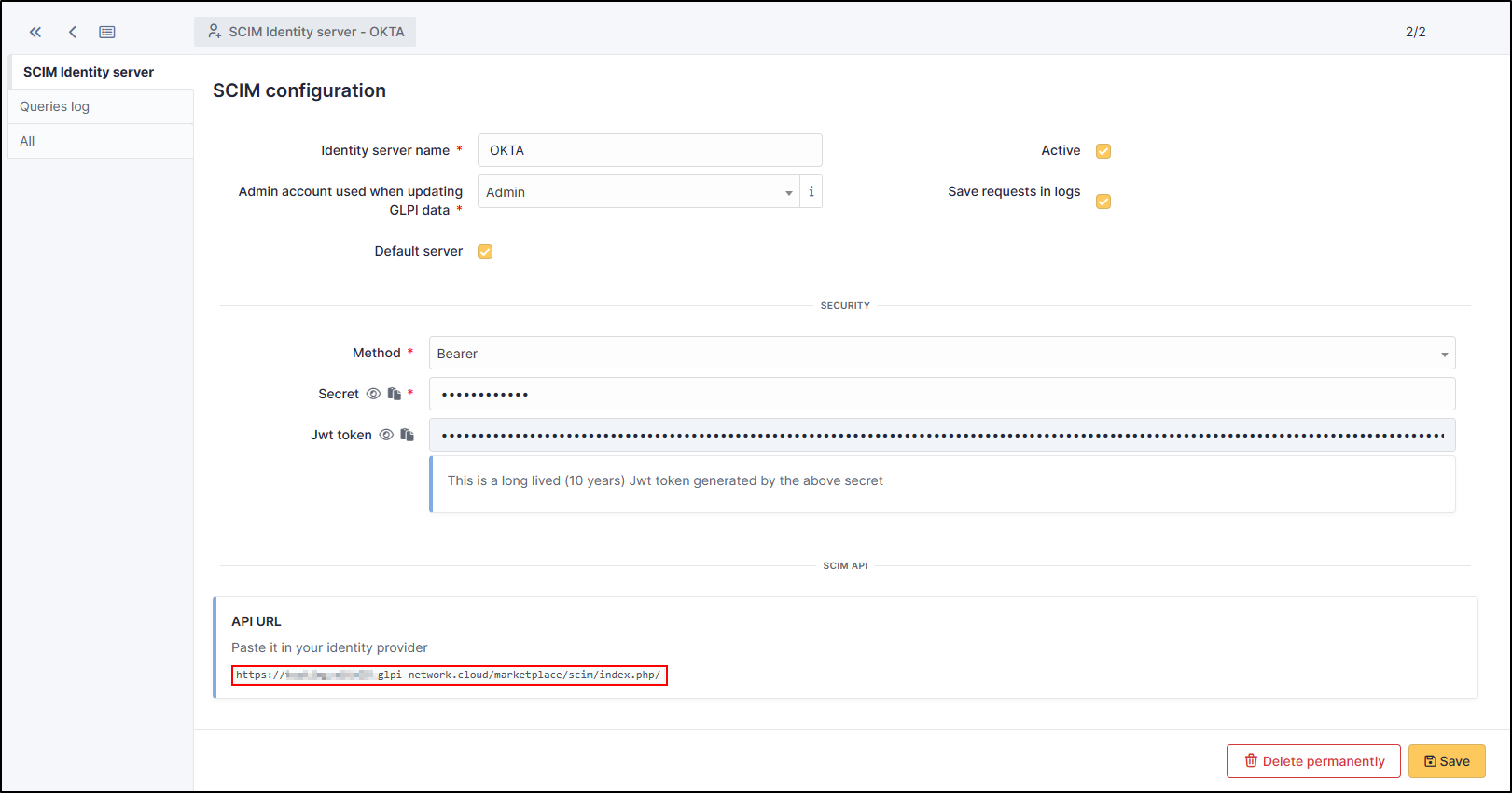
You must declare an identity server in the plugin configuration (You can add any number).
* Go to your instance GLPI
* Select **`Setup`** > **`SCIM Identity servers`**
* Click **`+ Add`**
* Add a name
* Select the admin account who can update your GLPI's datas
* Click **`Activate`**
* Select the **Baerer** method
* click **`+ Add`**
* You can see now the API URL
{% hint style="info" %}
For Azure, the awaited secret is a long life valid jwt token. We cannot use an oauth exchange (Azure doesn't ask for an authorize URL). So in GLPI, setup you SCIM server with **Bearer** security and paste the JWT token from GLPI in the **Secret token** field of Azure.
{% endhint %}
{% hint style="warning" %}
Make sure you **paste the token (Jwt token)** to ensure your application works properly.
{% endhint %}
You'll be given an API URL you may paste into your identity provider configuration. Check the [specific provider documentation](#providers) for more details.
You may set some optional parameters :
* **Save requests in logs**: if checked, all requests will be saved in the "Historical" tab of your declared server.
* **Default server**: if checked, this server will be used by default without providing it's ID in the API URL.
* **Security**: a dropdown of available security methods. Currently implemented:
* **None**: no security, anyone can access the API.
* **Basic**: HTTP Basic authentication. You must provide a username and a password.
* **Digest**: HTTP Digest authentication. You must provide a username and a password.
* **Bearer**: HTTP Bearer authentication. A long lived (10 years) JWT token will be generated.
* **OAuth2**: OAuth2 authentication. You must provide at least a valid redirection URI. We support the following flows:
* Authorization code.
* Client credentials.
Your SCIM server is now ready to receive requests from your identity provider.
***
## Entra
### References
* [Use SCIM to provision users and groups](https://learn.microsoft.com/en-us/entra/identity/app-provisioning/use-scim-to-provision-users-and-groups#integrate-your-scim-endpoint-with-the-azure-ad-provisioning-service)
### Setup
### Create application
* Connect to your [Azure portal](https://aad.portal.azure.com/)
* Click on **`Add`**
* then **Enterprise application**.
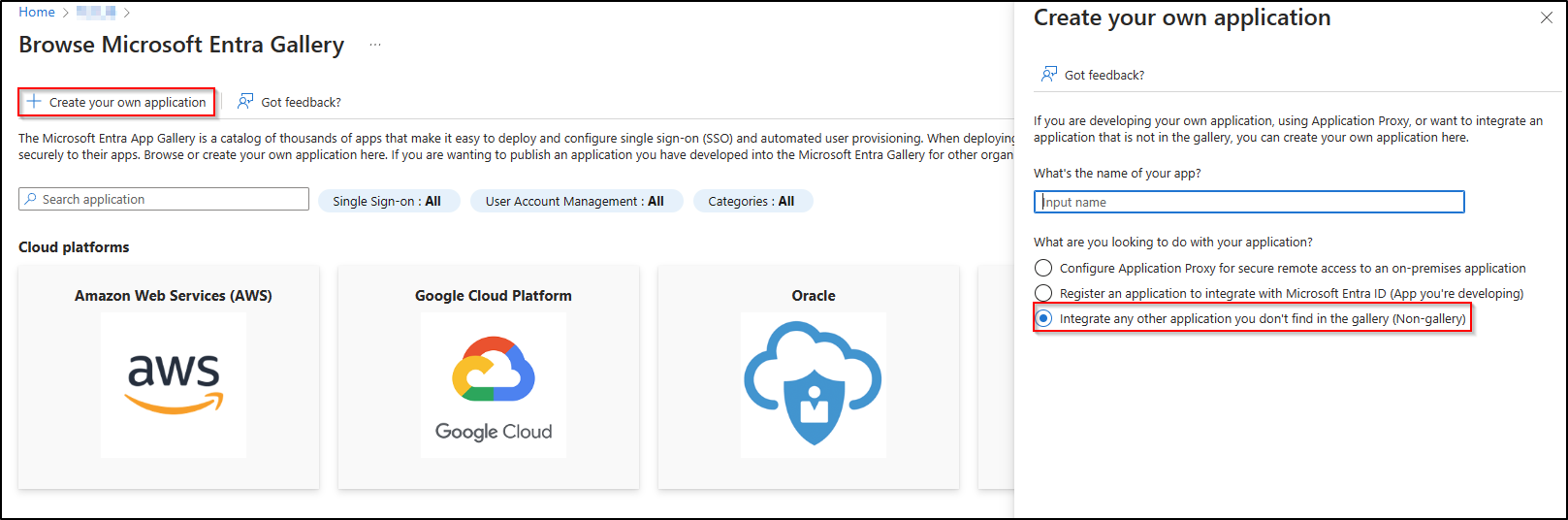
* Click on **`Create your application`**.
* In the section that appears on the right, enter the name of your application and choose the 3rd option **\`integrate any other application don't find in the gallery\`**.
### Setup the application
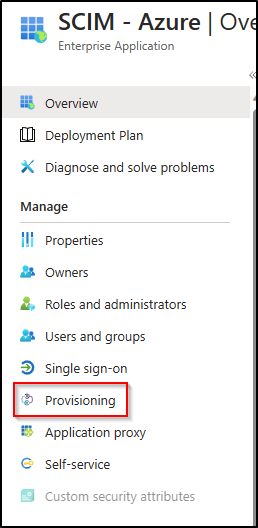
* Once you've created your application, go to **Provisioning**.
* Select **Automatic**.
* Specify the **URL** [generated earlier](https://github.com/glpi-network/gitbook/tree/main/documentation/setup_plugin.html) from GLPI and paste the **token**.
{% hint style="warning" %}
Make sure you **paste the token (JWT token)** to ensure your application works properly.
{% endhint %}
Setup SCIM on GLPI
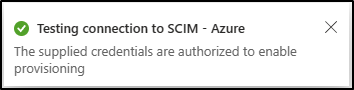
* Click on Test connection. A message will appear informing you of the successful connection.
* On the same page, you can also configure an email address and a number in case of failure or accidental deletions.
* Click on **`Save`**
### Synchronising all users
* You can choose to synchronise your entire directory.
* Go to the **`Settings`** > **`Scope`** tab and select **`Sync all users and groups`**.
### Synchronising selected groups and users (default option)
{% hint style="info" %}
**Group synchronization** requires a specific license. Please verify that your license is compatible in order to use this option.
{% endhint %}
* You can choose to synchronise only certain groups and/or users. When refreshing the **\`Provisioning\`** page
* Go to the **`Parameters`** > **`Scope`** tab
* Select **`Synchronise assigned users and groups only`**
* Then go to **Users and groups**
* Click on **`Add a user/group`**
* Click on **No selection**
* Select the groups and users you want in the box on the right
* Then **`Select`** and **`Assign`**.
***
### Activate provisioning
* In the **Provisioning** section
* Change the status from **Disabled** to **Enabled**
***
### Check synchronisation status
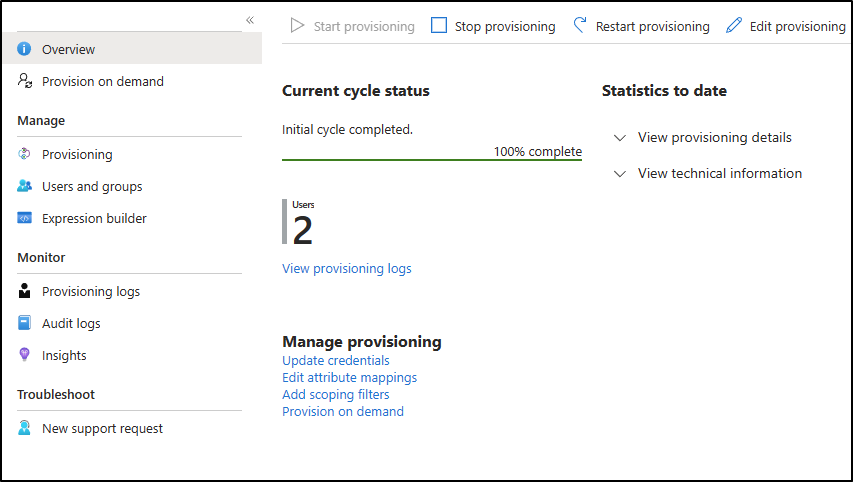
* In the **Overview** section, you can check that synchronisation has been successful.
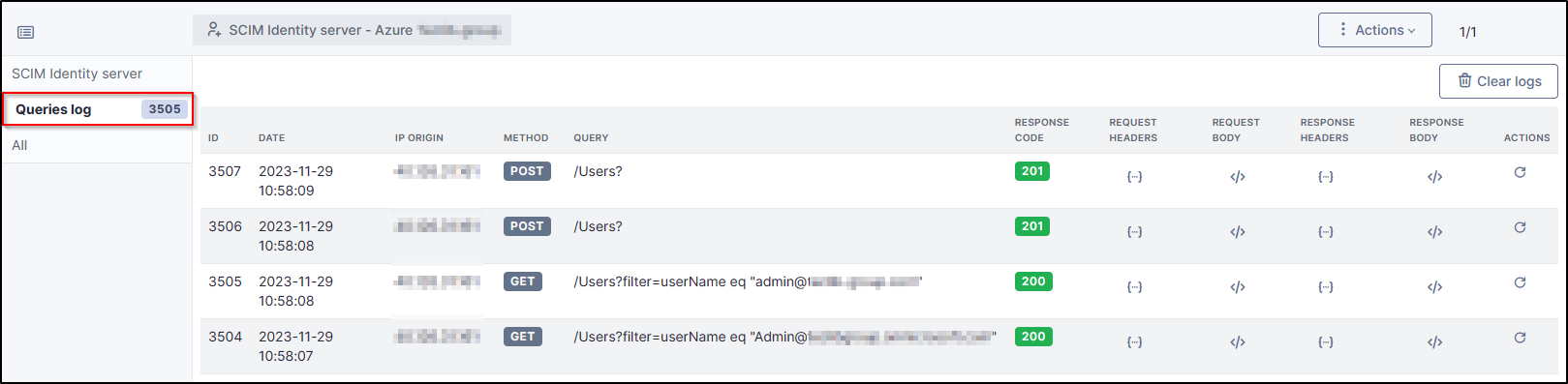
* On the GLPI side, Go to the **Request log** section of your SCIM plugin **Setup** > **SCIM identity servers** to check that the accounts are correctly synchronised.
{% hint style="danger" %}
See the procedure for setting up the [OAuth SSO](https://glpi-plugins.readthedocs.io/en/latest/oauthsso/entra.html) plugin to authenticate users on GLPI.
{% endhint %}
***
## OKTA
### References
* [Understanding SCIM](https://developer.okta.com/docs/concepts/scim/)
* [Add SCIM provisioning to app integrations](https://help.okta.com/en-us/Content/Toimages/Apps/Apps_App_Integration_Wizard_SCIM.htm)
* [Assign applications to users](https://help.okta.com/en-us/Content/Toimages/users-groups-profiles/usgp-assign-apps.htm)
### Create application
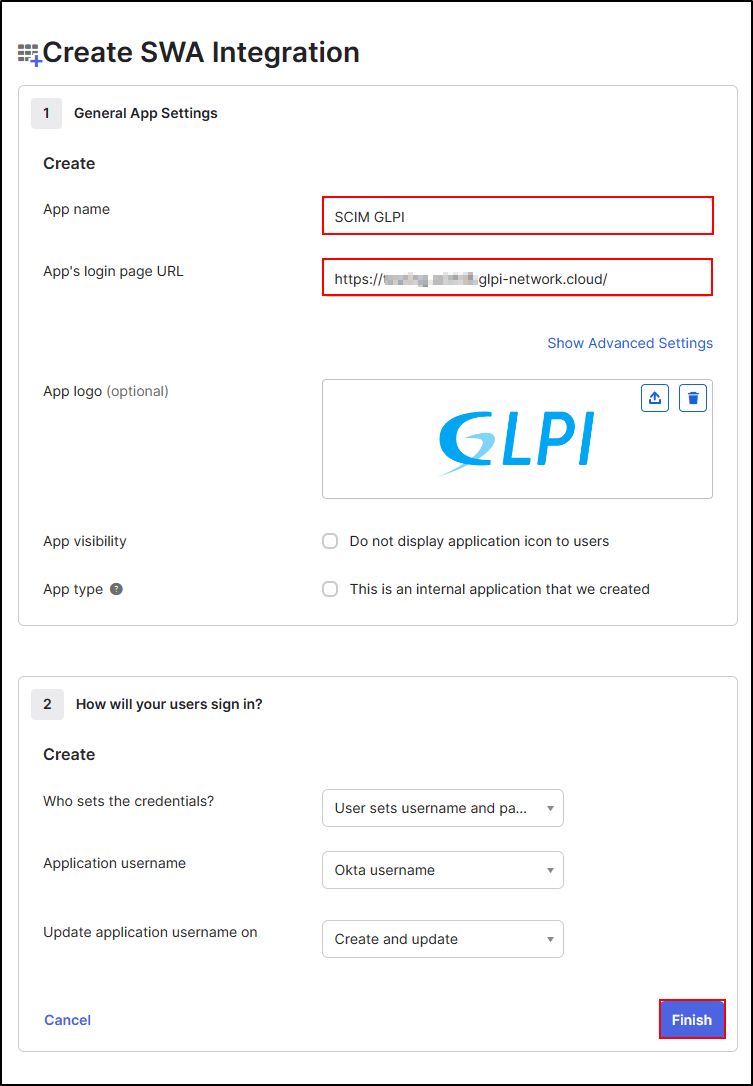
* From your [OKTA portal](https://login.okta.com/)
* Click on **Applications**
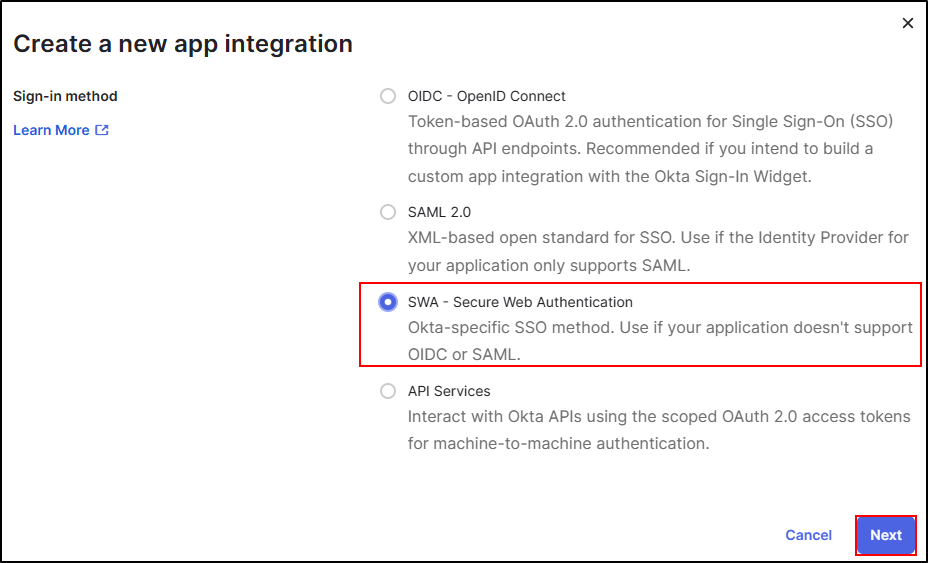
* And **Create app integration**
* Select **SWA - Secure Web Authentication**
* Add a name to your application
* Add the URL of your GLPI instance (this will redirect your user to your GLPI if this application is avaiblable to the OKTA user portal)
* Click **Finish**
### Setup the application
* Go back to **General**
* Click **`Edit`**
* Name the label
* Select SCIM to activate the service
* Click **`Save`**
To setup the provisioning, you need to setup GLPI. Refer to [setup GLPI](https://github.com/glpi-network/gitbook/tree/main/documentation/setup_plugin.html) to configure **URL API** and **JWT Token**
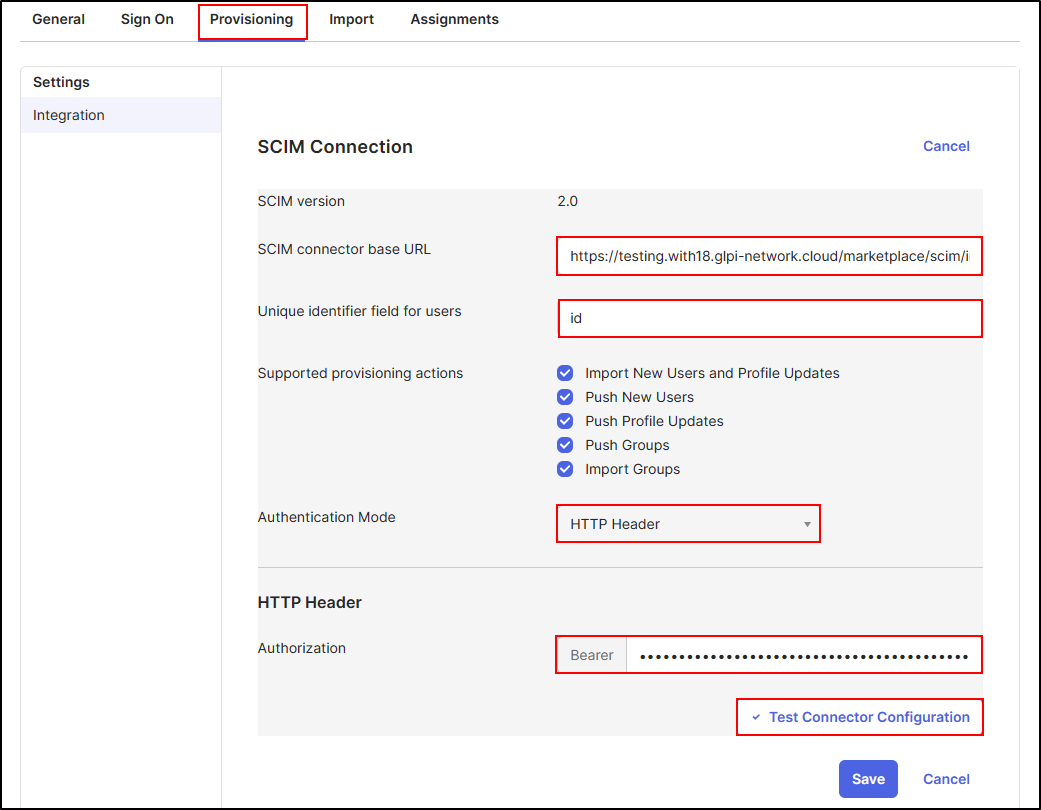
* Copy the **API URL** and the **JWT token**, you need to paste this information in OKTA.
* Go back to your OKTA application
* Paste the API URL
* Select the Unique identifier field for users (*name.familyName, phoneNumber, name.givenName, id, userName, email,* etc. This will be the method to authenticate the users)
* Select the actions which can be supported
* Select **HTTP Header**
* Paste the **JWT token**
{% hint style="danger" %}
You need to **paste the JWT token** not the secret
{% endhint %}
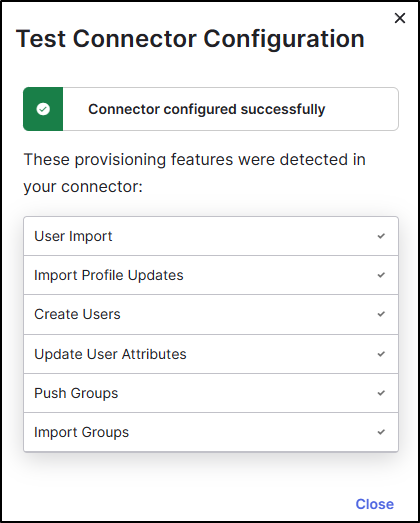
* Click **`Test Connector Configuration`**
* you can now **close** this window and **save** your configuration
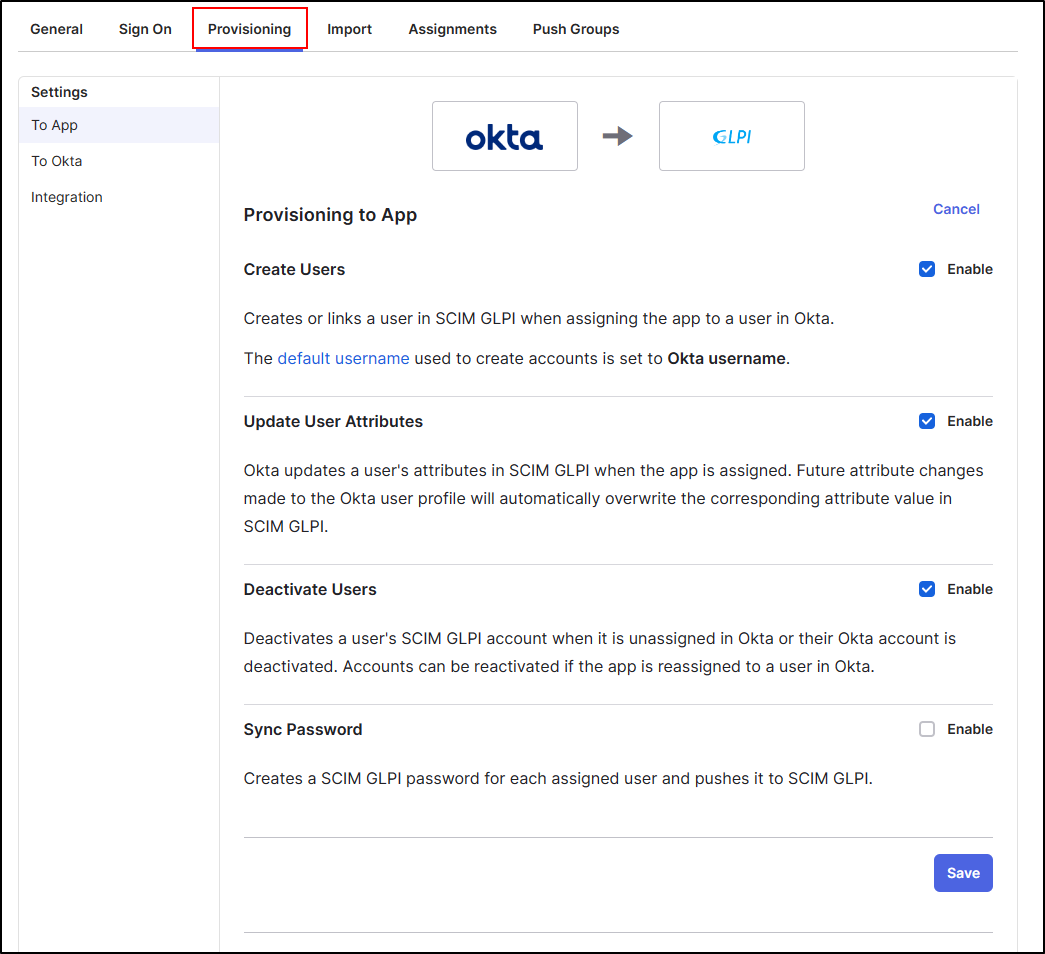
* Always in **provisioning**, you can edit and select the possible actions for updating your user data.
{% hint style="warning" %}
We recommand to unselect **Sync Password** and use [OAuth SSO](https://glpi-plugins.readthedocs.io/en/latest/oauthsso/okta.html) to authenticate your user.
{% endhint %}
The last step is to assign your application to users
### Synchronising all users
* Go to admin console
* Select **`Directory`** > **`Groups`**
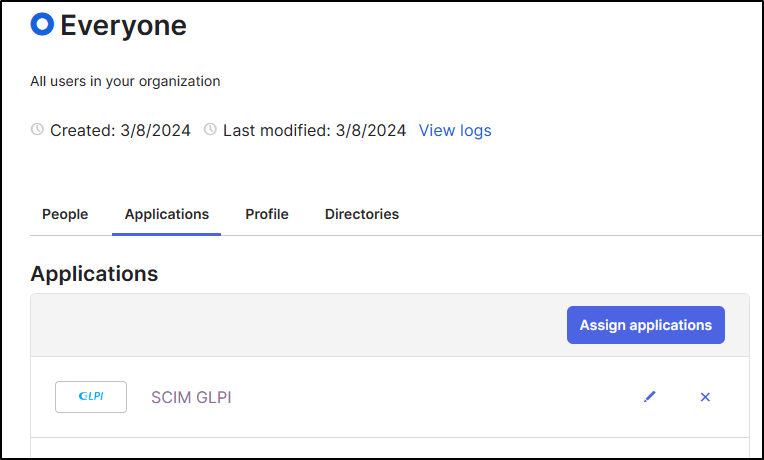
* Select **Everyone**
* In **Applications**, click **`Assign applications`**
* Click on assign on your SCIM application
* Click **`Save and Go Back`**
### Synchronising selected groups and users
* Go to admin console
* Select **`Directory`** > **`People`**
* Select the **User** you want to import
* In **`Applications`**, click **`Assign applications`**
* Click on assign on your SCIM application
* Click **`Save and Go Back`**
Repeat this step for all users and groups you want to import.
{% hint style="danger" %}
See the procedure for setting up the [OAuth SSO](https://glpi-plugins.readthedocs.io/en/latest/oauthsso/okta.html) plugin to authenticate users in GLPI.
{% endhint %}
***
## FAQ
If you have any questions about using the plugin, please consult our FAQ
Go to FAQ
---
# Agent Instructions
This documentation is published with GitBook. GitBook is the documentation platform designed so that both humans and AI agents can read, navigate, and reason over technical content effectively. Learn more at gitbook.com.
## Querying This Documentation
If you need additional information that is not directly available in this page, you can query the documentation by asking a question.
Perform an HTTP GET request on the following URL with the `ask` and `goal` query parameters:
```
GET https://help.glpi-project.org/doc-plugins/plugin-glpi-network/scim.md?ask=&goal=
```
`ask` is the immediate question: it should be specific, self-contained, and written in natural language.
`goal` is what the user is ultimately trying to achieve, the reason they need the answer. Sharing it helps GitBook give you a better, more relevant answer. A goal is most helpful when it describes the outcome the user wants rather than restating the question. For example, with `ask=how do I create an API token`, a goal like `automate deployments from our CI pipeline` lets GitBook tailor the answer to that use case.
The response will contain a direct answer to the question and relevant excerpts and sources from the documentation.
Use this mechanism when the answer is not explicitly present in the current page, you need clarification or additional context, or you want to retrieve related documentation sections.