

Entities
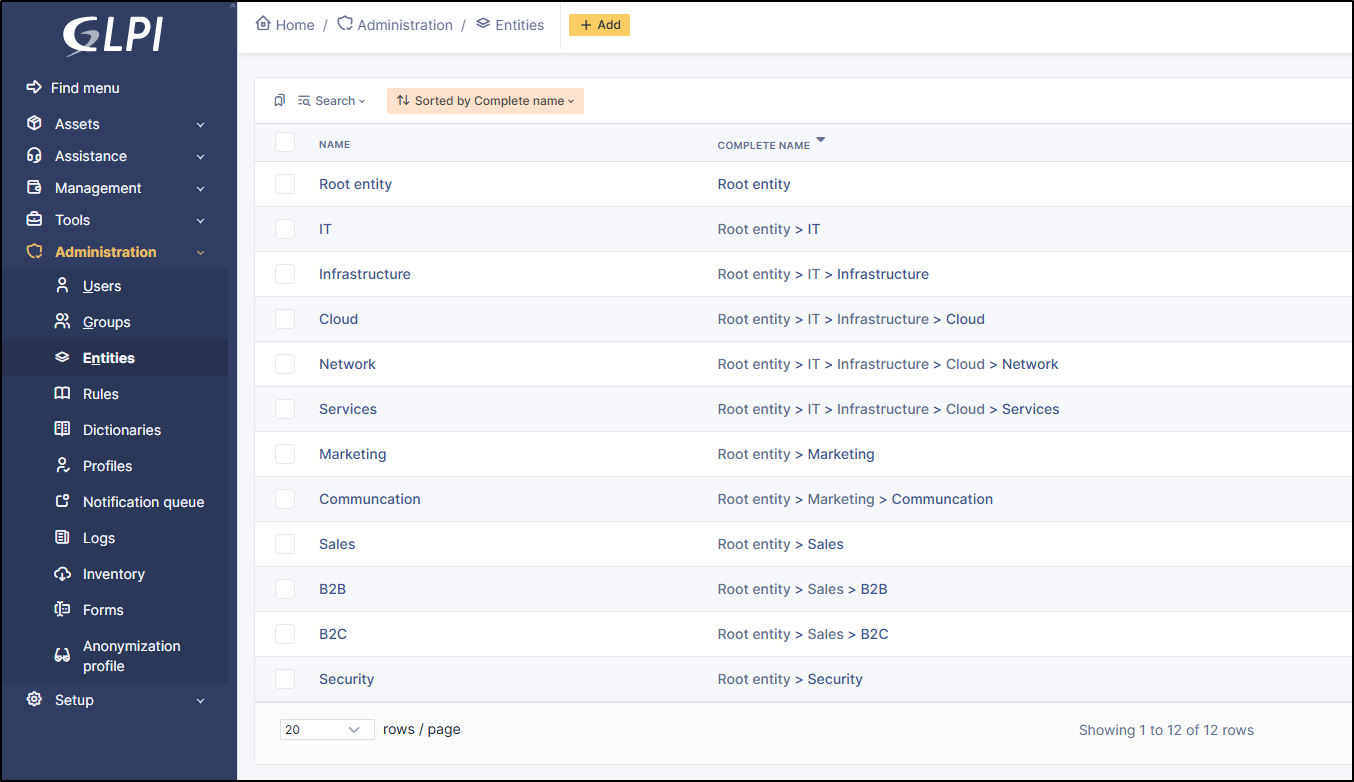
Entities are a key concept in GLPI. Having many similarities with a hierarchy or a division inside a company, it allows on a single instance of GLPI to isolate sets organized in a hierarchical manner. The chosen term is voluntarily neutral in order to adapt to many information systems.
A single instance (or installation) of GLPI, when composed of several entities, allows to consolidate common data and rules. Using entities allows to create a tight isolation between organizational units.
Segmenting in entities can have several targets:
isolate assets of each division in order to limit assets visibility for groups or users
isolate assets of clients
reproduce the existing hierarchy of the directory (LDAP, Active Directory...).
Using entities is very useful for a company where management is hierarchical and where employees must have access to the assets depending on the division they belong to.
Once an entity is created in GLPI, assets inventory, users, profiles and assistance service become dependent upon entities: a computer can be assigned to an entity, a ticket can be declared on an entity, profiles and authorizations can be specific to entities... Automatic entity assignment for users and assets are possible thanks to rules management.
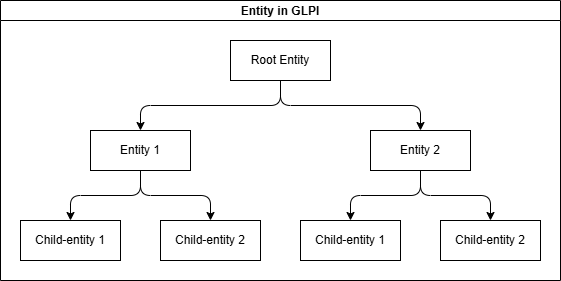
Root entity has two subsidiaries (Entity 1 and Entity 2) which in turn have two divisions each (Child-entity 1 et 2). Each entity has access to its assets and subsidiary entities:
Root entity has access to its assets as well as to all assets of all entities
Entity 1 has access to its assets as well as to child-entity 1 and 2 assets
Child-entity 1 has only access to its own assets
A user can have different authorizations in different entities and these authorizations can be made recursive to apply optionally to child entities.
For example, a user can be attached to several entities with different permissions in each entity, these permissions being retained (or not) in child entities. Without permission, they will then only be able to view the elements from their own entity that they would like to link to this ticket (FAQ, asset, category, etc.).
On the other hand, if a user has sufficient permissions (see profile, and I'll provide a link to that part of the documentation), they could then see certain items that are not allowed for other profiles. For example, a user with a technician profile could see their entity's inventory, while a manager could see the inventory of the parent entity and all child entities. We can also assume that an IT technician could only see the computers in their entity, while an infrastructure technician could see all the assets (network equipment, racks, enclosures, etc.) in that same entity.
By default, GLPI has a single generic entity named Root Entity. This entity can be renamed at user's convenience.
Processes may vary depending upon entity; for this reason entities can have a delegate administration (authorization Entities in profile). This delegation must be granted to a very limited number of users who will be in charge of the complete management of the entity.
When using GLPI in multi-entities mode, management of some configuration parameters can apply in a different way in each entity.
Entities
This tab lists existing sub-entities and allows to add a sub-entity to current entity.
Address
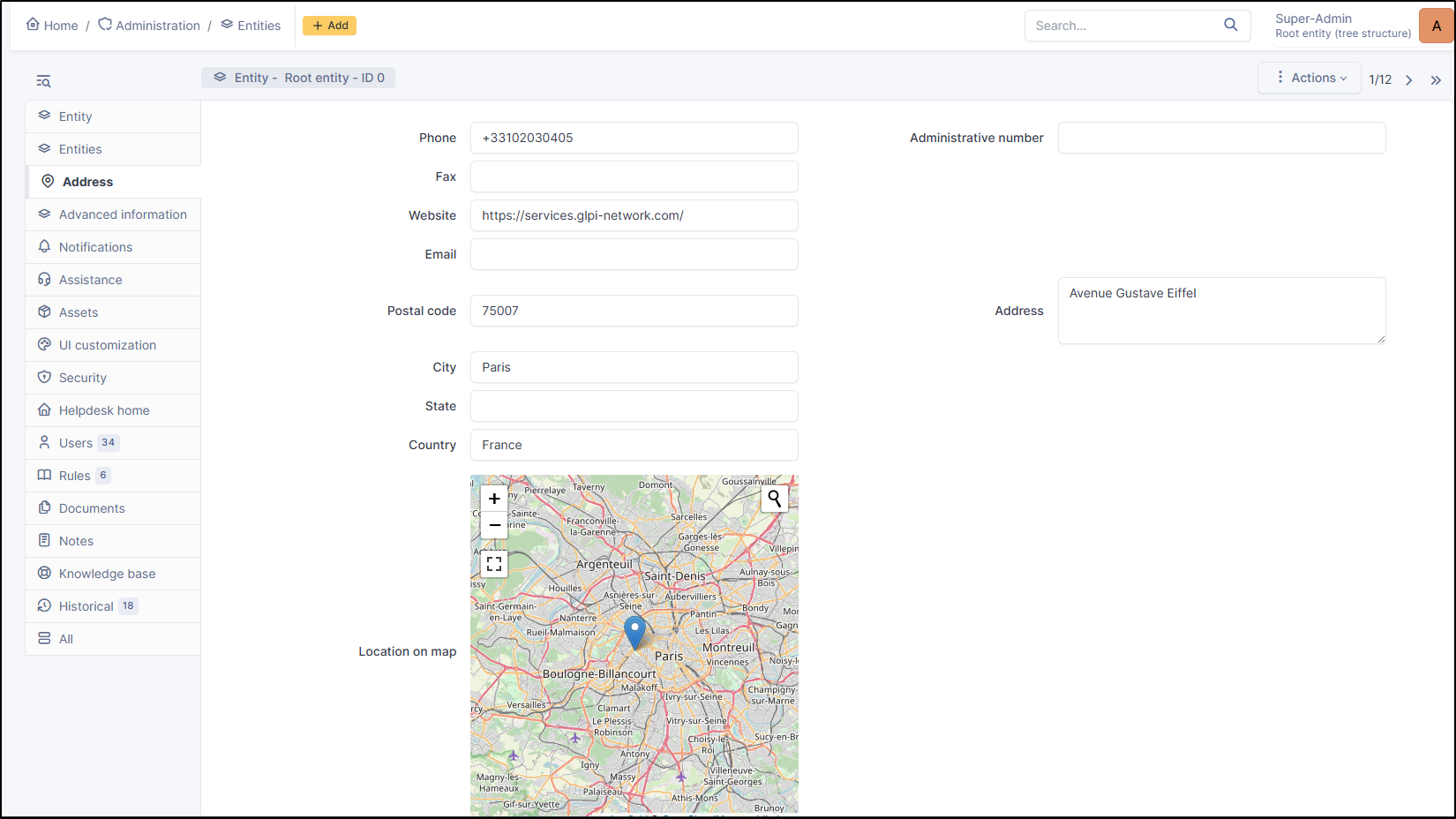
This tab groups administrative information of current entity:
Phone
Administrative number
Fax
Website
Email
Postal code
Address
City
State
Country
Location on map
Longitude
Latitude
Altitude
Advanced information
This tab groups technical identification data of the entity, those concerning generic entity assignment rules and those concerning users search interface. This data will be used by rules for automatic assignment to the entity (hardware if coupled with an inventory tool, user or group if connected to a LDAP directory, ticket if enabled ticket creation via mail collector) as well as for import and synchronization of users originating from a LDAP directory.
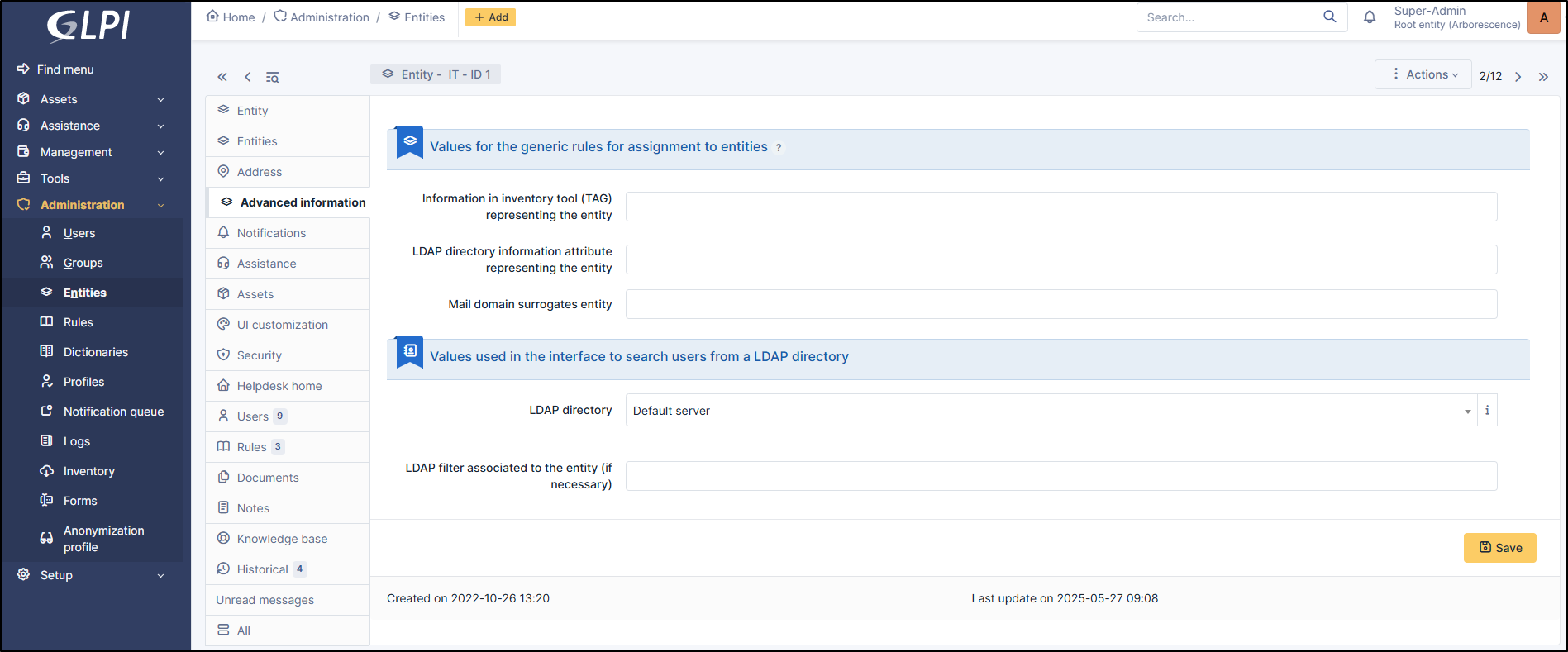
Values for the genric rules for assignment to entites
Three options are available for generic entity assignment rules:
Information in inventory tool (TAG) representing the entity: coming from inventory tool
LDAP directory information attribute representing the entity: for example the
DNof the entityMail domain surrogates entity: the email domain associated with the entity
Values used in the interface to search users from a LDAP directory
In order to offer to an entity administrator the possibility to import users from a LDAP directory,
LDAP directory: directory associated with the entity
LDAP filter associated to the entity (if necessary): associated with the entity search filter
This search filter is meaningful only if entity definition is done by adding a restriction on LDAP filter. It is also possible to define the email domain specific to the entity which can be used to assign users to this entity.
Notifications
Notification setting is done at entity level.
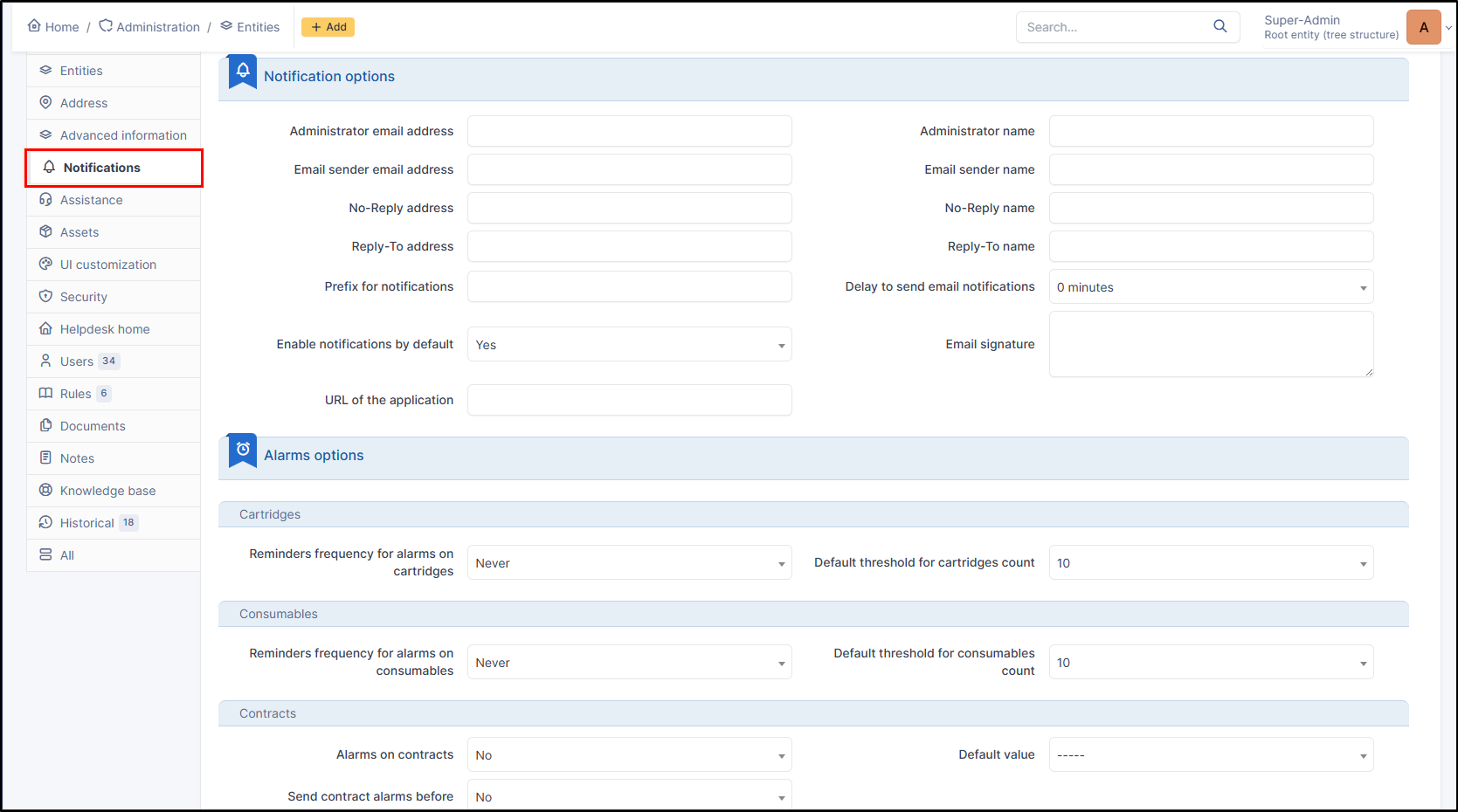
Notification options
Administrator email address
Administrator name
Email sender email address
Email sender name
No-reply address
No-reply name
Reply-to address
Reply-to name
Prefix for notifications
Delay to send email notifications (inheritance of the parent entity or delay in minutes)
Enable notifications by default (No/Yes/Inheritance of the parent entity)
Email signature
URL of the application
Alarms options
Cartridges
Reminders frequency for alarms on consumables: Inheritance of the parent entity/Never/Each day/Each week/Each month
Default threshold for cartridges count: Inheritance of the parent entity/never/from 0 to 100
Consumables
Reminders frequency for alamrs on consumables: Inheritance of the parent entity/Never/Each day/Each week/Each month
Default threshold for consumables count: Inheritance of the parent entity/never/from 0 to 100
Contacts
Alarms on contacts: No/Yes/Inheritance of the parent entity
Default value: Inheritance of the parent entity/End/Notice/End+notice/Period end/Period end + notice
Send contact alarms before: No/Inheritance of the parent entity/from 1 to 365 days
Financial and administrative information
Alarms on financial and administrative information: No/Yes/Inheritance of the parent entity
Default value: Inheritance of the parent entity/Warrantly expiration date
Send financial and administrative information alarms before: No/Inheritance of the parent entity/from 1 to 365 days
Licenses
Alarms on expired licenses: No/Yes/Inheritance of the parent entity
Send license alarms before: No/Inheritance of the parent entity/from 1 to 365 days
Certificates
Alarms on expired certificates: No/Yes/Inheritance of the parent entity
Send certificates alarms brefore: No/Inheritance of the parent entity/from 1 to 365 days
Reminders frequency for alarms on certificates: Inheritance of the parent entity/Never/Each day/Each week/Each month
Reservations
Alerts on reservations: No/Inheritance of the parent entity/from 1 to 365 hours
Tickets
Alerts on tickets which are not solved since: No/Inheritance of the parent entity/from 1 to 365 days
Tickets / Changes
Approval reminder frequency: Inheritance of the parent entity/Never/Each day/Each week/Each month
Domains
Alarms on domains expiries: No/Yes/Inheritance of the parent entity
Domain closes expiries: No/Inheritance of the parent entity/from 1 to 365 days
Domains expired: No/Inheritance of the parent entity/from 1 to 365 days
Assistance
This tab is visible if Read or Modify Entity Parameters authorization is granted in profile. The tab groups entity parameters applicable to tickets:
Templates configuration
Ticket template: selected template will be used for each ticket creation;
Change tabemplate: selected template will be used for each ticket creation;
Problem template: selected template will be used for each ticket creation;
Tickets configuration
Calendar: entity default calendar for computing tickets resolution time and target date shift; this calendar will be pre-selected when creating a SLA;
Ticket Default Type: predefined type for ticket creation; useful for ticket creation via email collector;
Automatic assignment of tickets, changes and problems: allows to assign automatically a ticket;
No
based on item then on category: if ticket has an associated item and this item has a technical manager or group, it will be assigned to this technician and/or group;otherwise if ticket has a defined category, it will be assigned to the technical manager or group of the category
based on category then on item: if ticket has a defined category and this category has a technical manager or group, it will be assigned to this technical manager or group;Sotherwise if ticket has an associated item, it will be assigned to this technician and/or group of the item
Mark followup added by a supplier though an email collector as private: No/Yes/Inheritance of the parent entity
Anonymize support agents:
Inheritance of the parent entity
Disabled
Replace the agent and groupe name with a generic name
Replace the agent and group with a customisable nickname
Replace the agent's name with generic name
Replace the agent's name with customisable name
Replace the group's name with generic name
Display initials for users without picture: No/Yes/Inheritance of the parent entity
Default contract: Inheritance of the parent entity/Contact in ticket entity
Automatic closing configuration
Automatic closing of solved ticket after: allows to perform a so-called "administrative" closure; if closure is set to immediately, ticket will be closed as soon as it is solved, which will block solution approval by requester. This closure is performed by an automatic action which must therefore be active. From never to 365 days
Automatic purge of closed tickets after: allows closing tickets once they have been solved after a certain period of time. From never to 365 days
Configuring the satisfaction survey: Tickets
Configuring the satisfaction survey: External or internal (if external, a URL field will appear to indicate the URL of the survey)
Create survey after: Send an email after the ticket has been solved (as soon as possible to 90 days)
Rate to trigger survey: Disabled to 100%
Duration of survey: Length of time the survey will be active (unspecified to 100 days)
Max rate: Maximum score allowed (1 to 10)
Default rate: Default number entered when receiving the survey
Comment required if score is <= to: 1 to 10
For tickets closed after: Indicate a date to start sending surveys
List of available tags for survey URL:
[TICKET_ID]
Ticket id
[TICKET_NAME]
Ticket name
[TICKET_CREATEDATE]
Ticket creation date
[TICKET_SOLVEDATE]
Ticket resolution date
[TICKET_PRIORITY]
Ticket priority ID
[TICKET_PRIORITYNAME]
Ticket name priority
[ITILCATEGORY]
Category ITIL ID
[ITILCATEGORY_NAME]
Category ITIL name
[SOLUTIONTYPE_ID]
Solution type id
[SOLUTIONTYPE_NAME]
Solution name
[REQUESTTYPE_ID]
Request source id
[REQUESTTYPE_NAME]
Request source name (phone, help desk...)
[TICKETTYPE_ID]
Ticket type
[TICKETTYPE_NAME]
Ticket type name (incident management or service request)
[SLA_TTO_ID]
TTO ID (Time To Own)
[SLA_TTO_NAME]
TTO name (Time To Own)
[SLA_TTR_ID]
TTR ID (Time To Resolve)
[SLA_TTR_NAME]
TTR name (Time To Resolve)
[SLALEVEL_ID]
SLA level ID
[SLALEVEL_NAME]
Name of SLA level
Helpdesk
Show tickets properties on helpdesk: This option allows you to display or not the information linked to tickets visible by self-service profiles (urgent, category, assignment, etc.)
Assets
This tab allows to configure the different dates present in administrative and financial information and some other entity-level asset options.
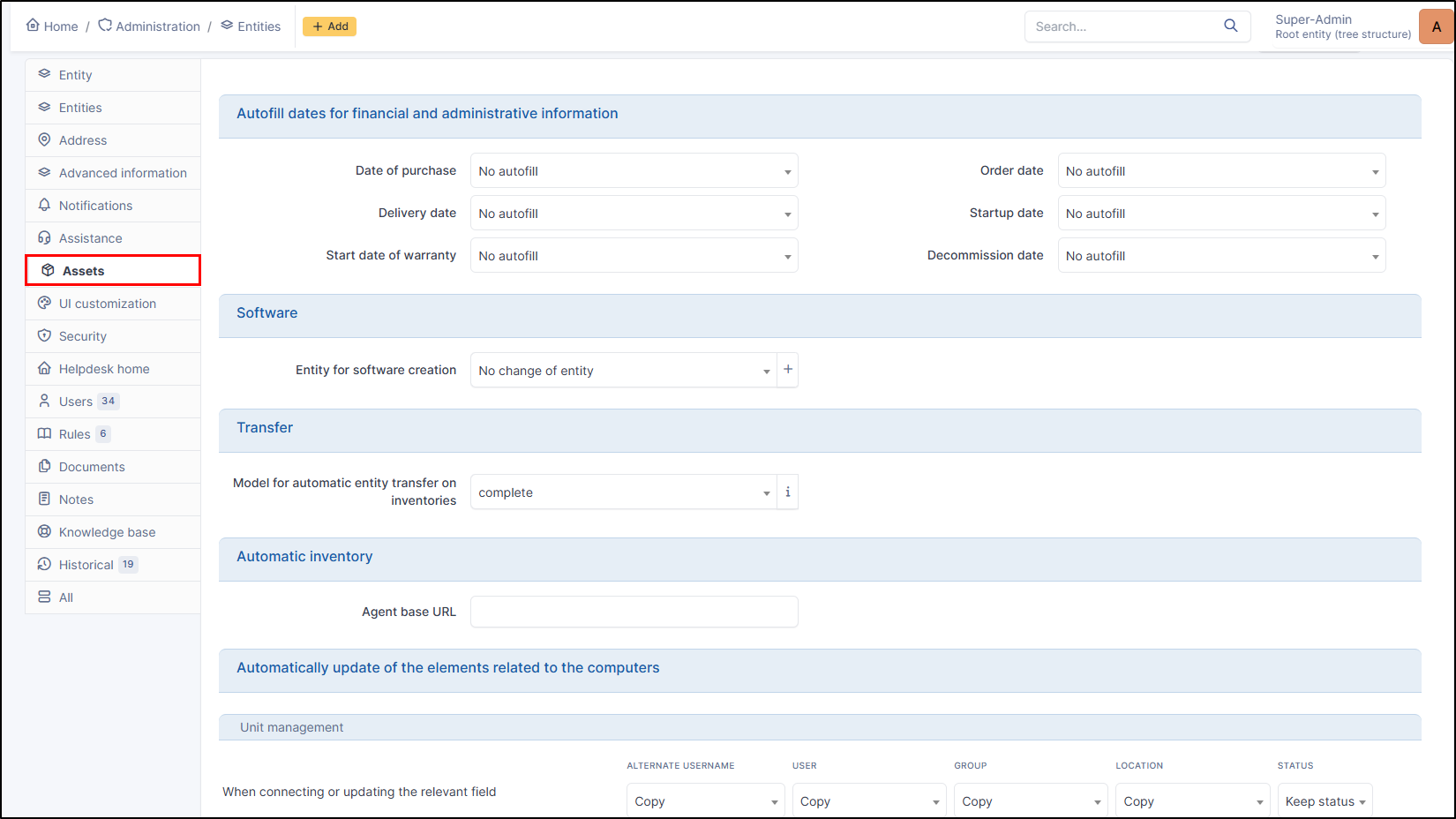
Autofill dates for financial and administrative information
Date of purchase
Order date
Delivery date
Startup date
Start date of aarrantly
Decommission date
The possible automatic actions are:
Filling when item gets a particular status;
Filling by copying other date (warrantly, delivery, etc.);
No automatic filling
Software
The option Entity for software creation allows to redirect software creation to another entity at a higher level in the hierarchy. This functionality applies on all software of the entity; if redirection must be defined only for some software, the software dictionary must be used.
Transfer
Model for automatic entity transfer on inventories
: GLPI also allows to transfer a computer in another entity if one of the criteria used for the assignment to an entity is modified. If the option Model for the automatic transfer of computers in another entity indicates an existing model, then each time a computer is updated from the inventory tool, the entity assignment rules engine will be replayed. If the resulting entity is different from the current entity, the computer will be transferred to the new entity.
Possible choice :
Complete
No automatic transfer
Automatic inventory
This field is used if you have multiple GLPI servers. When this field is set, the agent will be able to retrieve the configuration of the deploy, collect and ESX inventory tasks from the specified server. This avoids web server redirects if you don't want to use them.
Automatically update of the elements related to the computers
This field allows you to specify whether or not information about equipment (printers, peripherals, etc.) connected to PCs can be updated when a user logs in or the next inventory update. You can also choose the behavior when the equipment is disconnected.
The information that can be managed
Alternate username
User
group
Location
Status
You can copy or not when connecting or updating the relevant field You can delete or not when disconnecting
UI Customization
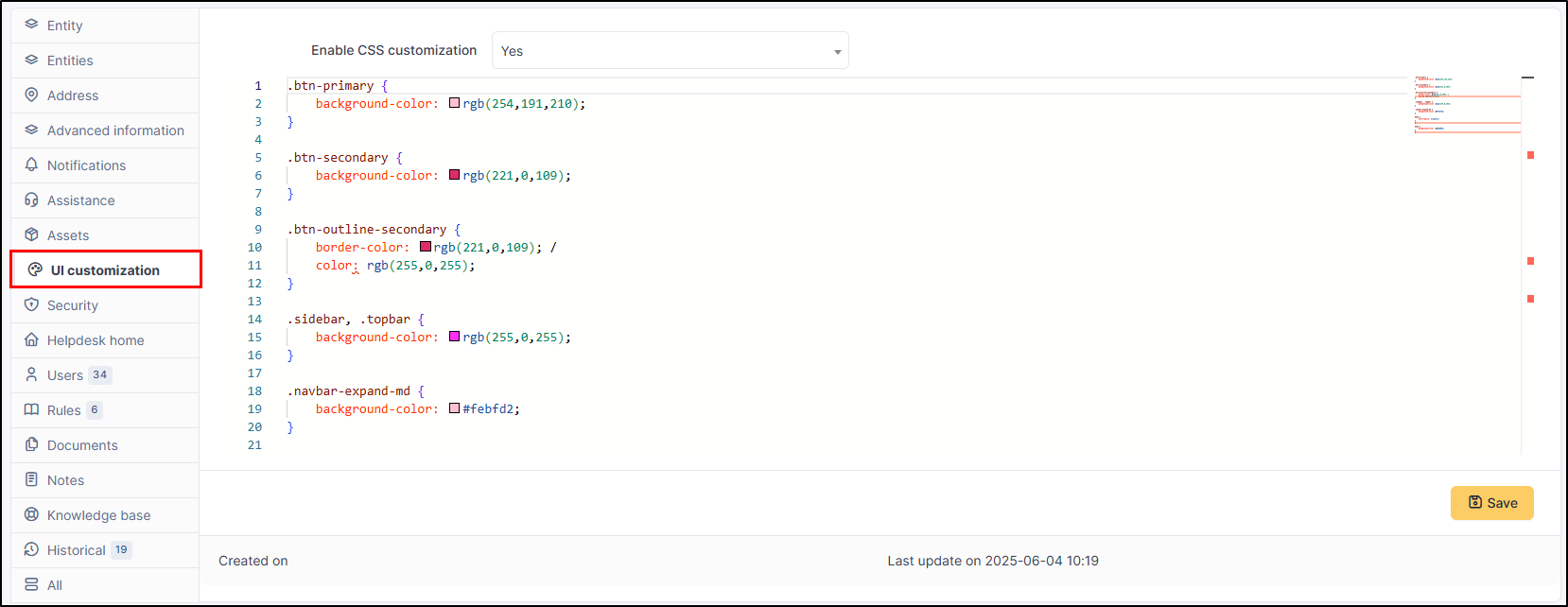
This tab allows you to configure custom CSS rules on a per-entity basis, specify inheriting custom CSS from a parent entity, or disabling custom CSS completely.
Security
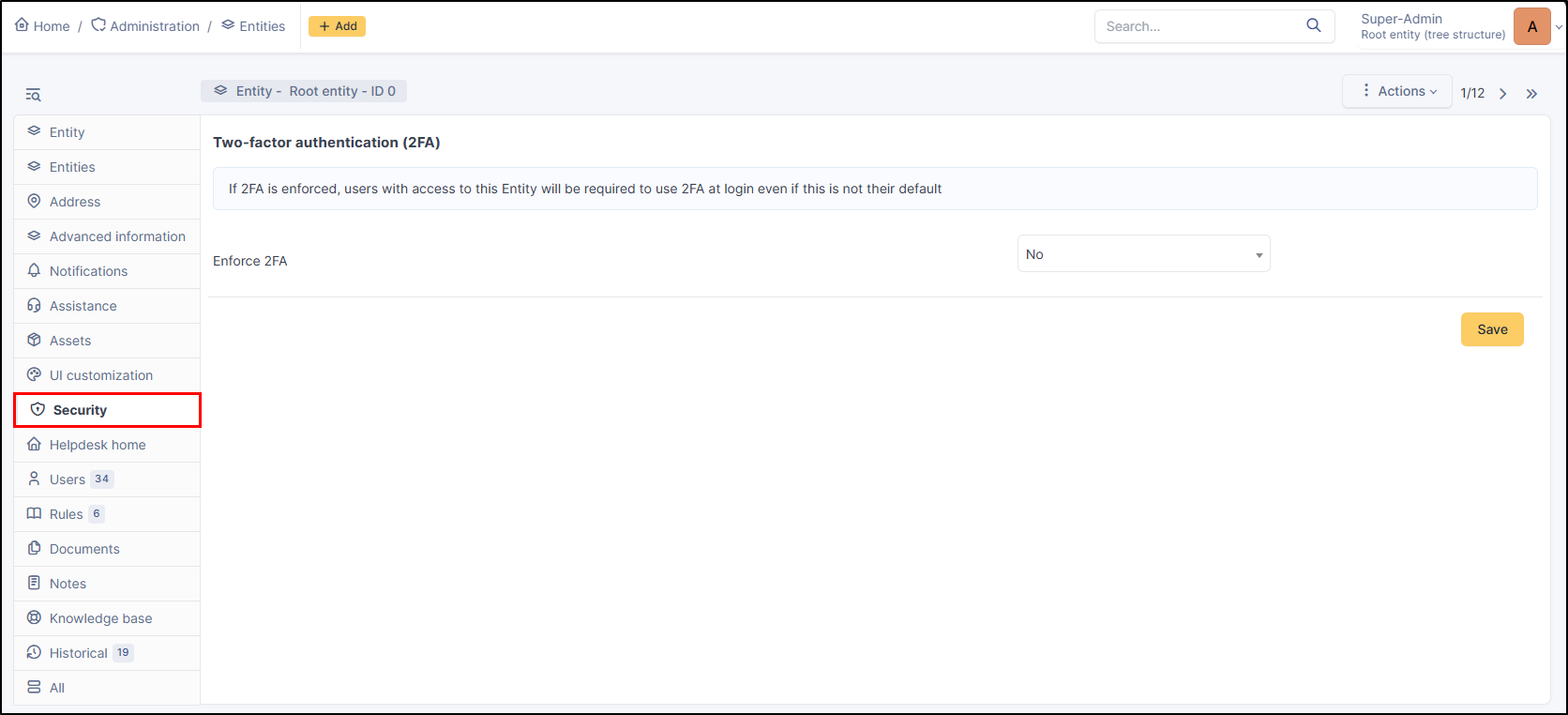
This tab allows you to force or not two-factor authentication (2FA). You can consult the dedicated article for more information
Helpdesk home
This tab allows you to customize the home page (the self-service profile homepage) and the information it contains.
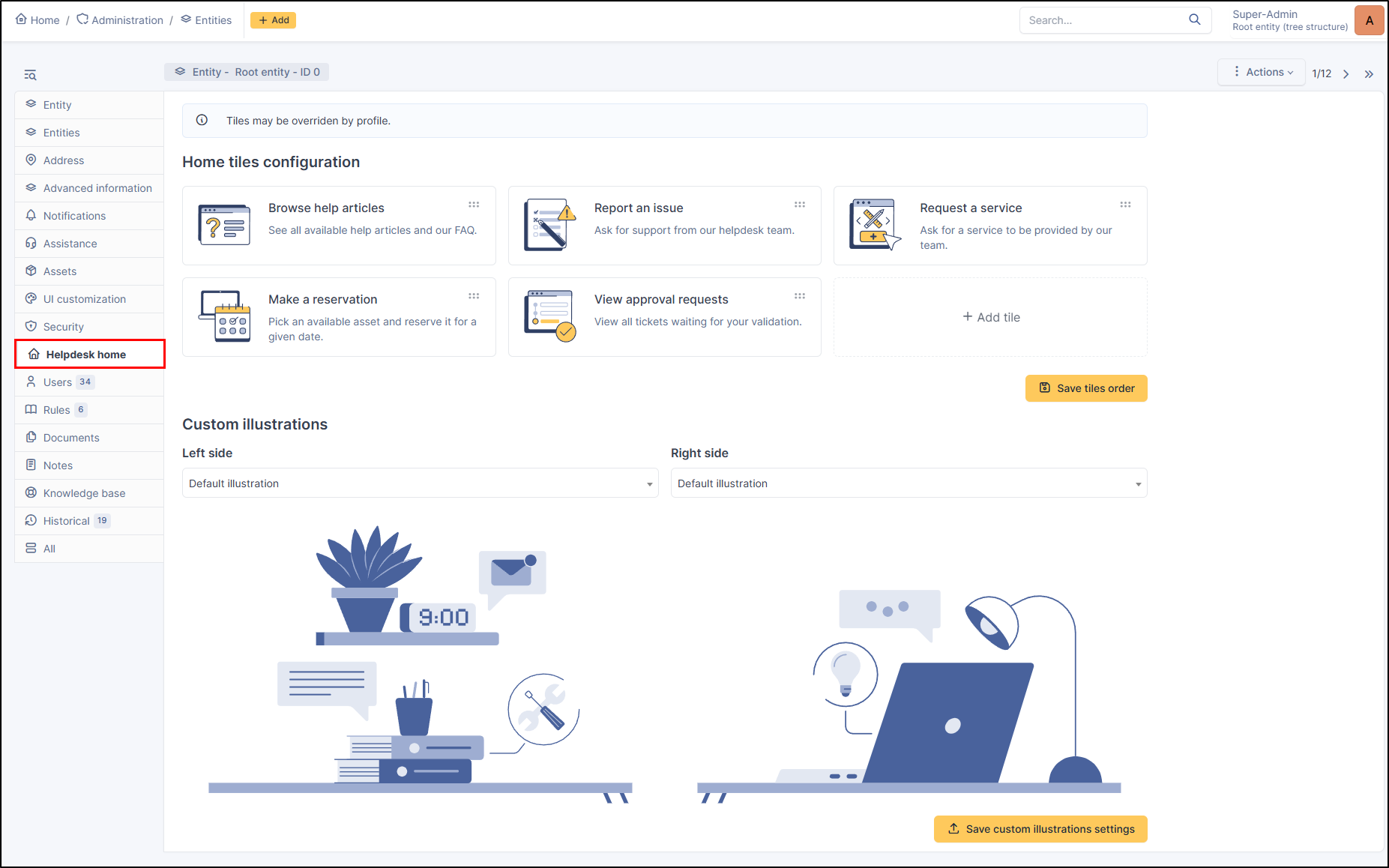
From the + Add tile tile, you can add 3 types of tiles :
GLPI page: eg service catalog, FAQ, etc.
External page
Form: allows you to select an existing form
For GLPI page and External page, you can choose :
A title
A description
An illustration (existing or add a new one)
For forms, they can be created from Administration > Forms, see the dedicated article for more information
Custom illustrations
You can customize the self-service portal homepage display using illustrations. You can modify the illustrations on the right and left.
General
Main title: Display a custom message on the homepage
Search bar: Enable or disable the search bar below the welcome message
Service catalog: Enable or disable the service catalog
Expand categories in the service catalog: Expand service catalog categories if the catalog is enabled
Default sort order for the service catalog: Alphabetical / Reverse alphabetical / Popular
Translation
These elements can be translated into the desired language to match the language selected by the user.
These translations are available under Setup > General > Helpdesk.
Users
This tab allows to add a user to the current entity and to assign to the user a profile, recursive or not. The tab lists also, sorted by profile, the entity users.
To add a user to the entity, select the profile from the drop-down list
Select the user
Specify the recursion
Click
+ Add

Rules
This tab allows to create rules

Automatic user assignment
Assigning an item to an entity
Assignment a ticket created through a mails receiver;if the rule must be based on criteria, the newly created rule must be opened to define these criteria. Rules already applicable to the current entity are also displayed.
Documents
The document tab lets you link different types of file to a material (PDF, txt, png, etc.) You can attach a document already uploaded to GLPI or add a new one directly from this tab.
Notes
Note lets you add enriched text and attach a document.
History
The History tab is used to show any changes made to an item. The following information about the changes is available:
ID of the change.
Date and time the change was made.
User who made the change. If this field is not filled, it means that the action was done automatically (For example: automatic inventory update).
Field that was changed.
Description of the change that was made.
The description of the change represents either the difference between the old and the new value (For example with location field: Change HQ to Remote Office A), or the explanation of the action which was carried out (For example: Uninstallation of a software: "Gimp 2.0").
All Information
For an item, all information is displayed on one page from the All tab. This shows all of the tabs of an object's form in one view, one below the other.
Last updated