> For the complete documentation index, see [llms.txt](https://help.glpi-project.org/llms.txt). Markdown versions of documentation pages are available by appending `.md` to page URLs; this page is available as [Markdown](https://help.glpi-project.org/glpi-12/assets/cables.md).
# Cables
Any type of cable can be managed (ethernet, USB, HDMI, etc.). You can link a cable between 2 devices, and indicate the physical location where the cable is plugged into a device. You can also create tickets, problems, etc. from this cable for complete management

## Add a cable
* To add a cable on **+ Add** at the top of the screen,
* Add a :
* Name
* [Status](/glpi-12/tabs/common_fields/status.md)
* [Cable Type](#cable-type)
* [Technicien in charge](https://github.com/glpi-network/gitbook/blob/develop/manual/tabs/common_fields/technician-in-charge.md)
* [Inventory number](https://github.com/glpi-network/gitbook/blob/develop/manual/tabs/common_fields/inventory-number.md)
* [Comments](/glpi-12/tabs/common_fields/comments.md)
* [Cable strand](#cable-strand)
* [Color](/glpi-12/tabs/common_fields/color.md)
### Cable Type
You can add the type of cable that links the hardware (USB, ethernet, HDMI, etc.). \* Select the **type of cable** required \* You can create a new one by clicking on **+**

{% hint style="info" %}
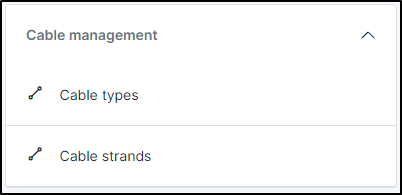
You can see the list of cable types in **setup** > **dropdowns** > **cable management**
 {% endhint %}
### Cable Strand
### Enpoint
You can link 2 devices together to find out which cable connects them and on which [socket](/glpi-12/tabs/sockets.md) To be linked to a socket, it must be specified on the hardware concerned
* To link two material by a cable, select the first object in endpoint A
> - Type of asset
> - The asset
> - The socket model
> - The socket
> - If it is entered for the equipment in question, the position will be added.
> - Do the same with endpoint B
## Management
If you have activated them, you can manage [financial and administrative information](/glpi-12/tabs/management.md)
## Tickets
View all tickets linked to the item.
Go to Tickets
***
## Problems
This tab refers to all hardware-related problems. Problems can also be linked to tickets, projects, etc. This allows you to have a complete scenario when necessary.
Go to problems
***
## Changes
Changes lists all changes related to a material. From this tab, you can't link a change directly, you can do it from **`Assistance`** > **`Changes`** > **`Items`**. You can create a new change from this page, which will be linked to the material you have selected.
Go to Changes
***
## History
The *History* tab is used to show any changes made to an item. The following information about the changes is available:
* ID of the change.
* Date and time the change was made.
* User who made the change. If this field is not filled, it means that the action was done automatically (For example: automatic inventory update).
* Field that was changed.
* Description of the change that was made.
The description of the change represents either the difference between the old and the new value (For example with location field: Change HQ to Remote Office A), or the explanation of the action which was carried out (For example: Uninstallation of a software: "Gimp 2.0").
{% hint style="info" %}
For dropdowns or objects with a parent/child relationship, the modification of a child will appear in the history of the parent element.
{% endhint %}
***
## All Information
For an item, all information is displayed on one page from the *All* tab. This shows all of the tabs of an object's form in one view, one below the other.
---
# Agent Instructions
This documentation is published with GitBook. GitBook is the documentation platform designed so that both humans and AI agents can read, navigate, and reason over technical content effectively. Learn more at gitbook.com.
## Querying This Documentation
If you need additional information that is not directly available in this page, you can query the documentation dynamically by asking a question.
Perform an HTTP GET request on the current page URL with the `ask` query parameter, and the optional `goal` query parameter:
```
GET https://help.glpi-project.org/glpi-12/assets/cables.md?ask=&goal=
```
`ask` is the immediate question: it should be specific, self-contained, and written in natural language.
`goal` is optional and describes the broader end goal you are ultimately trying to accomplish on behalf of the user. GitBook uses it to tailor the answer towards what is most useful for that goal.
The response will contain a direct answer to the question and relevant excerpts and sources from the documentation.
Use this mechanism when the answer is not explicitly present in the current page, you need clarification or additional context, or you want to retrieve related documentation sections.
{% endhint %}
### Cable Strand
### Enpoint
You can link 2 devices together to find out which cable connects them and on which [socket](/glpi-12/tabs/sockets.md) To be linked to a socket, it must be specified on the hardware concerned
* To link two material by a cable, select the first object in endpoint A
> - Type of asset
> - The asset
> - The socket model
> - The socket
> - If it is entered for the equipment in question, the position will be added.
> - Do the same with endpoint B
## Management
If you have activated them, you can manage [financial and administrative information](/glpi-12/tabs/management.md)
## Tickets
View all tickets linked to the item.
Go to Tickets
***
## Problems
This tab refers to all hardware-related problems. Problems can also be linked to tickets, projects, etc. This allows you to have a complete scenario when necessary.
Go to problems
***
## Changes
Changes lists all changes related to a material. From this tab, you can't link a change directly, you can do it from **`Assistance`** > **`Changes`** > **`Items`**. You can create a new change from this page, which will be linked to the material you have selected.
Go to Changes
***
## History
The *History* tab is used to show any changes made to an item. The following information about the changes is available:
* ID of the change.
* Date and time the change was made.
* User who made the change. If this field is not filled, it means that the action was done automatically (For example: automatic inventory update).
* Field that was changed.
* Description of the change that was made.
The description of the change represents either the difference between the old and the new value (For example with location field: Change HQ to Remote Office A), or the explanation of the action which was carried out (For example: Uninstallation of a software: "Gimp 2.0").
{% hint style="info" %}
For dropdowns or objects with a parent/child relationship, the modification of a child will appear in the history of the parent element.
{% endhint %}
***
## All Information
For an item, all information is displayed on one page from the *All* tab. This shows all of the tabs of an object's form in one view, one below the other.
---
# Agent Instructions
This documentation is published with GitBook. GitBook is the documentation platform designed so that both humans and AI agents can read, navigate, and reason over technical content effectively. Learn more at gitbook.com.
## Querying This Documentation
If you need additional information that is not directly available in this page, you can query the documentation dynamically by asking a question.
Perform an HTTP GET request on the current page URL with the `ask` query parameter, and the optional `goal` query parameter:
```
GET https://help.glpi-project.org/glpi-12/assets/cables.md?ask=&goal=
```
`ask` is the immediate question: it should be specific, self-contained, and written in natural language.
`goal` is optional and describes the broader end goal you are ultimately trying to accomplish on behalf of the user. GitBook uses it to tailor the answer towards what is most useful for that goal.
The response will contain a direct answer to the question and relevant excerpts and sources from the documentation.
Use this mechanism when the answer is not explicitly present in the current page, you need clarification or additional context, or you want to retrieve related documentation sections.