

Service Catalog
Introduction
The Service Catalog in GLPI 11.0 represents a major redesign of the self-service interface, providing end users with a modern and intuitive experience to access IT services. This new version introduces an advanced categorization system, visual illustrations, and intelligent search capabilities.
Service Catalog Objectives
Simplify service access: Modern and intuitive interface;
Enhance user experience: Category-based navigation with illustrations;
Facilitate search: Advanced fuzzy search and smart filters;
Organize services: Hierarchical category system;
Customize display: Rich illustrations and descriptions;
Service Catalog Configuration
Enabling the Service Catalog
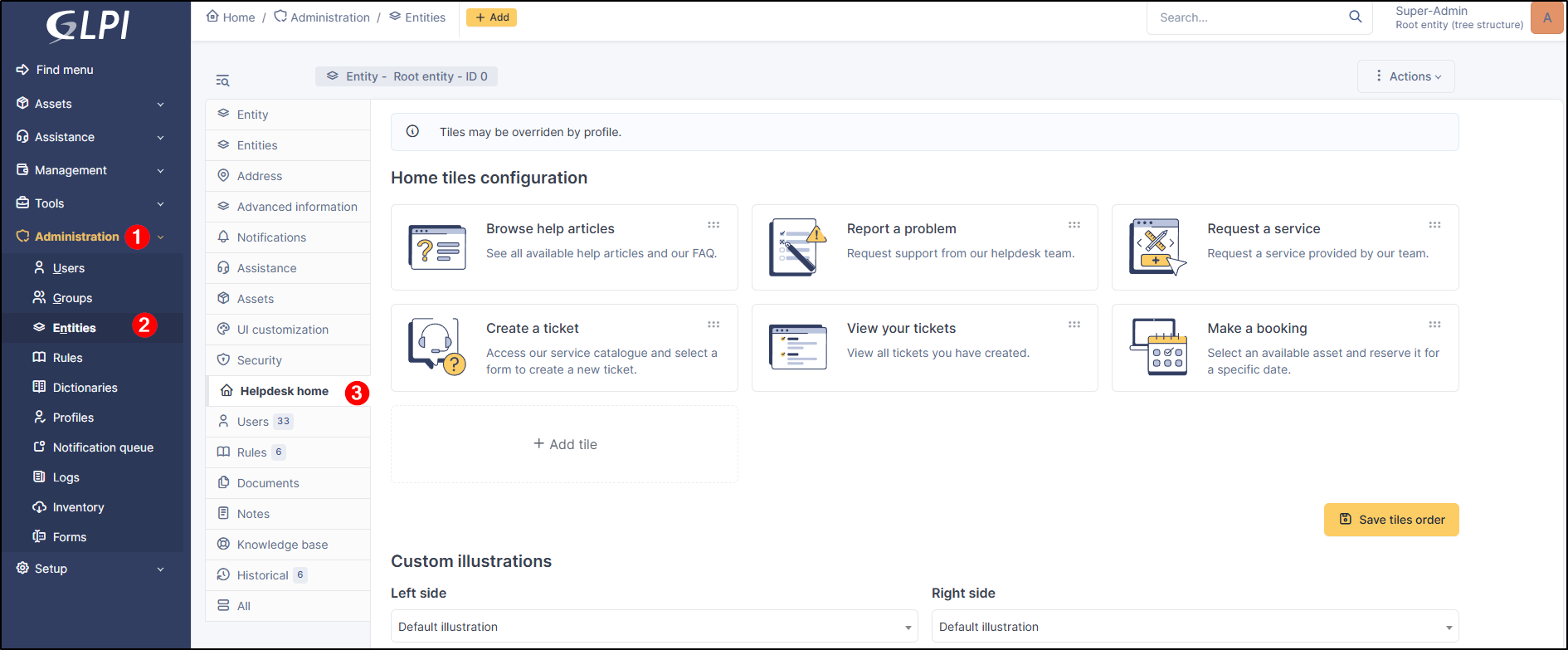
Catalog Settings
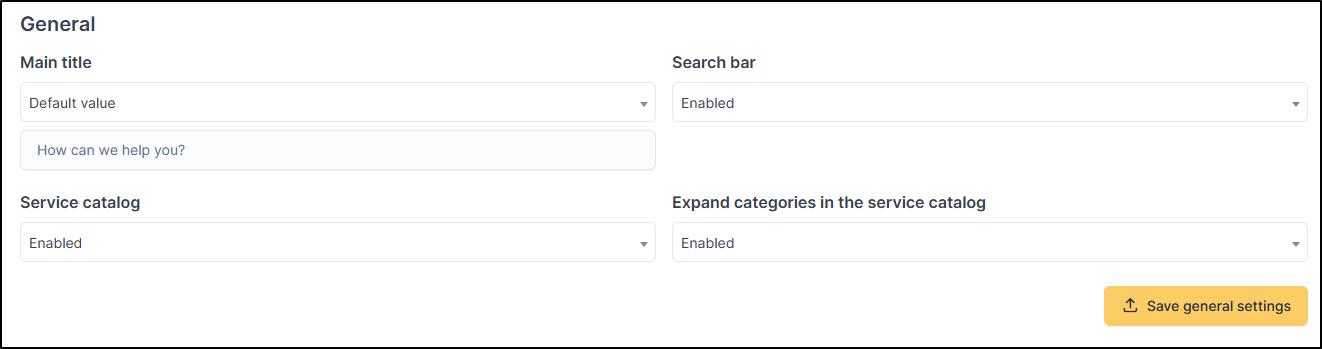
The configuration options available are:
Search bar:
Options: Enabled/Disabled;
For child entities: additional "Inherited from parent entity" option;
Service catalog:
Options: Enabled/Disabled
For child entities: additional "Inherited from parent entity" option
Expand categories in the service catalog:
Options: Enabled/Disabled
For child entities: additional "Inherited from parent entity" option
Administration > Entities > Helpdesk home Tab)Categories Management
Creating Categories

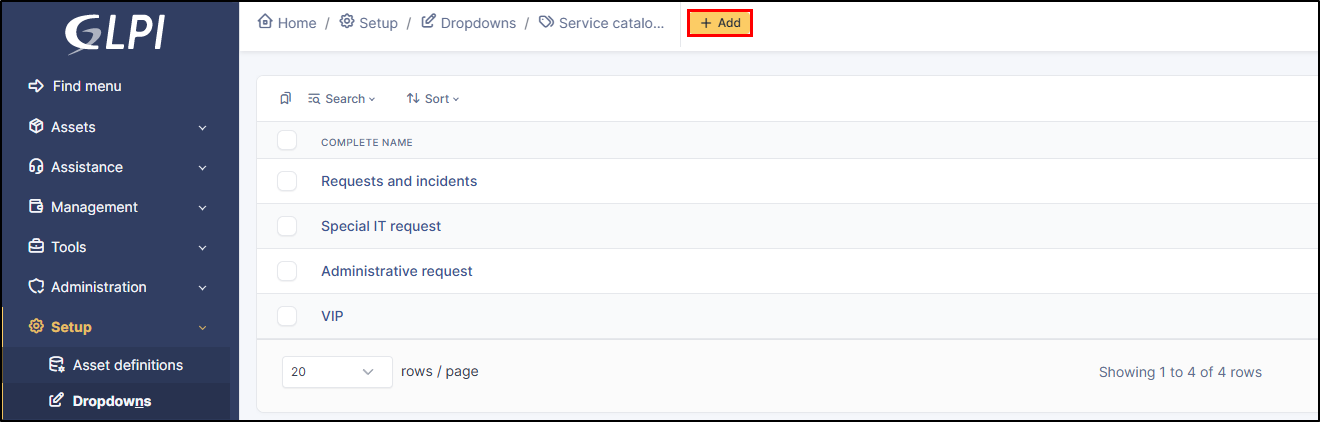
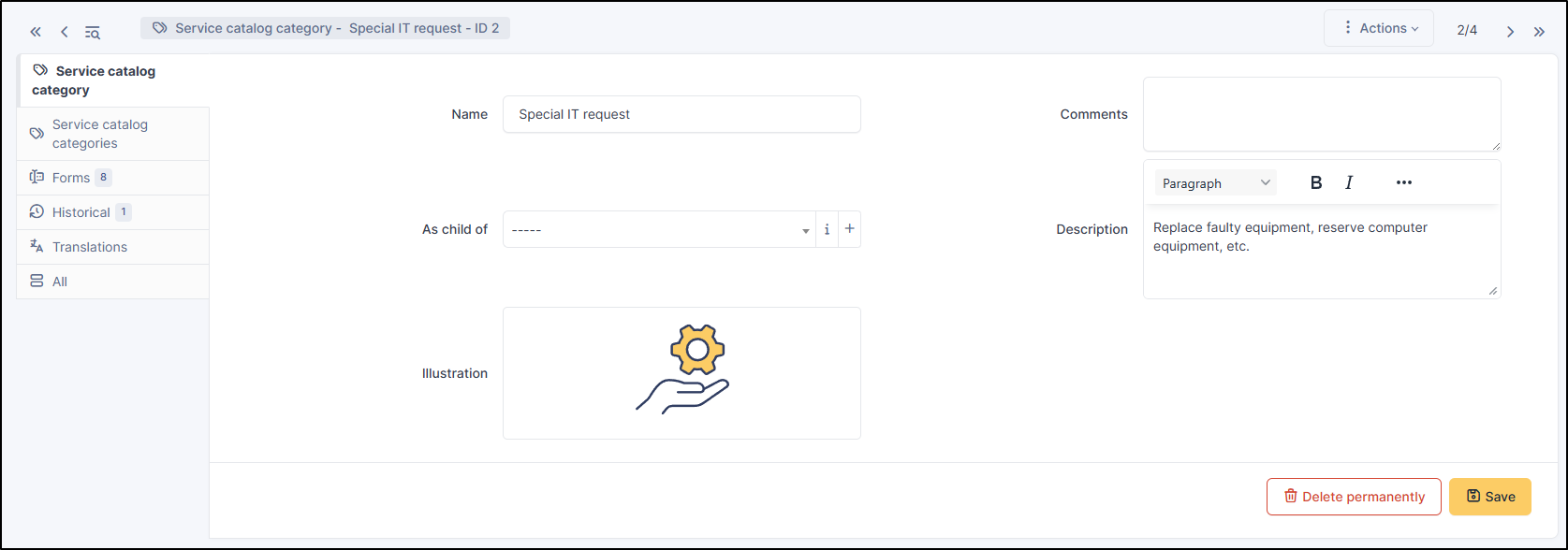
Hierarchical Organization
Recommended structure:
Forms Configuration
Adding a Form to the Catalog
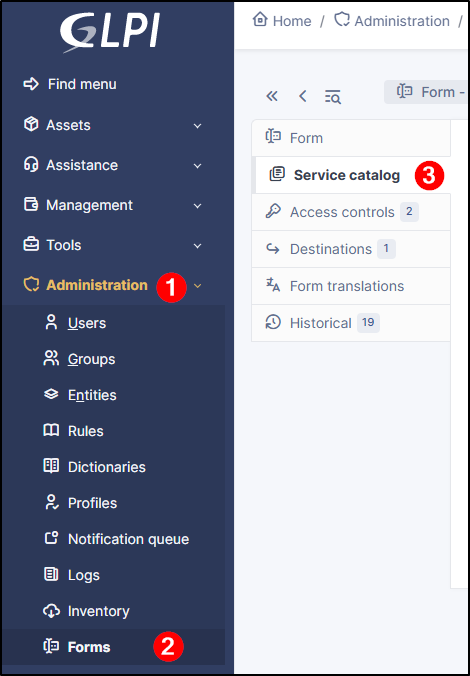
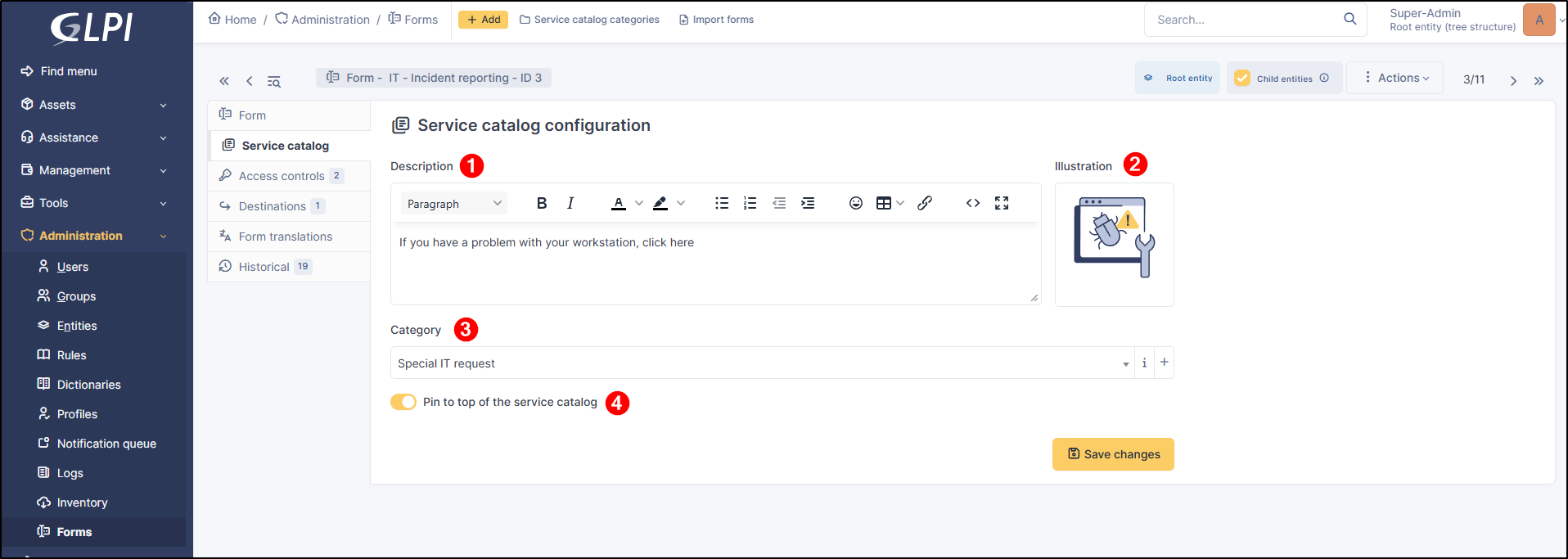
Catalog Configuration
Catalog Information:
Description
Rich HTML description
Displayed in service card
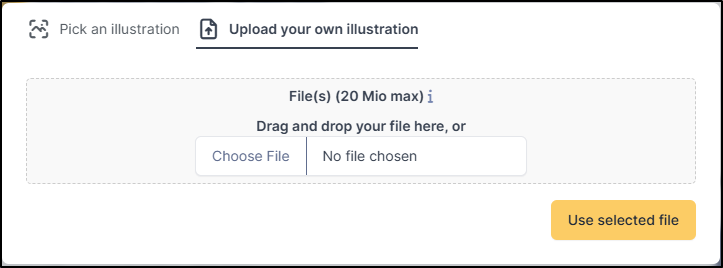
Illustration
Service image
Card visual (400x300px)
Category
Associated category
Hierarchical organization
Pin to top
Priority service
Displayed first, non-filterable
Access Rights Management
Form Access Control:
Uses GLPI access control system
Checks logged-in user rights
Automatically filters inaccessible forms
Supports entities and recursivity
Rights Configuration:
Access the form's Access control tab
Define access criteria (profiles, entities, etc.)
Test with different user accounts
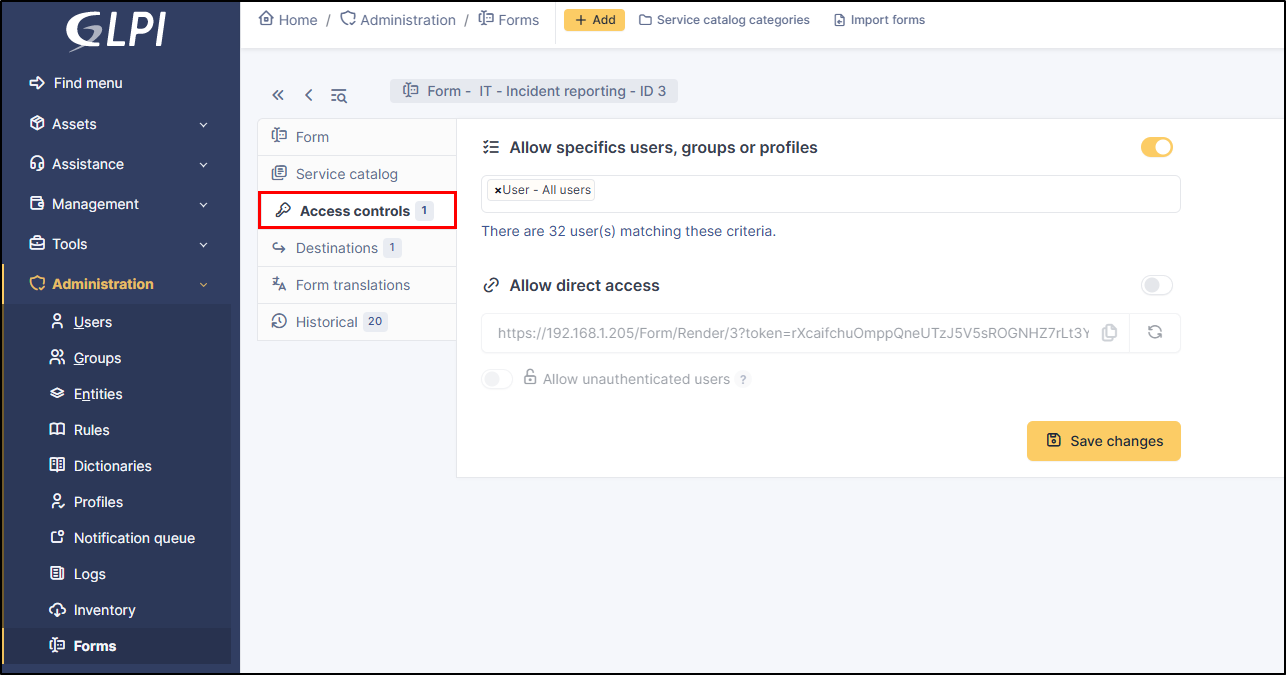
Access control tab
User Experience
Catalog Navigation
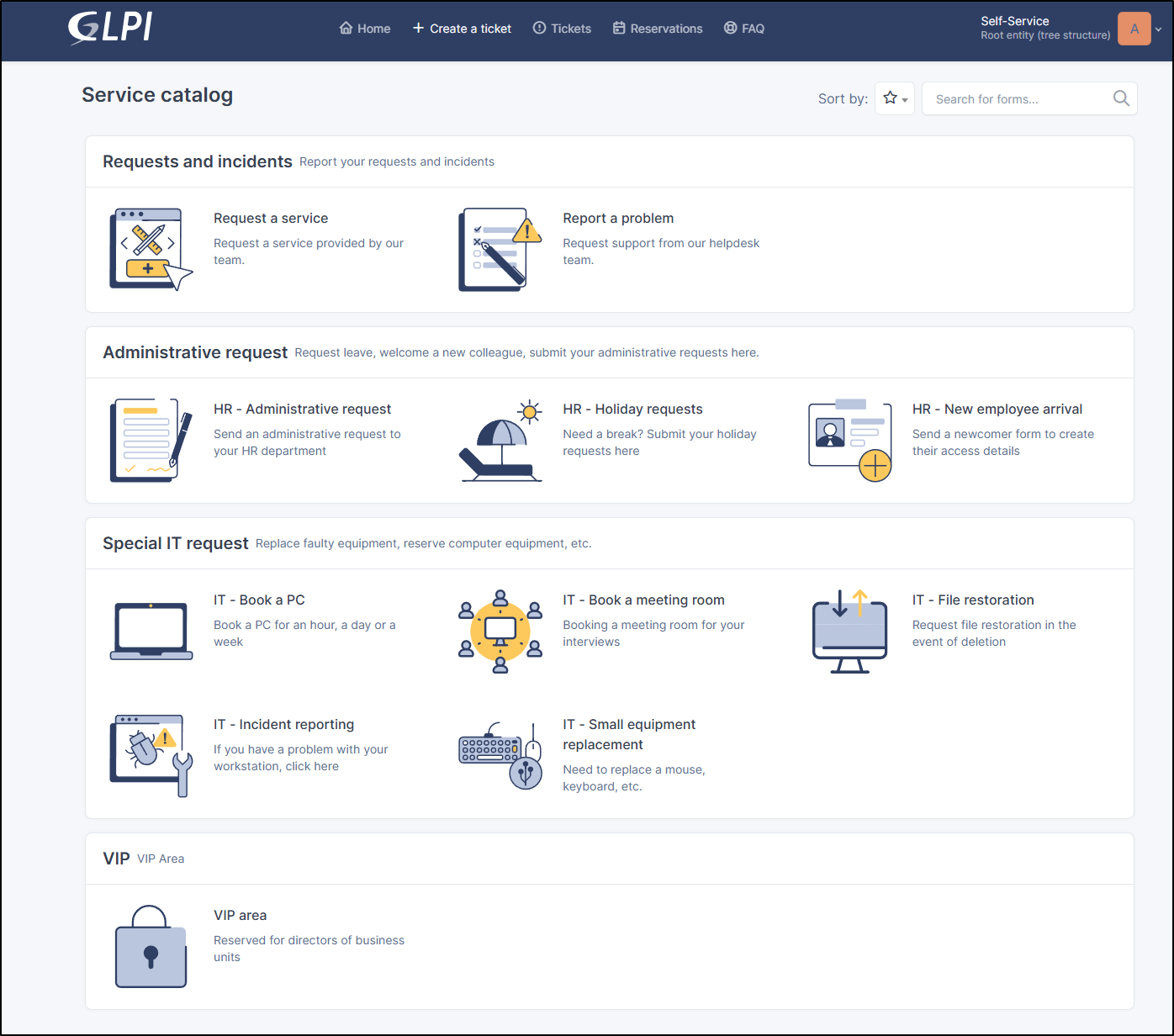
Catalog Access
Log in to the GLPI user interface
Navigate directly to
/ServiceCatalogor access via the+ Create a ticketbutton

Search Features
Search bar
Fuzzy search: Typo tolerance
Real-time search: Instant filtering
Search fields: Service name and description
Pinned services: Always visible, non-filtered
Search examples
computr→ finds "Computer request"install→ finds "Software installation"hardware→ finds all services in "Hardware" category
Sort Options
Available strategies
🔤
Alphabetical
A → Z by name
🔤↓
Reverse alphabetical
Z → A by name
⭐
Popularity
Most used first
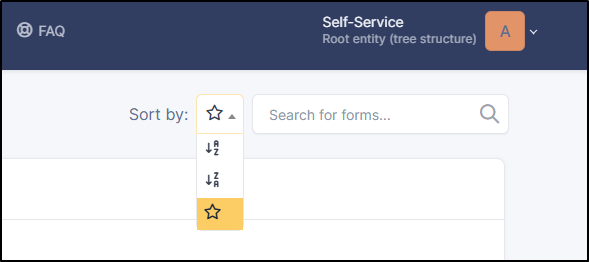
Popularity sort
Based on usage count;
Highlights popular services;
Useful for identifying recurring needs;
Advanced Features
Knowledge Base Integration
Automatic display
Knowledge base articles integrated in catalog
User access rights filtering
Unified search (forms + articles)
Configuration
Edit the concerned knowledge base;
Click on the right menu ;
Service catalog tab;
Select the activation button for the Show in service catalog option;

Service catalog form for KB
Pinned Services
Feature
Priority services always visible;
Not affected by search filters;
Positioned first in display;
Configuration
Edit the concerned form;
Service catalog tab;
Check Pin to top of the service catalog option;

Pin to top configuration
Administration and Rights
Required Rights
Administrator
Entities: Service catalog configuration per entity;
Forms: Form creation and management;
Categories: Category hierarchy management;
Service Manager
Forms: Service catalog metadata modification;
Categories: Creation within entity scope;
End User
Assistance: Read-only service catalog access;
Forms: Form submission according to access rights.
Last updated