> For the complete documentation index, see [llms.txt](https://help.glpi-project.org/llms.txt). Markdown versions of documentation pages are available by appending `.md` to page URLs; this page is available as [Markdown](https://help.glpi-project.org/glpi-12/assistance/tabs/satisfaction-survey.md). Agents can also search and read this documentation through its [MCP server](https://help.glpi-project.org/~gitbook/mcp).
# Satisfaction Survey
A satisfaction survey is triggered when the ticket status is set to *Closed* and the triggering delay is elapsed. This triggering delay is parameterized at entity level (see [Delegate administration at entity level](https://help.glpi-project.org/glpi-12/administration/entities.md)).
{% hint style="info" %}
The automatic task that triggers the survey must be activated.
{% endhint %}
When ticket is closed, a notification that includes a link to the satisfaction survey can be sent to the requester. The requester will also have access to the survey from the ticket form in tab `Satisfaction`.
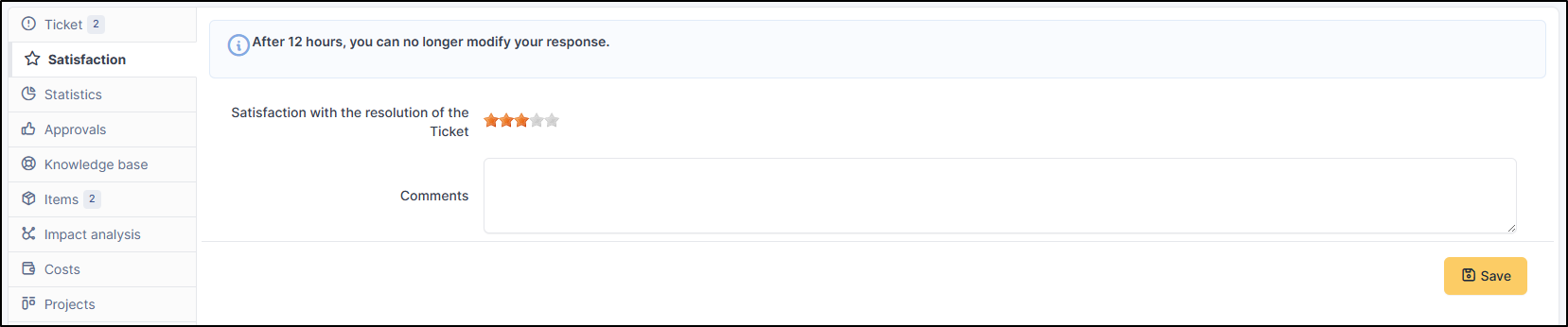
The requester can then select the satisfaction level (from 0 to 10 depending on the desired configuration, given as stars) about the ticket solution. A comment can also be added.
Statistics on surveys are available in [statistics](https://help.glpi-project.org/glpi-12/assistance/statistics.md).
{% hint style="info" %}
* The requester **can change the answer** to the satisfaction survey within a **delay of 12 hours** after first answer
* A notification can be sent when satisfaction survey is generated, but also on each answer to this survey
{% endhint %}
Example of a satisfaction survey
## Configuring the satisfaction survey (tickets or changes):
Configure your satisfaction surey
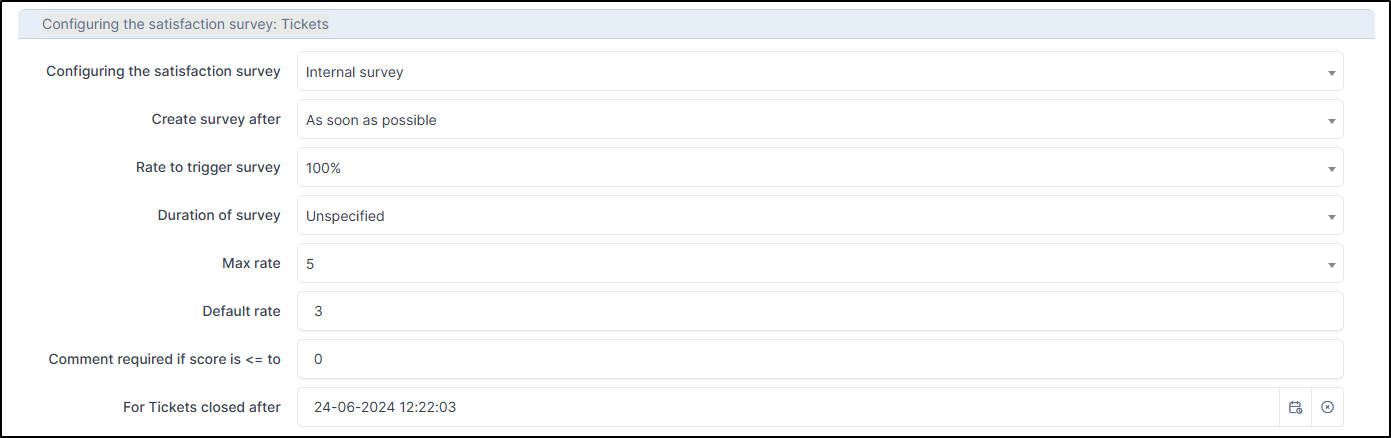
Go to **`Administration`** > **`Entity`** > *My\_Entity* > **`Assistance`** > **`Configuring the satisfaction survey: Tickets`** *(or changes as required)*:
* **Configuring the satisfaction survey**: External or internal (if external, a URL field will appear to indicate the URL of the survey);
* **Create survey after**: Send an email after the ticket has been solved (as soon as possible to 90 days);
* **Rate to trigger survey**: Disabled to 100%;
* **Duration of survey**: Length of time the survey will be active (unspecified to 100 days);
* **Max rate**: Maximum score allowed (1 to 10);
* **Default rate**: Default number entered when receiving the survey;
* **Comment required if score is <= to**: 1 to 10;
* **For tickets closed after**: Indicate a date to start sending surveys;
{% hint style="success" %}
Survey can be internal (GLPI satisfaction form) or delegated to a third-party tool. For each entity, the survey date can be defined (delay after ticket closure) as well as to be generated survey rate. In order to avoid that old tickets are taken into account when activating survey, a field *For Tickets Closed After* contains the activation date to know which tickets must be taken into account. Indeed, if survey are reactivated after a deactivation time, this field must be set to exclude old tickets. For external survey, the URL of the survey can be generated automatically using tags defined below.
{% endhint %}
**List of available tags for survey URL:**
| TAG | Name |
| ----------------------- | --------------------------------------------------------- |
| `[TICKET_ID]` | Ticket id |
| `[TICKET_NAME]` | Ticket name |
| `[TICKET_CREATEDATE]` | Ticket creation date |
| `[TICKET_SOLVEDATE]` | Ticket resolution date |
| `[TICKET_PRIORITY]` | Ticket priority ID |
| `[TICKET_PRIORITYNAME]` | Ticket name priority |
| `[ITILCATEGORY]` | Category ITIL ID |
| `[ITILCATEGORY_NAME]` | Category ITIL name |
| `[SOLUTIONTYPE_ID]` | Solution type id |
| `[SOLUTIONTYPE_NAME]` | Solution name |
| `[REQUESTTYPE_ID]` | Request source id |
| `[REQUESTTYPE_NAME]` | Request source name (phone, help desk...) |
| `[TICKETTYPE_ID]` | Ticket type |
| `[TICKETTYPE_NAME]` | Ticket type name (incident management or service request) |
| `[SLA_TTO_ID]` | TTO ID (Time To Own) |
| `[SLA_TTO_NAME]` | TTO name (Time To Own) |
| `[SLA_TTR_ID]` | TTR ID (Time To Resolve) |
| `[SLA_TTR_NAME]` | TTR name (Time To Resolve) |
| `[SLALEVEL_ID]` | SLA level ID |
| `[SLALEVEL_NAME]` | Name of SLA level |
{% hint style="info" %}
Another tab also allows you to view satisfaction surveys for changes, including the same options as for tickets.
{% endhint %}
---
# Agent Instructions
This documentation is published with GitBook. GitBook is the documentation platform designed so that both humans and AI agents can read, navigate, and reason over technical content effectively. Learn more at gitbook.com.
## Querying This Documentation
If you need additional information that is not directly available in this page, you can query the documentation by asking a question.
Perform an HTTP GET request on the following URL with the `ask` and `goal` query parameters:
```
GET https://help.glpi-project.org/glpi-12/assistance/tabs/satisfaction-survey.md?ask=&goal=
```
`ask` is the immediate question: it should be specific, self-contained, and written in natural language.
`goal` is what the user is ultimately trying to achieve, the reason they need the answer. Sharing it helps GitBook give you a better, more relevant answer. A goal is most helpful when it describes the outcome the user wants rather than restating the question. For example, with `ask=how do I create an API token`, a goal like `automate deployments from our CI pipeline` lets GitBook tailor the answer to that use case.
The response will contain a direct answer to the question and relevant excerpts and sources from the documentation.
Use this mechanism when the answer is not explicitly present in the current page, you need clarification or additional context, or you want to retrieve related documentation sections.