> For the complete documentation index, see [llms.txt](https://help.glpi-project.org/llms.txt). Markdown versions of documentation pages are available by appending `.md` to page URLs; this page is available as [Markdown](https://help.glpi-project.org/glpi-12/management/budgets.md).
# Budgets
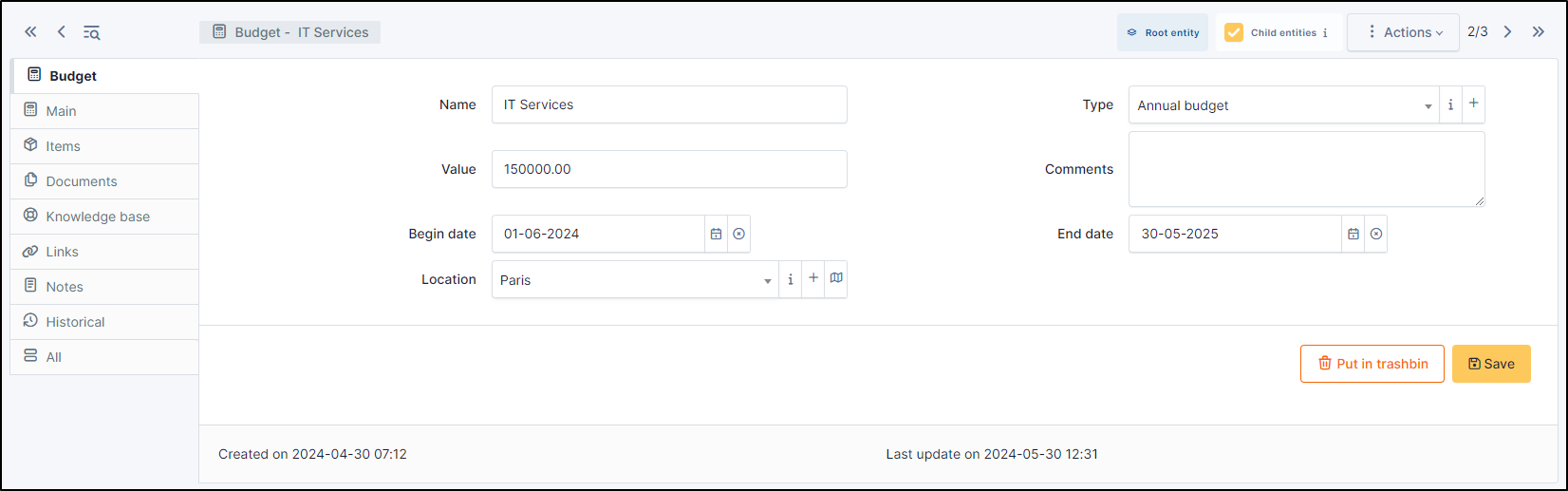
A budget in GLPI is defined by an amount and a time period. Other GLPI items can be attached to this budget and will then, by providing their value, modify the budget available amount.
Creating a budget in GLPI enables the administrative and financial management functionality for all other GLPI items.
It is possible to follow the evolution of a budget by tracing the value of each attached item.
{% hint style="info" %}
Attaching a GLPI item to a budget is done via tab `Management` of the item!
{% endhint %}
{% hint style="info" %}
When displaying a budget from a sub-entity, the budget remaining total amount is not visible.
The budget remaining total amount can be negative if the sum of the values of attached items is greater than the budget amount.
{% endhint %}
{% hint style="info" %}
It is possible to use [templates to generate this object](/glpi-12/overview/template-management-in-glpi.md).
{% endhint %}
## Add a new budget
* To add a new budget, click on **+ Add** at the top of the screen
* Enter the information required
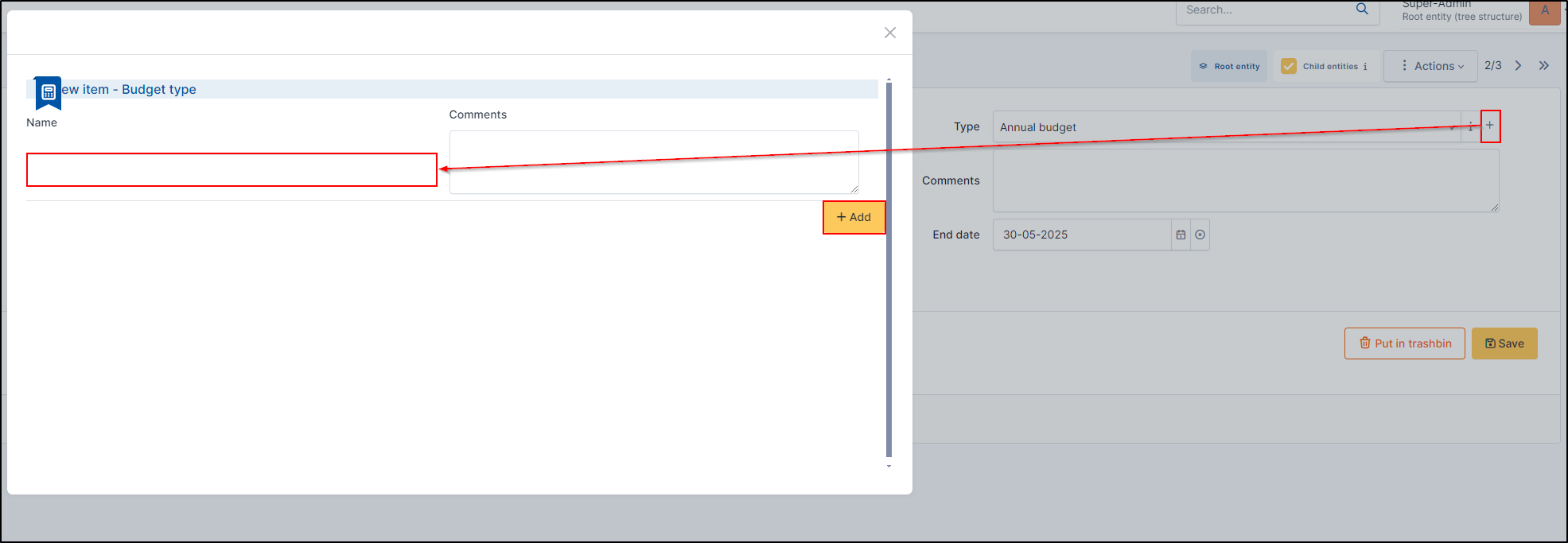
* You can add a budget type (administrative value)
{% hint style="success" %}
You can manage your budget type in **`Setup`** > **`Dropdowns`** > **`Types`** > **`Budget types`**
{% endhint %}
***
## Main tab
This tab provides a summary table giving the expended amount of the budget, sorted by item type, as well as total remaining amount. You cannot add a cost directly from this tab. Costs are deducted via the tabs of the same name in the various GLPI objects (changes, tickets, etc).

***
## Items
This tab displays GLPI items attached to this budget as well as their value.
To link a budget to an item, you must go through the item in question and link the desired budget.
***
## Documents
The document tab lets you link different types of file to a material (PDF, txt, png, etc.) You can attach a document already uploaded to GLPI or add a new one directly from this tab.
Go to Documents
***
## Knowledge base
The *Knowledge base* tab is used to show or add linked knowledge base articles.
Go to Knowledge base
***
## Links
Links offer several possibilities. Send the GLPI object file to another URL of your choice, or generate an RDP file, for example.
Go to Links
***
## Notes
Note lets you add enriched text and attach a document.
Go to Notes
***
## History
The *History* tab is used to show any changes made to an item. The following information about the changes is available:
* ID of the change.
* Date and time the change was made.
* User who made the change. If this field is not filled, it means that the action was done automatically (For example: automatic inventory update).
* Field that was changed.
* Description of the change that was made.
The description of the change represents either the difference between the old and the new value (For example with location field: Change HQ to Remote Office A), or the explanation of the action which was carried out (For example: Uninstallation of a software: "Gimp 2.0").
{% hint style="info" %}
For dropdowns or objects with a parent/child relationship, the modification of a child will appear in the history of the parent element.
{% endhint %}
***
## All Information
For an item, all information is displayed on one page from the *All* tab. This shows all of the tabs of an object's form in one view, one below the other.
---
# Agent Instructions
This documentation is published with GitBook. GitBook is the documentation platform designed so that both humans and AI agents can read, navigate, and reason over technical content effectively. Learn more at gitbook.com.
## Querying This Documentation
If you need additional information that is not directly available in this page, you can query the documentation dynamically by asking a question.
Perform an HTTP GET request on the current page URL with the `ask` query parameter, and the optional `goal` query parameter:
```
GET https://help.glpi-project.org/glpi-12/management/budgets.md?ask=&goal=
```
`ask` is the immediate question: it should be specific, self-contained, and written in natural language.
`goal` is optional and describes the broader end goal you are ultimately trying to accomplish on behalf of the user. GitBook uses it to tailor the answer towards what is most useful for that goal.
The response will contain a direct answer to the question and relevant excerpts and sources from the documentation.
Use this mechanism when the answer is not explicitly present in the current page, you need clarification or additional context, or you want to retrieve related documentation sections.