

Certificates
Certificates management in GLPI allows to:
Create an inventory of all organization certificates;
Follow installation of certificates on assets;
Include certificates in GLPI financial management;
Anticipate and follow certificates renewal.
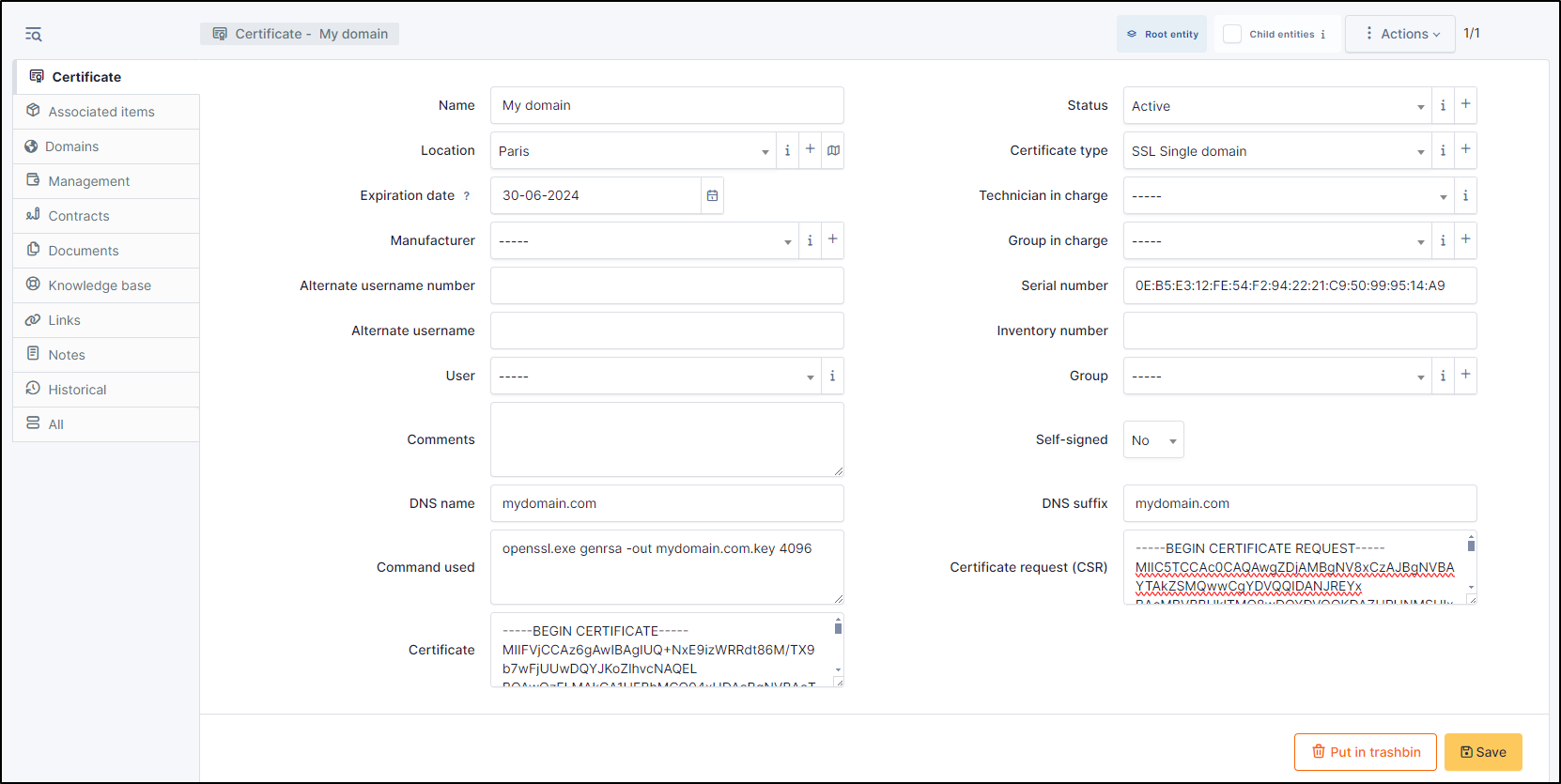
List of basic fields
Name
Description of specific fields
Manufacturer (Root CA): This drop-down list allows you to select the certificate manufacturer;
Certificate type :
Self-signed: Tells whether certificate is self-signed;
DNS name: The prefix of the domain name associated with the certificate (for example, if domain name is
server.mycompany.com, DNS name isserver);DNS suffix: The suffix of the domain name associated with the certificate (for example, if domain name is
server.mycompany.com, DNS suffix ismycompany.com);Expiration date: Expiration date of the certificate, useful to configure alerts and anticipate renewal;
Command used: Can store the system command that generated the certificate;
Certificate Request (CSR): Can store the system command that generated the CSR file;
Certificate: Can store the data contained in the CRT file (PEM).
Items
This tab displays the GLPI items linked to this budget, as well as their value.
Domains
You can attach Domains to your computer. Domains are also linked to other objects such as records, problems, etc.
Management
Management of financial and administrative information, this information is visible in the 'Management' tab on the computer's form.
Contracts
GLPI supports contracts management, in order to manage contract types such as loan, maintenance, support...
Contracts management allows to:
make an inventory of all contracts related to the organization assets
integrate contracts in GLPI financial management
anticipate and follow contract renewal.
Documents
The document tab lets you link different types of file to a material (PDF, txt, png, etc.) You can attach a document already uploaded to GLPI or add a new one directly from this tab.
Documents
The document tab lets you link different types of file to a material (PDF, txt, png, etc.) You can attach a document already uploaded to GLPI or add a new one directly from this tab.
Notes
Note lets you add enriched text and attach a document.
History
The History tab is used to show any changes made to an item. The following information about the changes is available:
ID of the change.
Date and time the change was made.
User who made the change. If this field is not filled, it means that the action was done automatically (For example: automatic inventory update).
Field that was changed.
Description of the change that was made.
The description of the change represents either the difference between the old and the new value (For example with location field: Change HQ to Remote Office A), or the explanation of the action which was carried out (For example: Uninstallation of a software: "Gimp 2.0").
All Information
For an item, all information is displayed on one page from the All tab. This shows all of the tabs of an object's form in one view, one below the other.
Last updated