> For the complete documentation index, see [llms.txt](https://help.glpi-project.org/llms.txt). Markdown versions of documentation pages are available by appending `.md` to page URLs; this page is available as [Markdown](https://help.glpi-project.org/glpi-12/setup/service-levels.md).
# Service levels
## Understanding Service Levels
Service level management is one of the pillars of a helpdesk. In GLPI, this management relies on two complementary mechanisms: **SLA** (Service Level Agreement) and **OLA** (Operational Level Agreement). They allow for guaranteeing ticket processing times, triggering automatic actions, and alerting the right people before a deadline is missed.
***
## SLA and OLA
GLPI distinguishes between two types of service level agreements: SLA, which is the agreement between an IT provider and its client, and OLA, which is the agreement between internal groups or departments of that same provider:
* The **SLA** formalizes the commitment made to the end client (user, entity, company benefiting from support, etc.). It is a documented agreement between an IT service provider and a client, defining the required services and the expected level of service. GLPI allows for entering these SLAs so that the service provided remains compliant with the contract signed between the two parties.
* The **OLA** is a purely internal IT service level: it is used, for example, to define the timeframe within which a support team must transfer a ticket to another team, without this commitment being visible or enforceable by the client.
{% hint style="success" icon="trophy" %}
The SLA protects the relationship with the client; the OLA organizes the internal mechanics that allow this promise to be kept.
{% endhint %}
***
## Tracking
These two types of agreements are used in GLPI to optionally track two deadlines:
* the maximum time that should elapse before a ticket is assigned to a technician
* the maximum time that should elapse before a ticket is resolved.
These two deadlines correspond to well-known indicators in service management:
* **TTO – Time To Own**: the maximum time to take ownership of the ticket.
* **TTR – Time To Resolve**: the maximum time to resolve the ticket.
An SLA or an OLA can cover one, the other, or both indicators simultaneously, depending on what the contract or internal organization provides.
***
## Calendar
The calculation of deadlines depends on a calendar.
A calendar can be associated with an SLA or an OLA. By default, if no calendar is associated, calculations are performed on a continuous working basis, 7 days a week, 24 hours a day. It is also possible to use the calendar associated with the ticket, i.e., the calendar of the entity to which the ticket is attached.
The calculation method changes according to the unit chosen for the resolution time:
* If the maximum resolution time is expressed in days, all calculations are performed in days (D+1, D+4, etc.), taking the calendar into account to determine working days; with the "End of working day" indicator, the deadline then corresponds to the end of the relevant working day.
* If the maximum resolution time is expressed in hours or minutes, calculations take into account the opening hours defined in the calendar—for example, for an H+4 SLA with opening hours from 8 AM to 6 PM, a ticket opened at 4 PM will have a deadline set for 10 AM the next day.
**Important point**: placing a ticket in " **pending** " status puts the SLA on standby; if the ticket remains on hold for 3 hours, for example, the deadline is automatically postponed by 3 hours. This prevents a ticket blocked by the client (waiting for information, parts, validation) from unfairly penalizing the technician or provider.
This is why the first step in any serious configuration is to define the reference calendars (working hours, on-call, public holidays, etc.) before even creating SLAs or OLAs.
***
## Creating an SLA
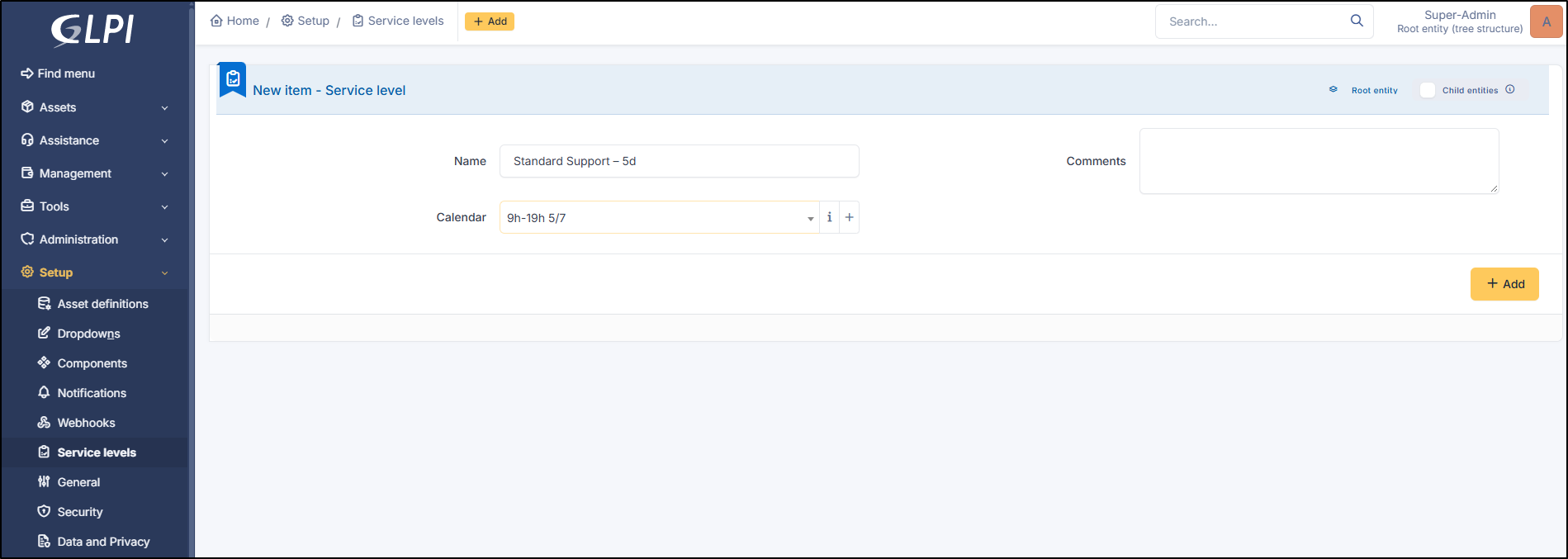
Creating an SLA is done from **`Configuration`** > **`Service Levels`**.
{% stepper %}
{% step %}
### **Create the SLA record**
* Click on **`+ Add`**
* Give the SLA an explicit **name** (e.g., "Standard Support – 5d").
* Select the **calendar** to associate from the dropdown list, or create a new one if none are suitable.
{% hint style="warning" icon="calendar-days" %}
This calendar step is crucial: it determines the opening or intervention slots taken into account in all deadline calculations.
{% endhint %}
* Click on **`+ Add`**
Add a new SLA
{% endstep %}
{% step %}
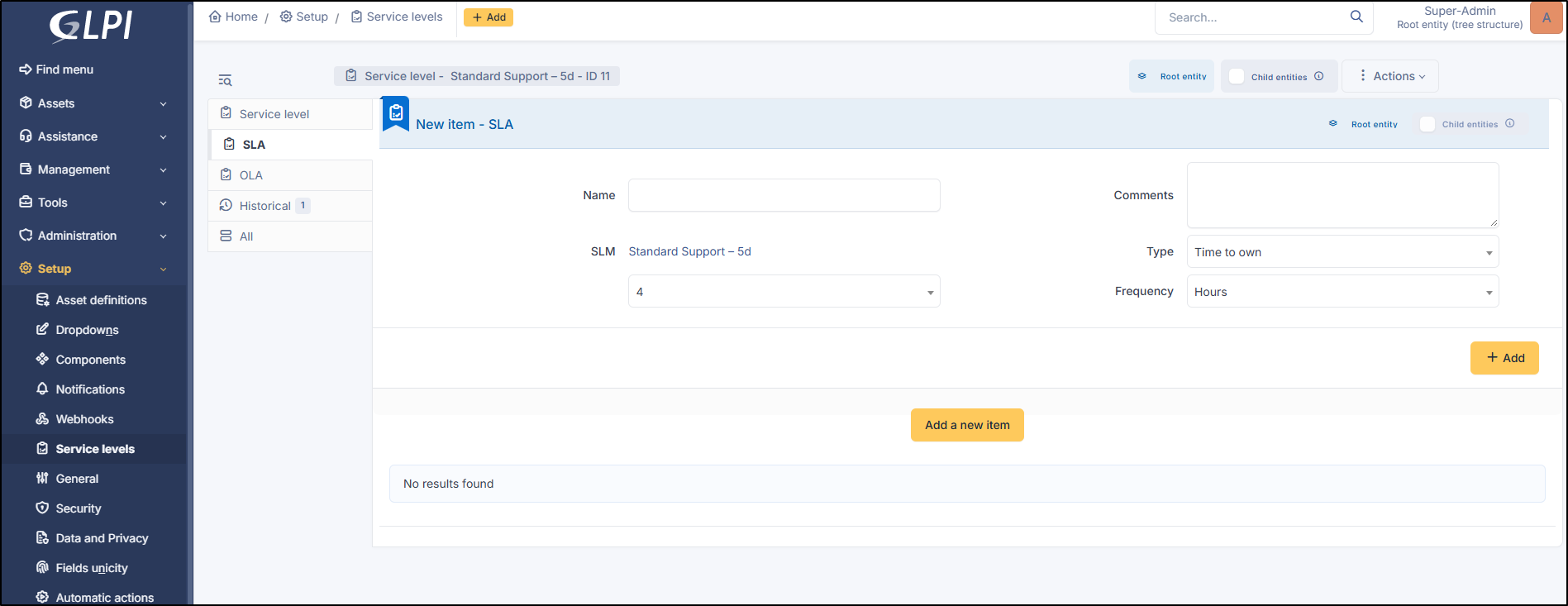
### Add a TTO (Time To Own)
In the SLA record:
* Click on **`Add a new item`**.
* Select **TTO** under **Time To Own**.
* Enter the expected value, generally set by the contract (e.g., 4 hours).
* Also enter the frequency.
* Validate with **`+ Add`**.
Add a TTO
{% endstep %}
{% step %}
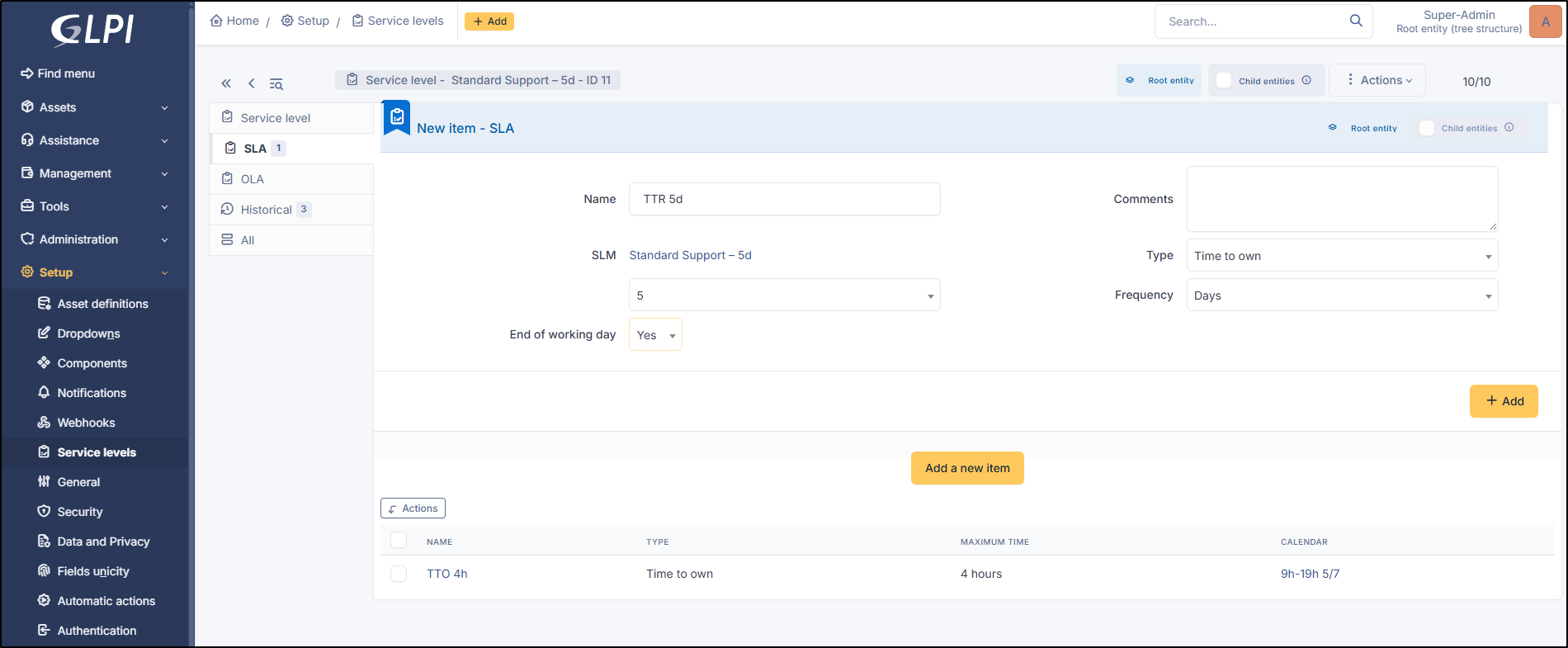
### Add a TTR (Time To Resolve)
* Click again on **`Add a new item`**.
* Select **Time To Resolve**.
* Enter the desired value (e.g., 5 days).
* Specify whether the last day of the deadline must be a working day.
* Validate with **`+ Add`**.
Add a TTR
At the end of these two steps, the commitment is clear and readable: a ticket attached to this SLA must be taken in charge within 4 hours and resolved within 5 working days.
{% endstep %}
{% step %}
### Create an OLA
Adding an OLA follows a procedure identical to that of an SLA:
* name,
* calendar,
* then optional addition of a TTO and/or a TTR.
The only difference is conceptual: the OLA formalizes an internal commitment (between support levels, between teams) rather than a contractual commitment to the client.
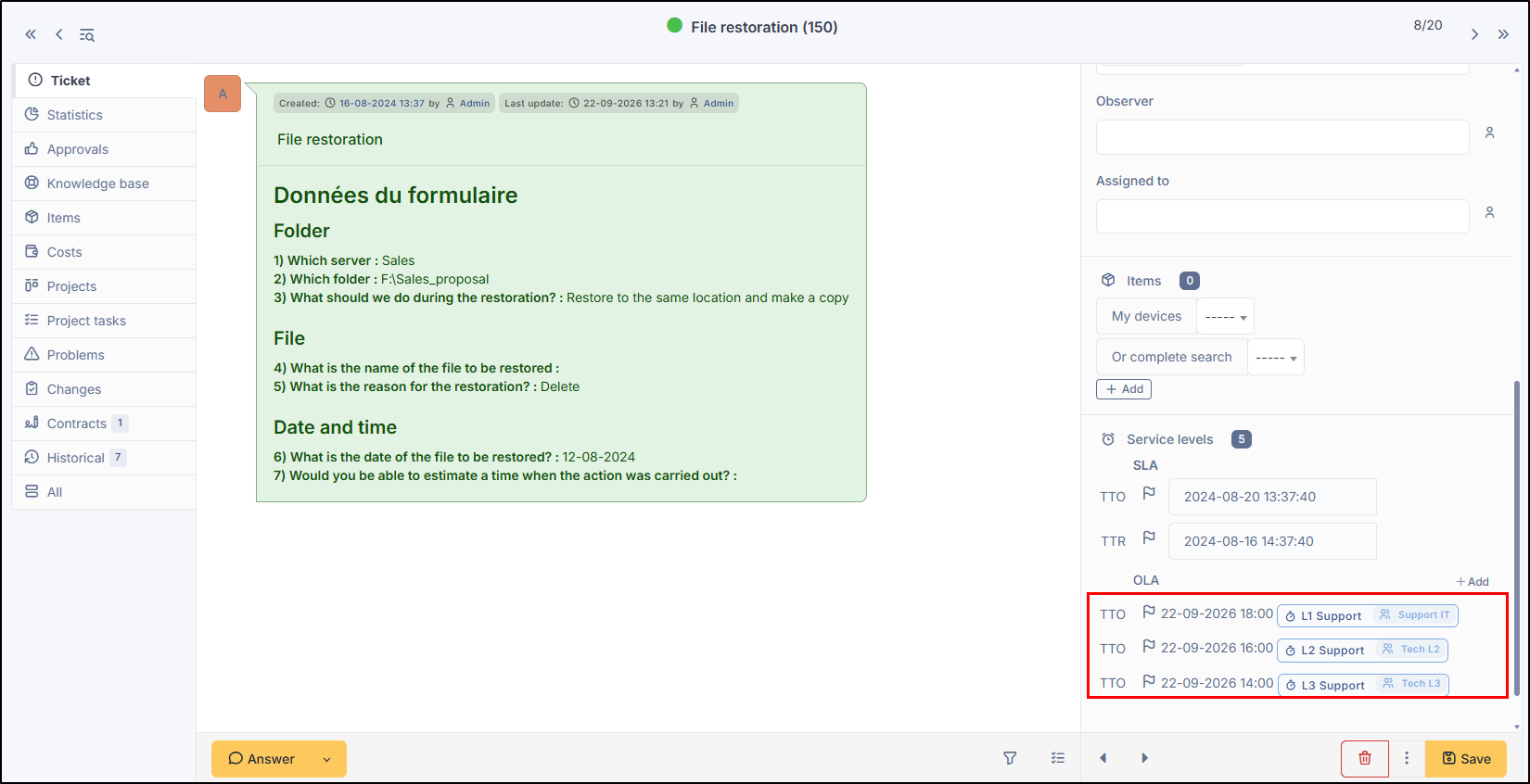
Note, **a significant evolution brought by GLPI 12**: multiple OLAs can now be assigned to the same ticket. This allows, for example, modeling multi-level support: if level 1 support does not resolve a ticket within 48 hours, it is escalated to level 2, which then has its own internal processing time—all without affecting the contractual SLA with the client.
{% endstep %}
{% step %}
### Automatically assign SLAs/OLAs to tickets
To avoid manually entering an SLA for each ticket opening, GLPI allows automating this assignment via the **ticket business rules engine** (ticket type business rules).
**The principle**: define criteria (category, entity, priority, request type, etc.) and, when a ticket matches these criteria, the rule automatically assigns the appropriate SLA and/or OLA to it. It is thus possible to have multiple service levels coexist: one SLA for a given ticket category, another for the rest.
**Two points of caution**:
* If an SLA or OLA is manually assigned upon ticket opening (by the user or via a ticket template), business rules cannot redefine it afterward.
* As soon as an SLA/OLA is assigned to a ticket, it is fully replayed, which triggers the execution of actions associated with its escalation levels.
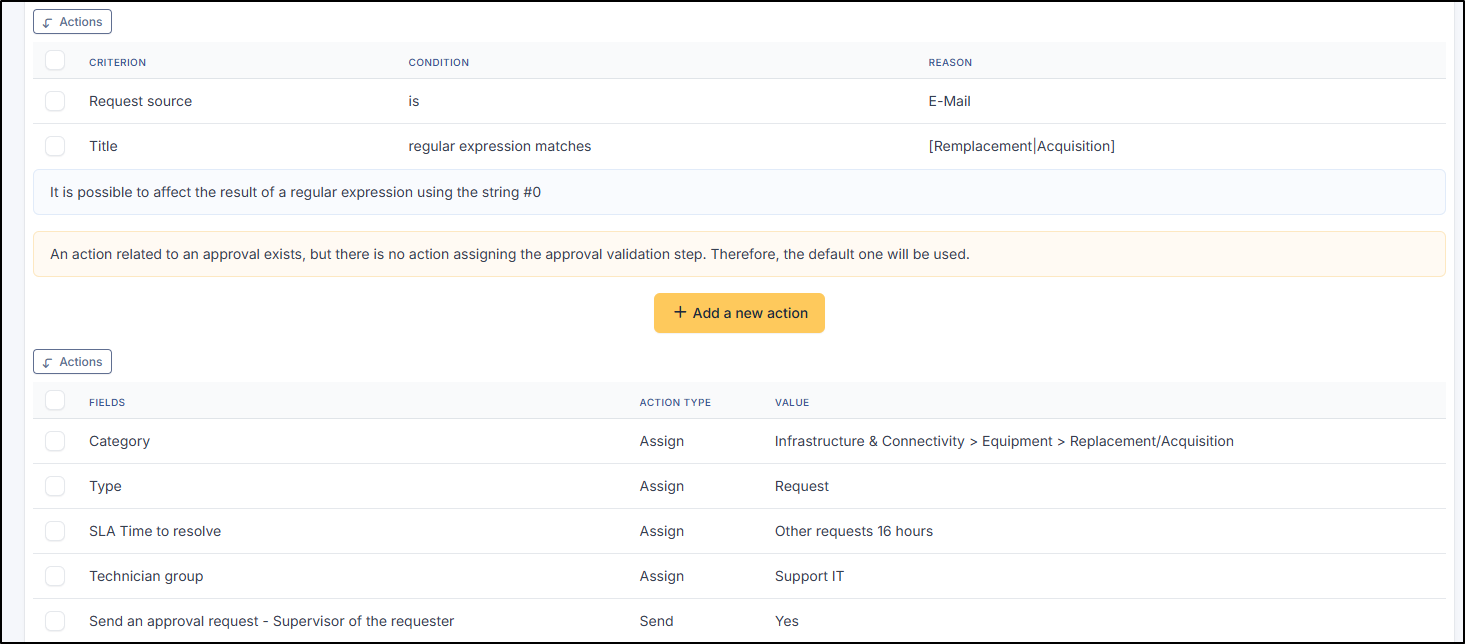
**Example of an SLA assignment rule**:
Example of SLA assignment
{% endstep %}
{% endstepper %}
***
## Escalation Levels
An SLA or OLA without an escalation level merely sets a theoretical deadline. It is the **escalation levels** that transform this deadline into concrete actions.
Each escalation level triggers automatic actions designed to resolve the ticket as quickly as possible. It is triggered before or after the SLA/OLA expiration date, depending on the defined timeframe—for example, one day before the deadline, the ticket can be reassigned to level 2 support and its priority set to "High."
These levels can be conditioned by trigger criteria: without criteria, the level is triggered systematically; with criteria, these are checked before application (e.g., send a reminder to the administrator only if the ticket is still in "New" status).
{% stepper %}
{% step %}
### Configure an escalation level on a TTO
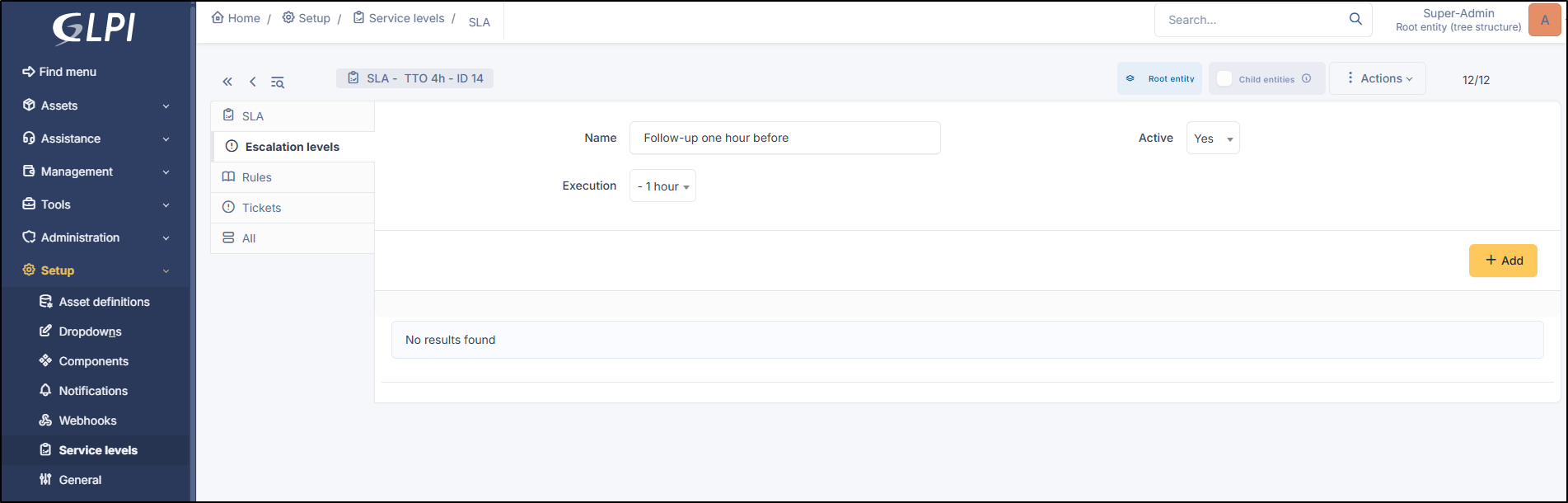
From **`Configuration`** > **`Service Levels`**, open the SLA (or OLA) tab and click on the relevant TTO:
* In the **Escalation Level** tab, enter a name
* Indicate the execution time (before, after, or at the TTO deadline)
* Activate the escalation level
* Click on **`+ Add`**
Addition of an escalation level to the SLA
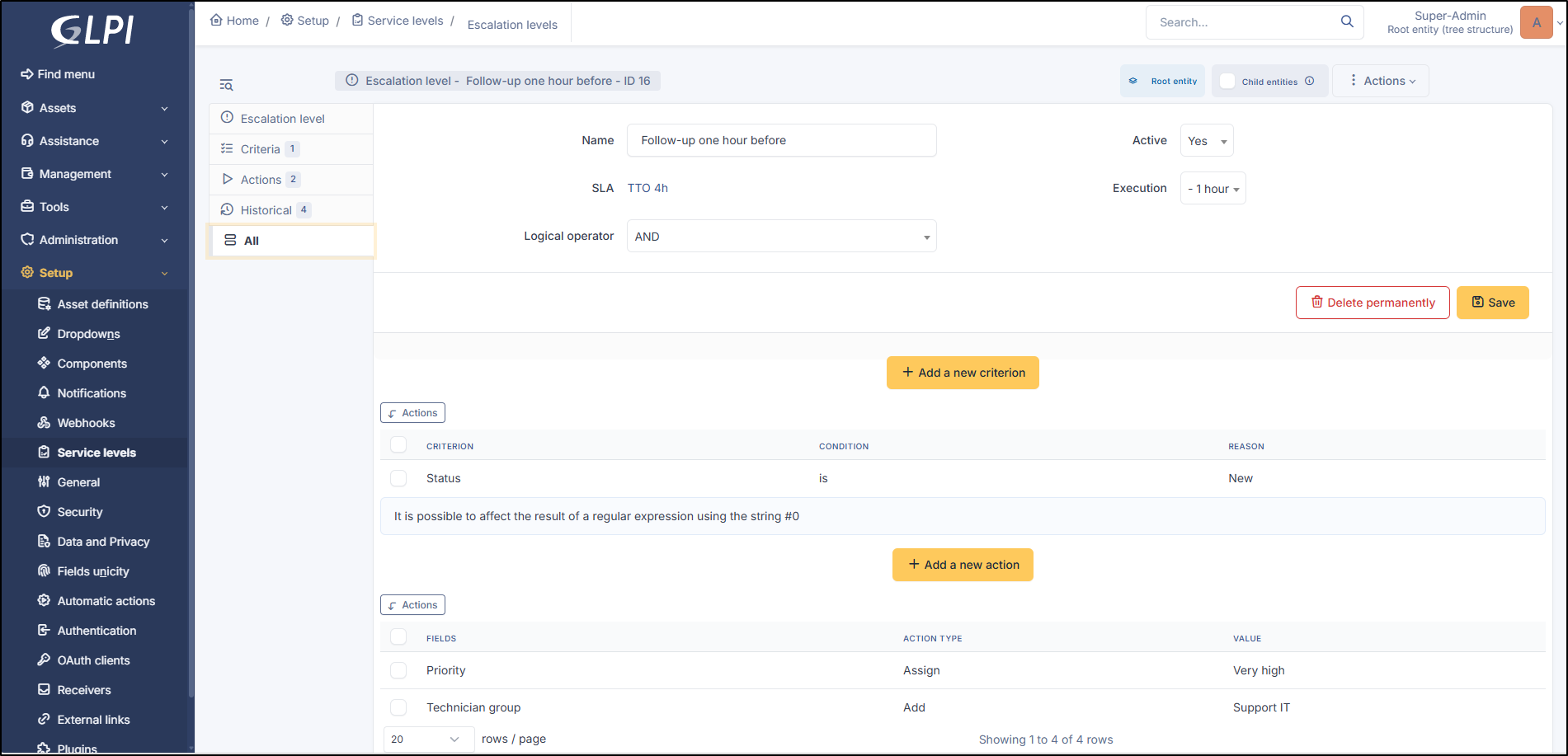
You will be redirected to the escalation level settings to define the associated rule:
* **Criteria** tab: for example, "Status is New."
* **Actions** tab: for example, assign a technician group, then change the priority to "Very High."
Escalade level rule
{% hint style="info" icon="vial" %}
Example: if the ticket is still in " **New** " status as the TTO approaches, a **technician group** is automatically **assigned**, and the **priority** is raised to " **Very High** ."
{% endhint %}
{% endstep %}
{% step %}
### Configure an escalation level on a TTR
The logic is identical, with one nuance: when you want to cover all "still open" tickets, you generally need to combine two criteria with the logical operator **OR** rather than AND—for example, "Status is not Closed" OR "Status is not Resolved." A typical action then consists of activating the sending of automatic SLA reminders.
{% hint style="info" icon="vial" %}
Example: two days before the TTR deadline, if the ticket is neither closed nor resolved, an automatic reminder is sent to signal that the resolution deadline is approaching.
{% endhint %}
This same escalation level mechanism is repeated identically for OLAs.
{% endstep %}
{% endstepper %}
***
## Configure recipients for reminders
Reminders are based on the **`Ticket Recall`** notification and its associated template. By default, the recipients for this notification are empty; therefore, it is necessary to configure them so that the concerned individuals actually receive SLA alerts.
To do this:
* Go to **`Configuration`** > **`Notifications`** > **`Notifications`**
* Search for the **`Ticket Recall`** notification
* In the **Recipients** tab, select the desired targets (profile, group, ticket group, requester, entity administrator, etc.)
* It is also possible to configure recipient exclusions
* Click on **`Modify`**.
***
## Activate the automatic action and check the cron
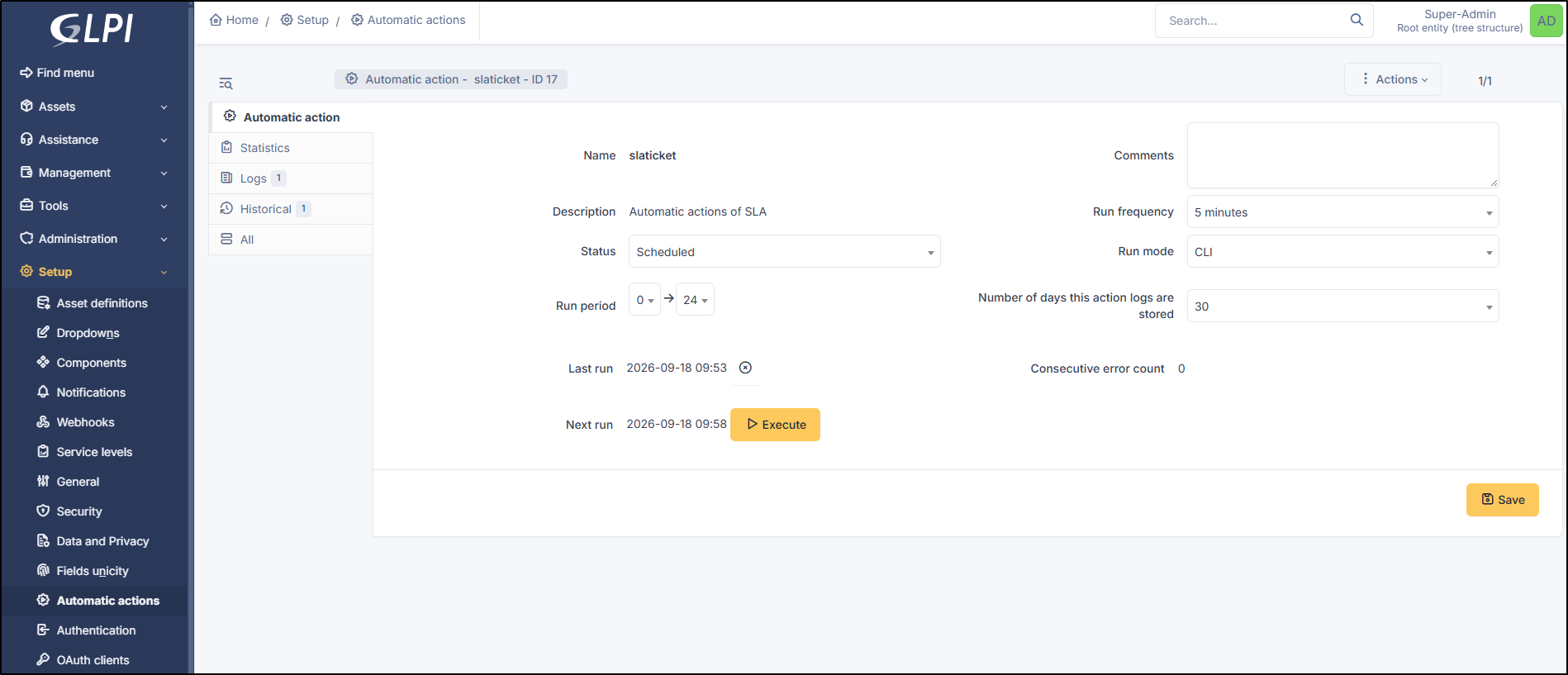
The automatic action named **`slaticket`** must be activated from **`Configuration`** > **`Automatic Actions`**: it must be scheduled, executed in CLI mode, with a minimum frequency of 5 minutes.
Slaticket automatic action configuration
For on-premise instances, you must also **ensure that the server's cron task is correctly configured**, otherwise, automatic actions will not execute, even if they appear correctly set up in the interface.
See GLPI cron configuration
***
## Summary
To deploy comprehensive service level management in GLPI, the logical order is as follows:
1. **Calendars**: define time slots (business hours, on-call, holidays).
2. **SLA**: create contractual service levels (TTO / TTR) per type of customer commitment.
3. **OLA**: create internal service levels, possibly in cascade (level 1 → level 2).
4. **Business Rules**: automate the assignment of SLAs/OLAs based on category, entity, priority, etc.
5. **Escalation Levels**: schedule actions before/after the deadline (reassignment, priority change, reminder).
6. **Notifications**: fill in the recipients for the "Ticket Reminder" template.
7. **Automatic Action `slaticket`**: verify that it is scheduled in CLI, every 5 minutes maximum.
8. **Cron**: check that the server's scheduled task is executing correctly (on-premise instances).
***
---
# Agent Instructions
This documentation is published with GitBook. GitBook is the documentation platform designed so that both humans and AI agents can read, navigate, and reason over technical content effectively. Learn more at gitbook.com.
## Querying This Documentation
If you need additional information that is not directly available in this page, you can query the documentation dynamically by asking a question.
Perform an HTTP GET request on the current page URL with the `ask` query parameter, and the optional `goal` query parameter:
```
GET https://help.glpi-project.org/glpi-12/setup/service-levels.md?ask=&goal=
```
`ask` is the immediate question: it should be specific, self-contained, and written in natural language.
`goal` is optional and describes the broader end goal you are ultimately trying to accomplish on behalf of the user. GitBook uses it to tailor the answer towards what is most useful for that goal.
The response will contain a direct answer to the question and relevant excerpts and sources from the documentation.
Use this mechanism when the answer is not explicitly present in the current page, you need clarification or additional context, or you want to retrieve related documentation sections.