

Cartridges
The first table lists the cartridges that are new or in use. The second table lists the cartridges identified as end-of-life.
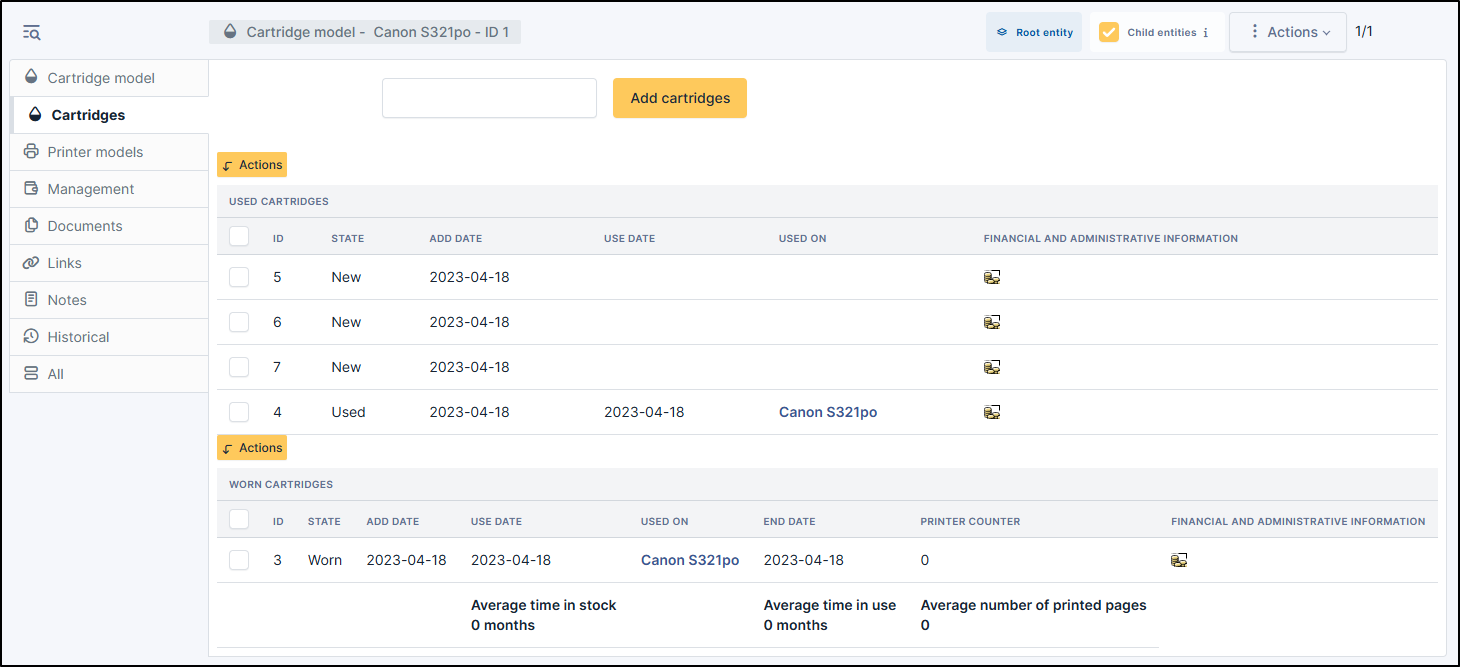
Add cartridges in new status
When cartridges is created, you can select numbers of item is needed
click on
Add cartridges
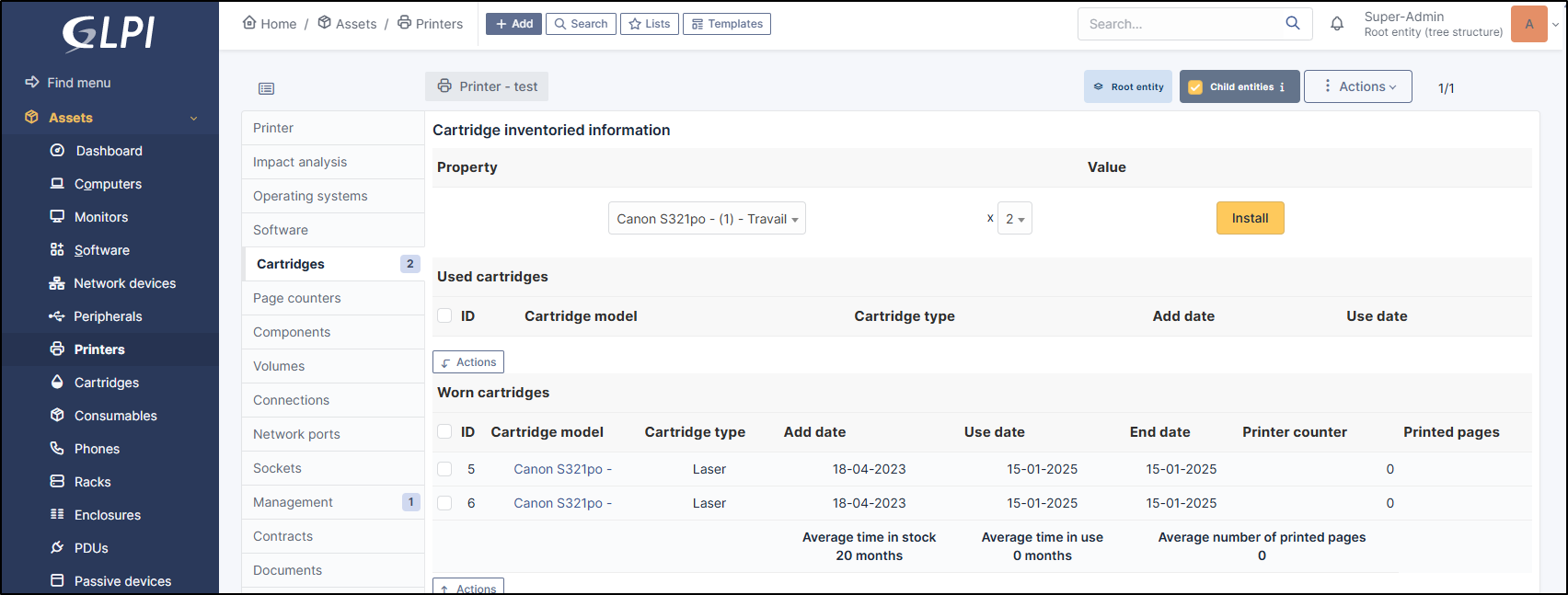
Change a cartridge in used status
To change the status of a cartridge, go to
Assets>Printer> Select the printer >CartridgesIn Property, select the desired cartridge, the number and click
Install
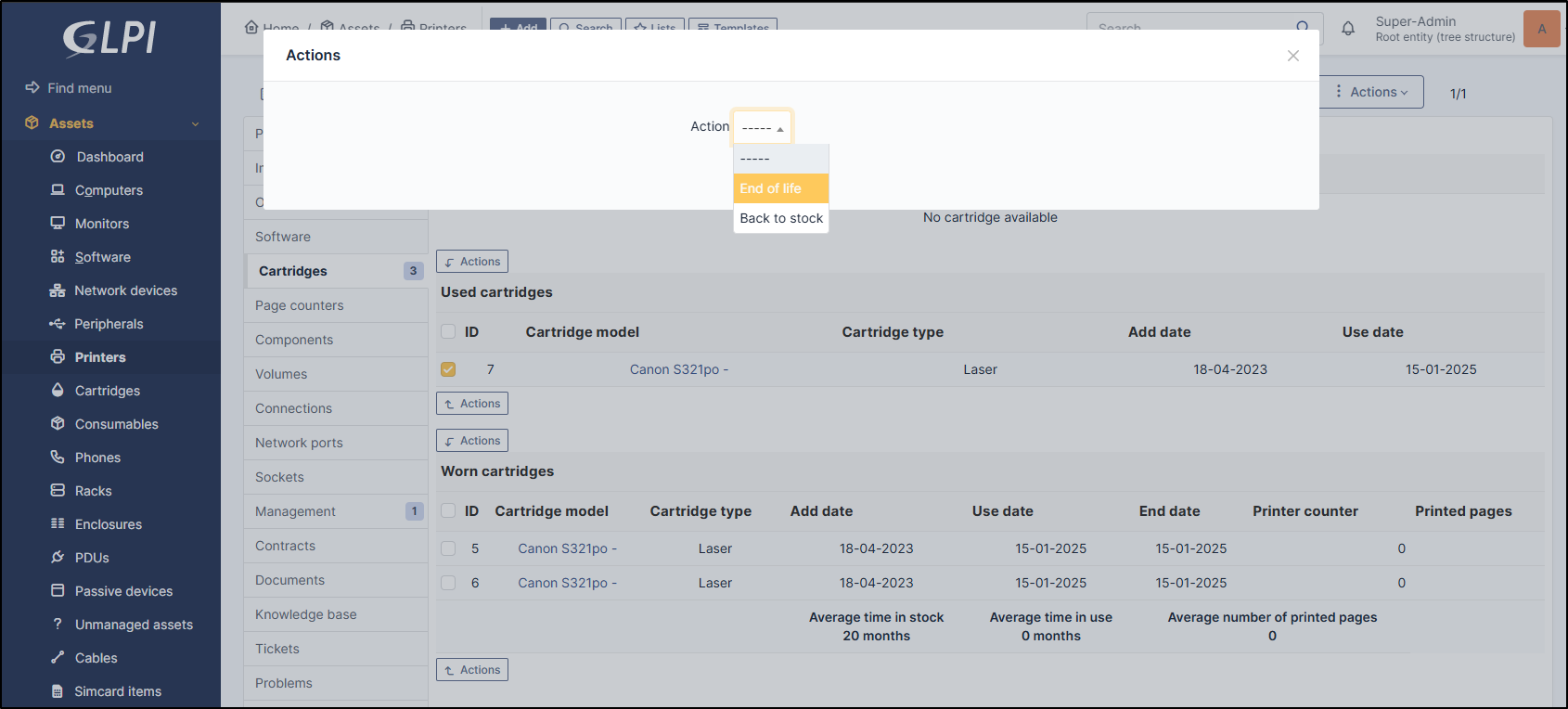
Change a cartridge in Worn
To change the status of a cartridge, go to
Assets>Printer> Select the printer >CartridgesIn used cartridges tab, select the appropriate cartridge
use
ActionsbuttonThen select End of life
Click on
Post
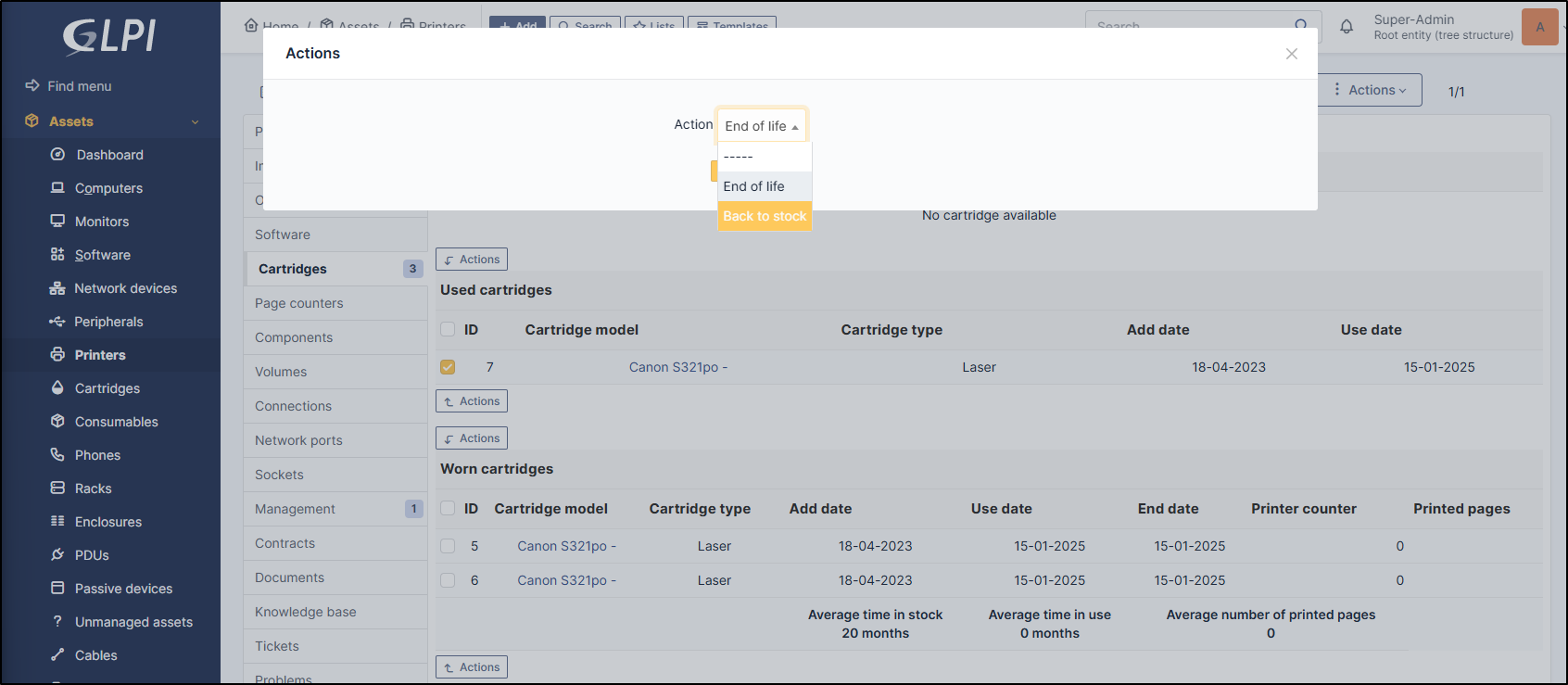
Change a cartridge to back to stock
To change the status of a cartridge, go to
Assets>Printer> Select the printer >CartridgesIn used cartridges or worm cartridges tab, select the appropriate cartridge
use
ActionsbuttonThen select Back to stock
Click on
Post
Last updated