> For the complete documentation index, see [llms.txt](https://help.glpi-project.org/llms.txt). Markdown versions of documentation pages are available by appending `.md` to page URLs; this page is available as [Markdown](https://help.glpi-project.org/glpi-12/tools/tabs/project-tasks.md).
# Project tasks
You can create tasks (with no limit on the number) to schedule and track your projects. You can add tasks, reminders, documents, etc.
{% hint style="success" icon="clone" %}
You can use templates to add a new project task.
{% endhint %}
Each project task has several tabs:
* Project task
* Project tasks (sub task)
* Task team
* Documents
* Tickets
* Notes
* Historical
* All
***
## Project task
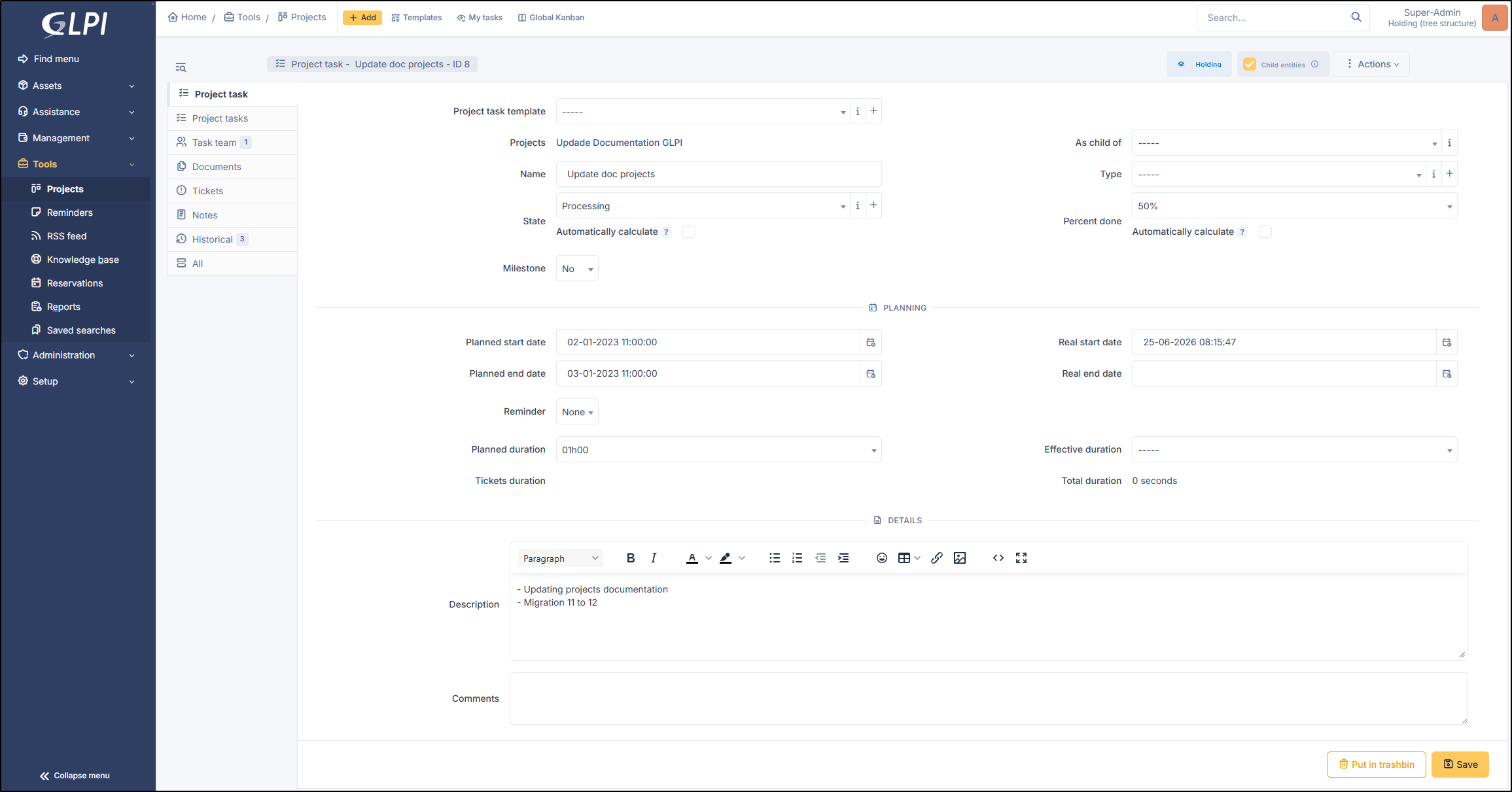
* To **add** a project task, select the project in question and, from the **Project tasks** tab, click **`Add a task`**.
Three inserts are then available.
* Global information
* Planning
* Details
View project task
### Global information
Here you will find the administrative information for the project:
* **Template**
* **Main project**
* **Name**
* **Type:** you can manage type in **`Setup`** > **`Dropdowns`** > **`Project tasks types`**
* **As a child** **of** task project: elect another task already created for the project.
* **Status** (closed, new, processing)
* You can check the **automatically calculate** box so that progress calculations are performed automatically. The status is calculated based on the task's percentage of completion. You must define these in the general project configuration.
* **Percent done** (this is for informational purposes only)
* When automatic computation is active, percentage is computed based on the average of all child task percent done.
* **Milestone** : The Milestone checkbox is used to mark a **key checkpoint** or **major event** in your project's lifecycle. Unlike a standard task representing work to be done (involving duration, labor hours, etc.), it signifies the **completion of a phase** or a **significant decision point** (e.g., "Approval of specifications," "Completion of development," or "Official launch"). Checking this box indicates that the task is **not a time-consuming activity,** but rather a specific target to be reached by a certain time. Certain fields in the Schedule tab will not be displayed if this box is checked. This option will display this icon :signs-post: on the Kanban view.
### Planning
This section makes it possible to track and coordinate tasks that are planned versus those actually completed.
* Planned start date
* Planned end date
* Real start date
* Real end date
* Reminder: Add a reminder ranging from 0 minutes to 1 year
* Planned duration
* Evective duration
* Tickets dauration
* Total duration
{% hint style="info" icon="alarm-exclamation" %}
**Reminder**
A new automatic action is available to trigger reminder notifications: **`projecttaskreminder`** (**`Setup`** > **`Automatic actions`**)
The process works as follows: when the scheduled end date approaches and a reminder is configured, the `projecttaskreminder` cron job triggers and sends the task-related reminder notification to all users or groups associated with that task.
{% endhint %}
#### Tags and notifications
New placeholders (`##project.*##`) are now available for all **Project Task** type notifications. They allow for the direct inclusion of information from the parent project (name, code, URL, description, priority, status, type, and planned/actual dates).
Tags notifications
{% hint style="success" icon="lightbulb-on" %}
All placeholders are available under **`Setup`** > **`Notifications`** > **`Notification templates`** > **`Project Tasks`** > **`Template translation`** > **`View list of available tags`**
{% endhint %}
***
### Details
With this section, you can add a description as well as a comment.
***
## Project tasks
You can create another task from this tab. It will be linked as a child of the main task.
Click on **`Create a sub task form this task of project`**.The informations of this task are the same as that indicated above.
***
## Task Team
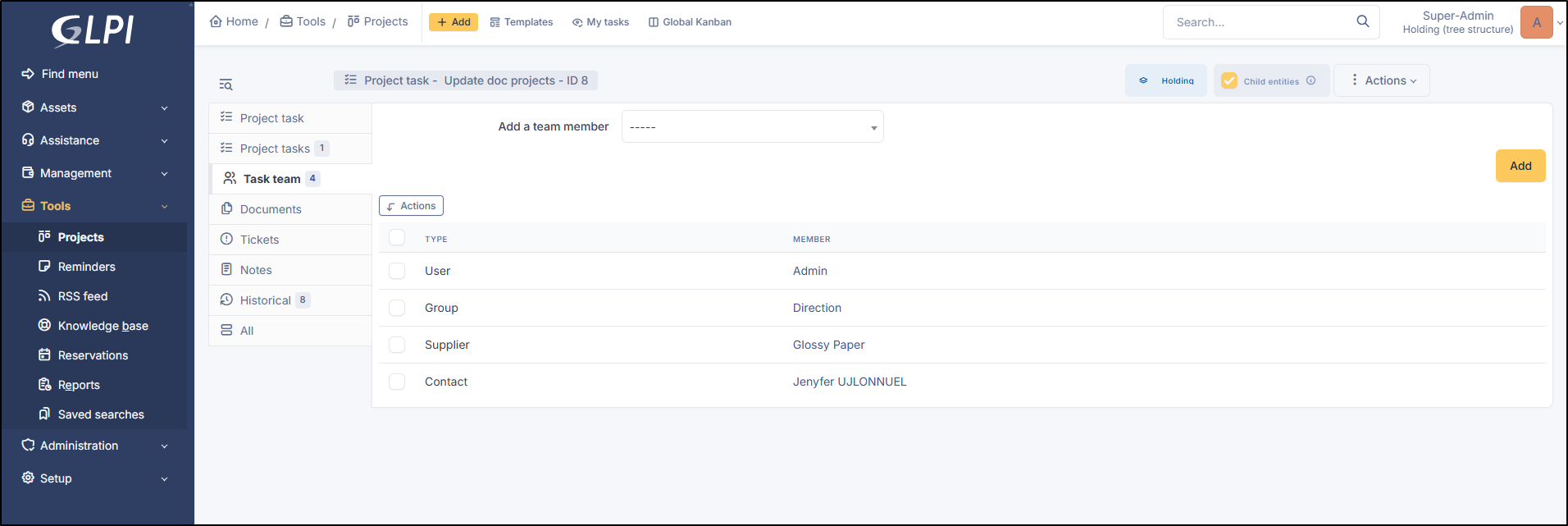
You can add members to the project task.
Task team tab
\
It is possible to add:
* Contacts
* Groups
* Suppliers
* Users
{% hint style="info" %}
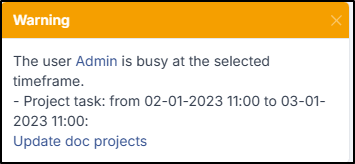
Si le membre sélectionné est indisponible lors de la période planifiée, un message d'information vous préviendra de la superposition des plannings
{% endhint %}
***
## Documents
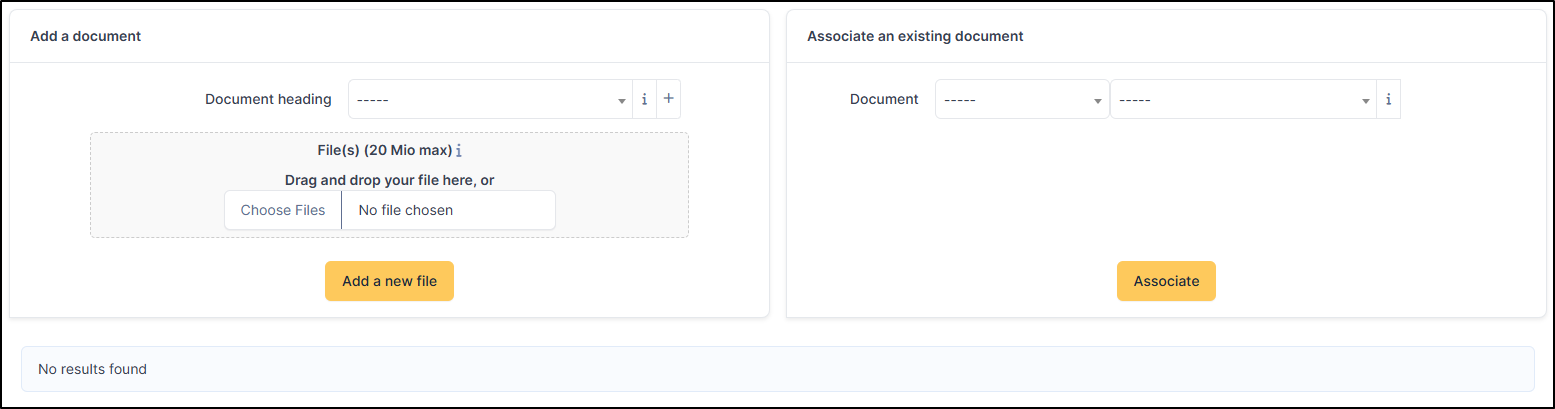
You can add a document from your computer or one that is already in GLPI.
Documents tab
***
## Tickets
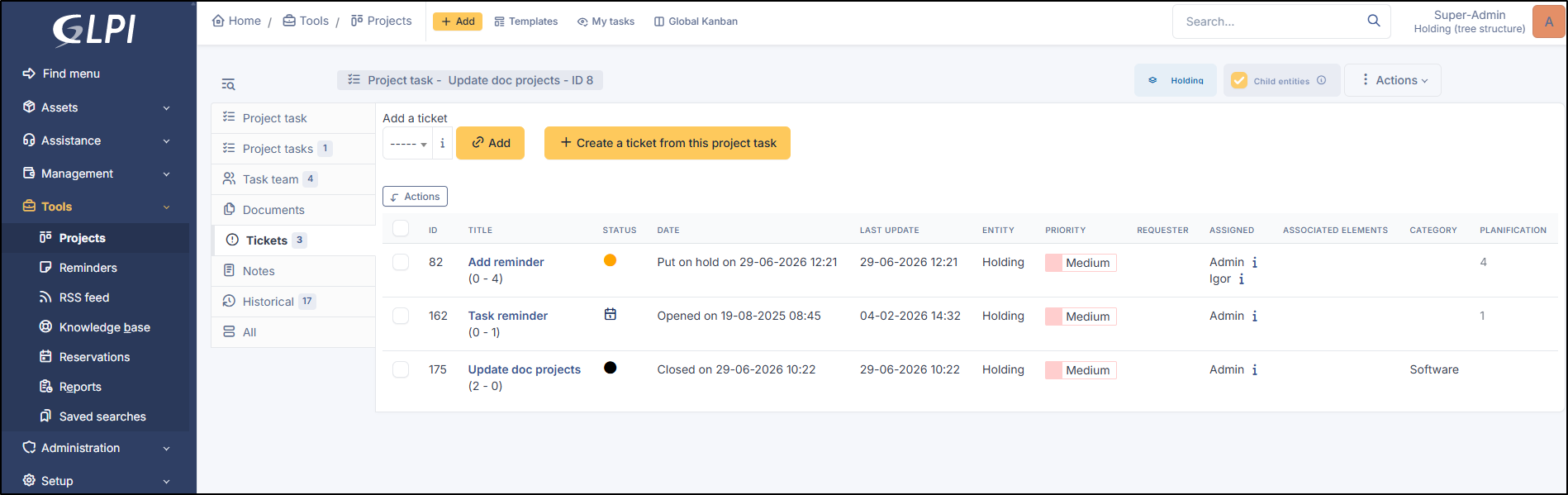
You can add tickets or create new ones from this tab.
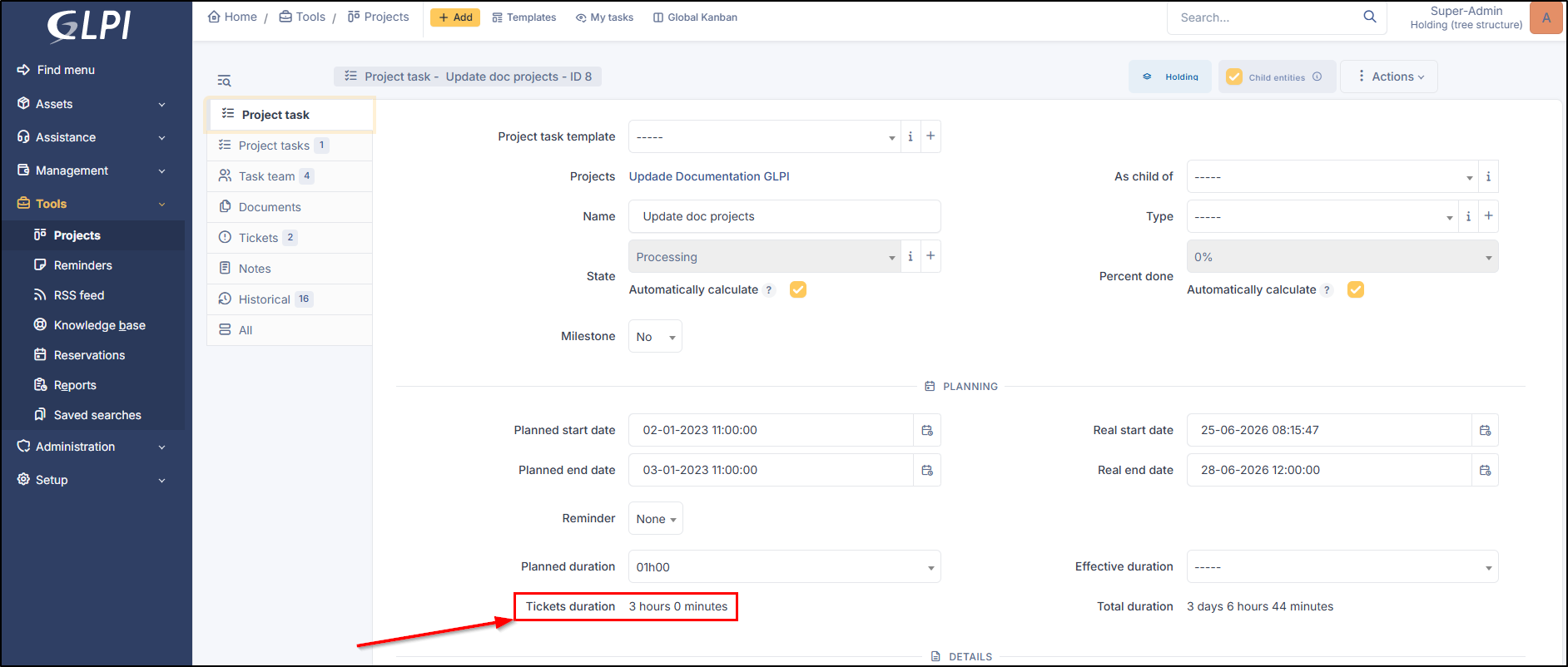
On the main project task page, you can view the total **tickets duration**.
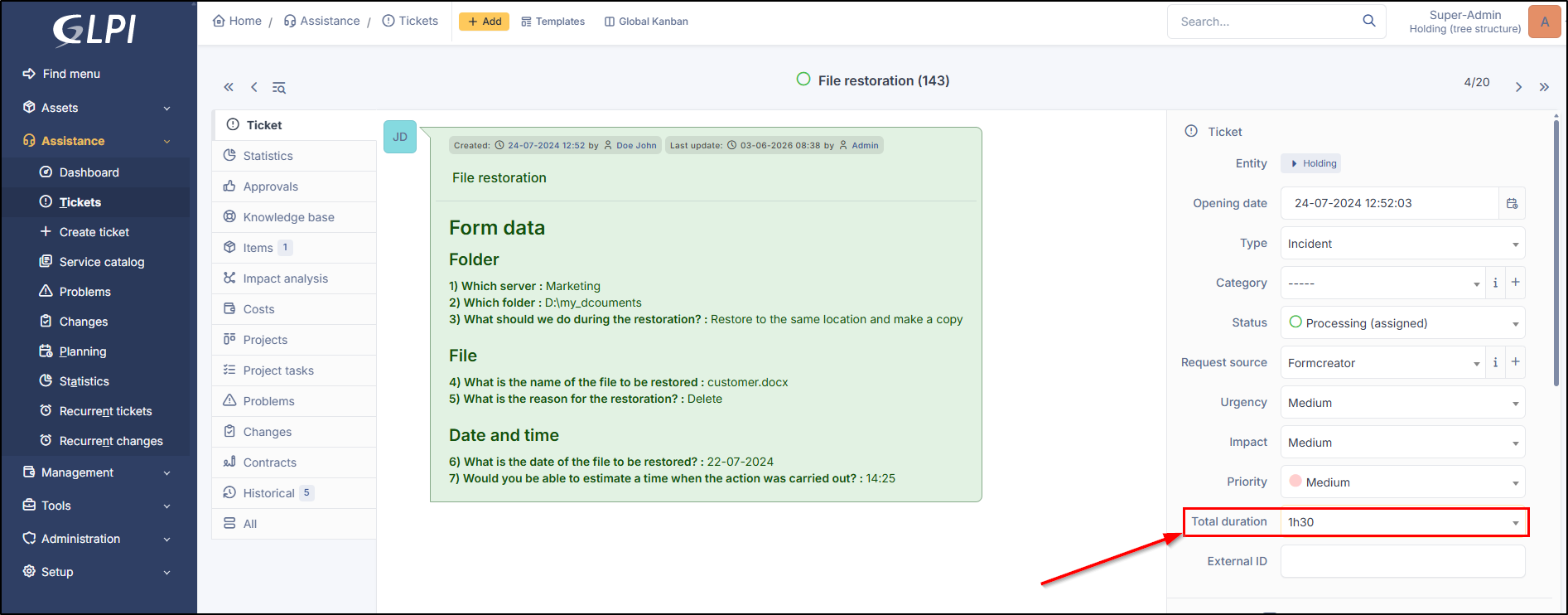
For this duration to be included, it must be **specified in the ticket duration** option for the ticket in question.
***
## Notes
Note lets you add enriched text and attach a document.
Go to Notes
***
## History
The *History* tab is used to show any changes made to an item. The following information about the changes is available:
* ID of the change.
* Date and time the change was made.
* User who made the change. If this field is not filled, it means that the action was done automatically (For example: automatic inventory update).
* Field that was changed.
* Description of the change that was made.
The description of the change represents either the difference between the old and the new value (For example with location field: Change HQ to Remote Office A), or the explanation of the action which was carried out (For example: Uninstallation of a software: "Gimp 2.0").
{% hint style="info" %}
For dropdowns or objects with a parent/child relationship, the modification of a child will appear in the history of the parent element.
{% endhint %}
***
## All Information
For an item, all information is displayed on one page from the *All* tab. This shows all of the tabs of an object's form in one view, one below the other.
---
# Agent Instructions
This documentation is published with GitBook. GitBook is the documentation platform designed so that both humans and AI agents can read, navigate, and reason over technical content effectively. Learn more at gitbook.com.
## Querying This Documentation
If you need additional information that is not directly available in this page, you can query the documentation dynamically by asking a question.
Perform an HTTP GET request on the current page URL with the `ask` query parameter, and the optional `goal` query parameter:
```
GET https://help.glpi-project.org/glpi-12/tools/tabs/project-tasks.md?ask=&goal=
```
`ask` is the immediate question: it should be specific, self-contained, and written in natural language.
`goal` is optional and describes the broader end goal you are ultimately trying to accomplish on behalf of the user. GitBook uses it to tailor the answer towards what is most useful for that goal.
The response will contain a direct answer to the question and relevant excerpts and sources from the documentation.
Use this mechanism when the answer is not explicitly present in the current page, you need clarification or additional context, or you want to retrieve related documentation sections.

 {% endhint %}
***
## Documents
You can add a document from your computer or one that is already in GLPI.
{% endhint %}
***
## Documents
You can add a document from your computer or one that is already in GLPI.