Version 1 (old method)

circle-exclamation

Features

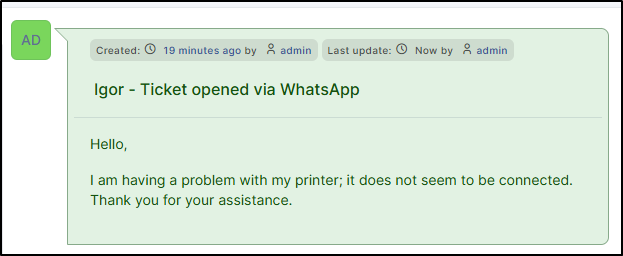
  • Open tickets directly from WhatsApp

  • Simplify your exchanges and track your tickets directly from the app or a web browser

Prerequisites

GLPI
PHP minimum
PHP recommanded

≥ 11.0.3

8.2

8.4

circle-info

A GLPI Network BASICarrow-up-right subscription (or higher) is required. This plugin is also available for all GLPI Network Cloud instancesarrow-up-right.

  • Must have an active WhatsApp Business account (Meta) with a valid phone number

  • Must have a GLPI instance accessible via the internet and HTTPS

circle-check

Install the plugin

Install the plugin

The plugin settings will then be configured in Setup > General > Whatsapp.


Create an application from a Meta account

Create an App ID
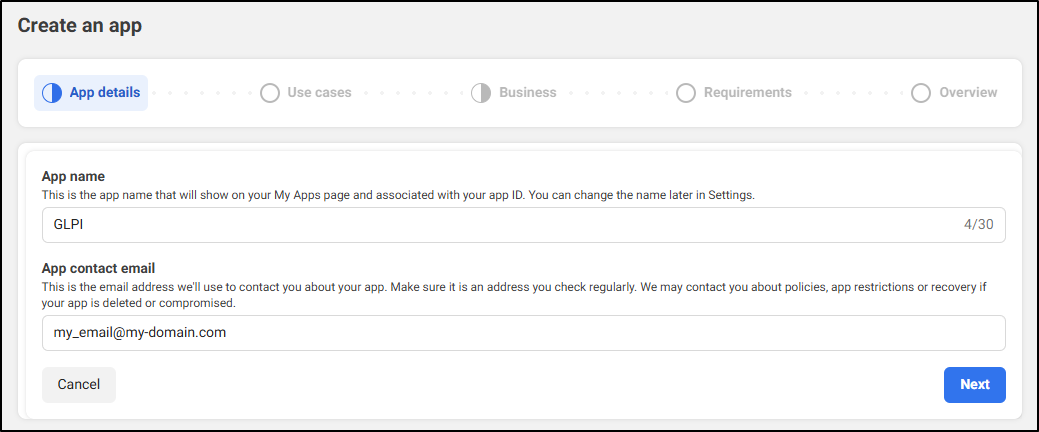
  • Click on Create an App ID

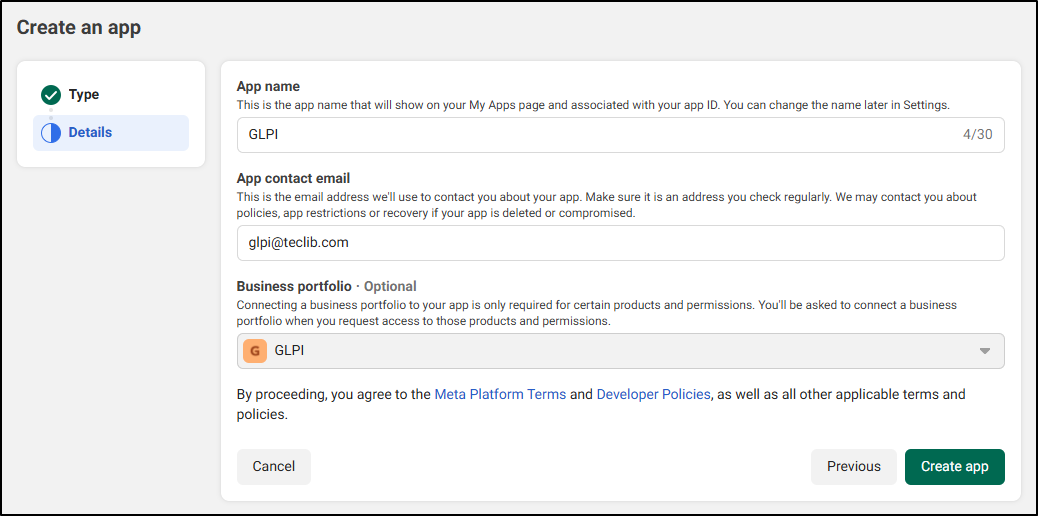
  • Give the app a name, and provide a contact email address.

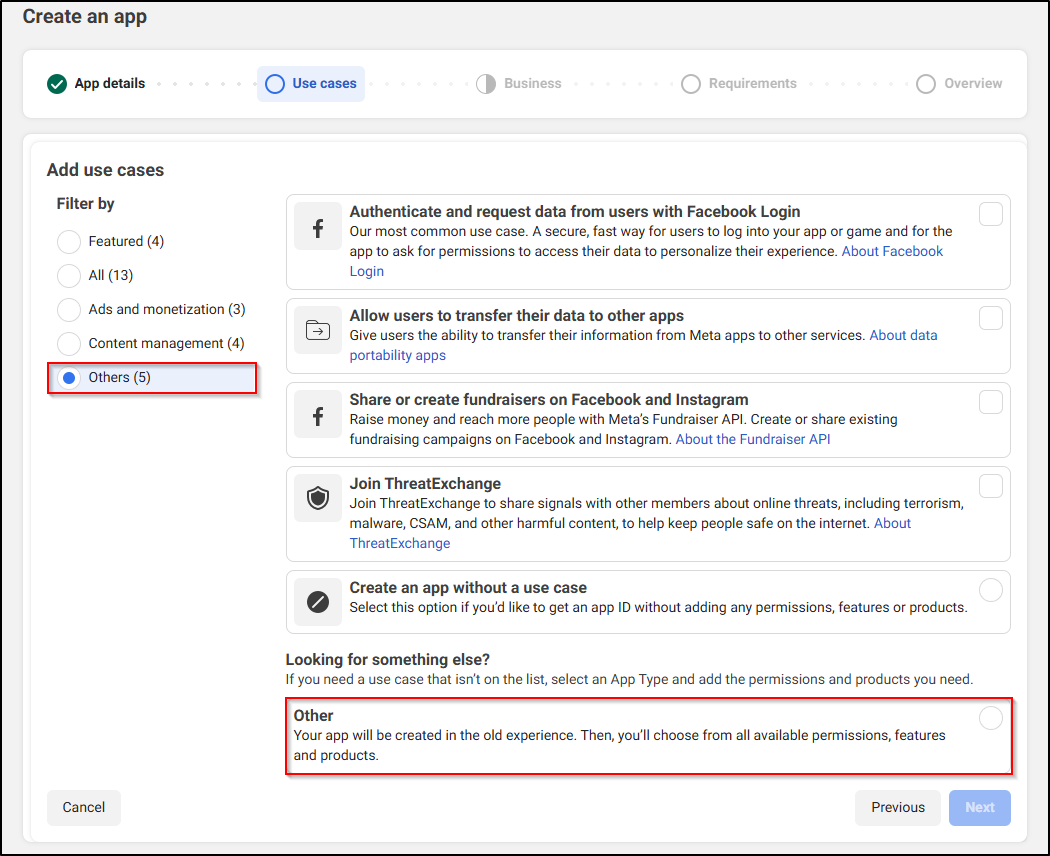
  • In the next step, specify which use case will be linked to the application (All > Other).

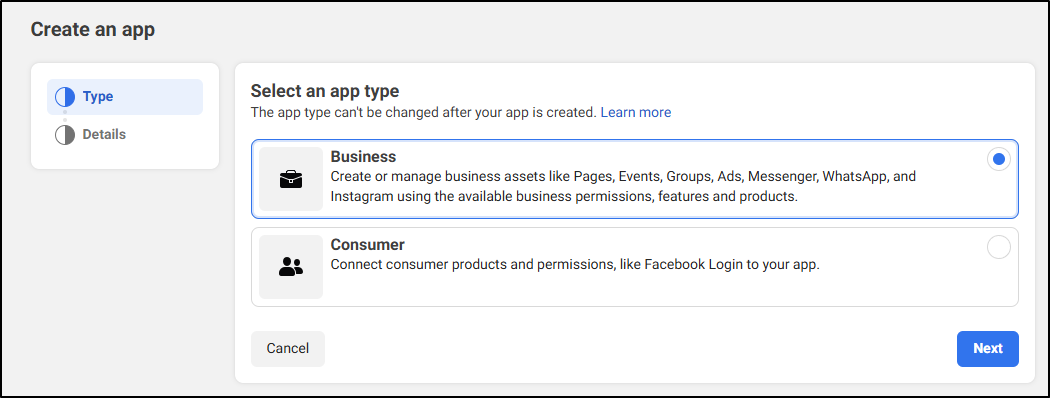
  • Select the application type (Business), to be able to send/receive notifications from WhatsApp.

  • Click on Create app

Create your application
Select the usage case
Select the application type
Save your application

Add and configure products to your application
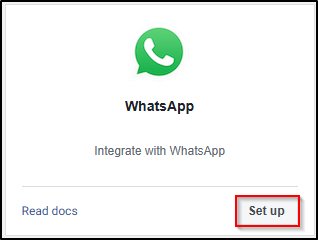
  • On the next page, you will be prompted to add products (services) to your application.

  • Locate WhatsApp in the list and click Set up.

Add WhatsApp to your application
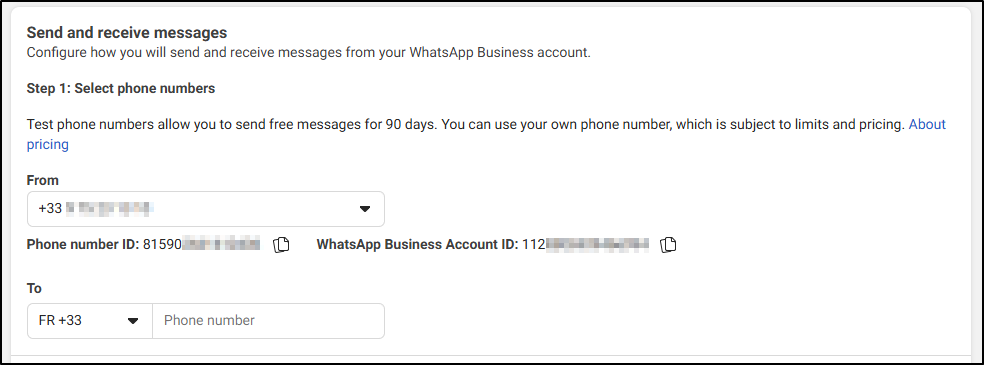
  • Click Configure API in the left-hand menu and ensure the phone number is correctly entered.

Control the phone number
  • If not, go to step 5 and click on Add a phone number and follow the steps.

Add a phone number to your application

Set up the Webhooks

  • From the Webhook tab, re-enter the URL and token (available from GLPI (Setup > General > Whatsapp)

  • Click on Verify and Save

Verify and save your informations
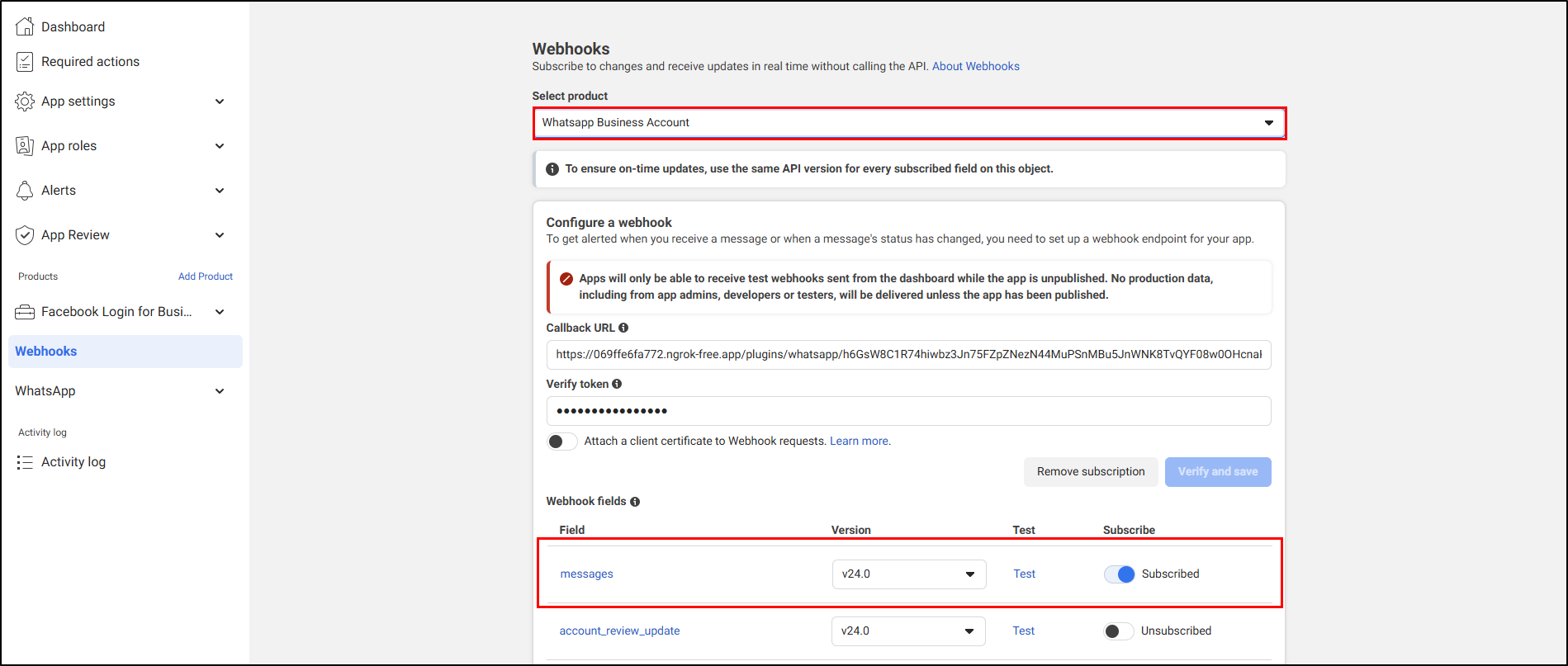
  • In the product list, select WhatsApp Business Account

  • Check the Subscriber box in the Message field (you may need to refresh the page to access this option)

Activate messges

User Management

It is best to create a dedicated user with specific permissions to be authorized to use WhatsApp webhooks.

Create a User

  • From your account Metaarrow-up-right, go to Users > People

  • Click on Invite a person

  • Enter the requested information at each step:

    • Email address

    • Assign access: select Full control

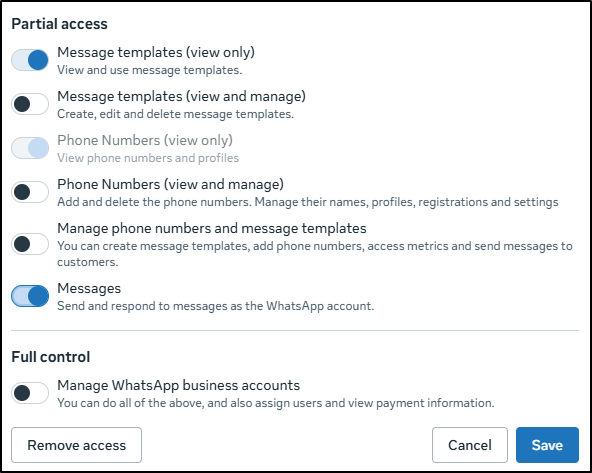
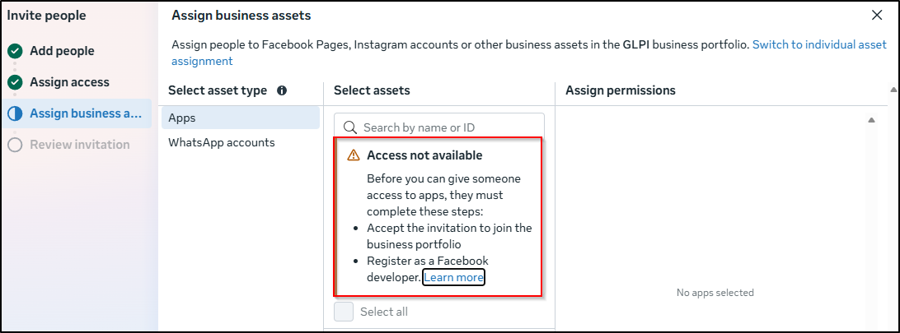
    • Assign an asset: select the desired WhatsApp account and ensure that the Messages and Message templates options are checked

Activate messges and templates
circle-check
  • Confirm your entry to save the account and send the invitation.

Assign the application

  • Once the invitation has been accepted, go to your Meta account, then Accounts > Applications

  • Select the application you created earlier, then Assign a user

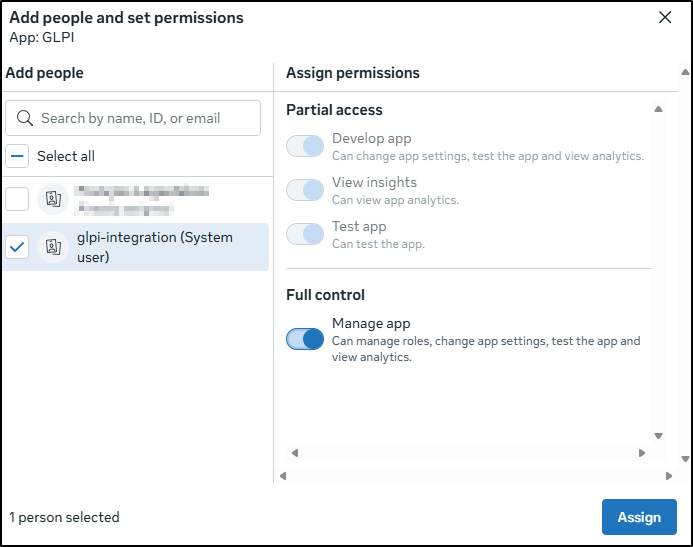
  • Check the desired user

  • Assign the necessary permissions

  • Click Assign

Assign user

Creating a System user account

The system user account allows generation of a token that must be entered in GLPI to validate the configuration between WhatsApp and GLPI.

  • From Users > System Users, click + Add

  • Enter a name for the account

  • Confirm your entry

Once the account is created:

  • Click on the menu on the right, then Assign assets

Assign assets
  • Select the created application, then Full Control

  • From WhatsApp Account (https://business.facebook.com/latest/settings/system_users), select Messages and Messages_Templates

Assign and save the asset
  • Click on Assign Assets

Token Generation

  • On this same page, click on Generate Token

Generate a token
  • Select the desired application

  • Select the token expiration time (60 days or never)

triangle-exclamation
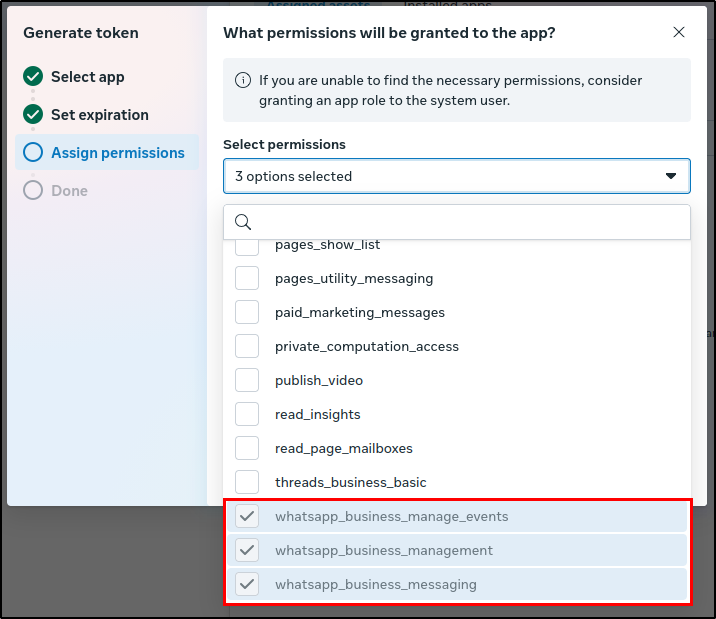
  • Assign the following 3 permissions:

    • whatsapp_business_manage_events

    • whatsapp_business_management

    • whatsapp_business_messaging

Token permissions
  • Then click on Generate token

circle-check

Setup GLPI

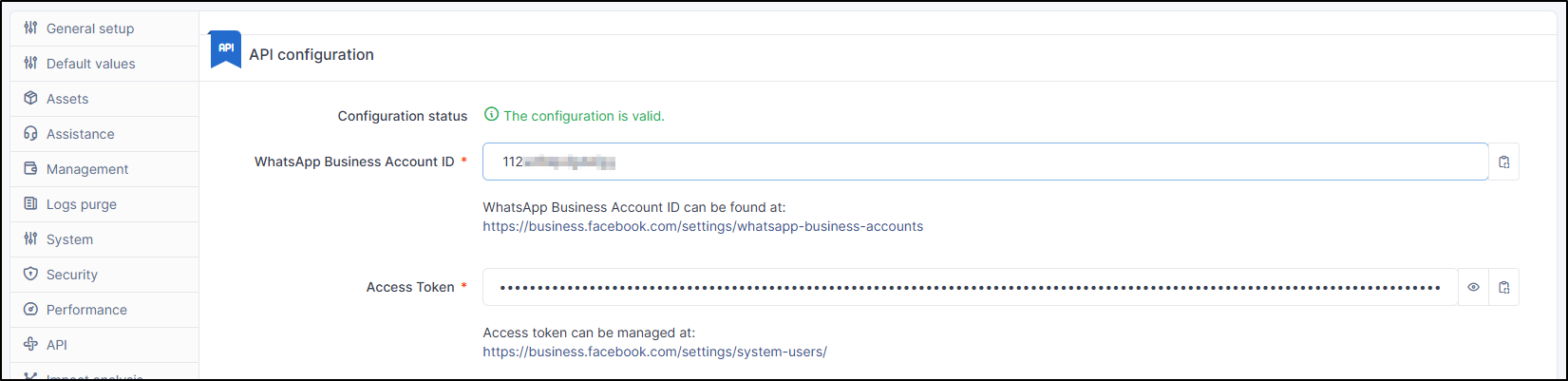
  • From your GLPI instance, go to **Setup** > **General** > **WhatsApp**

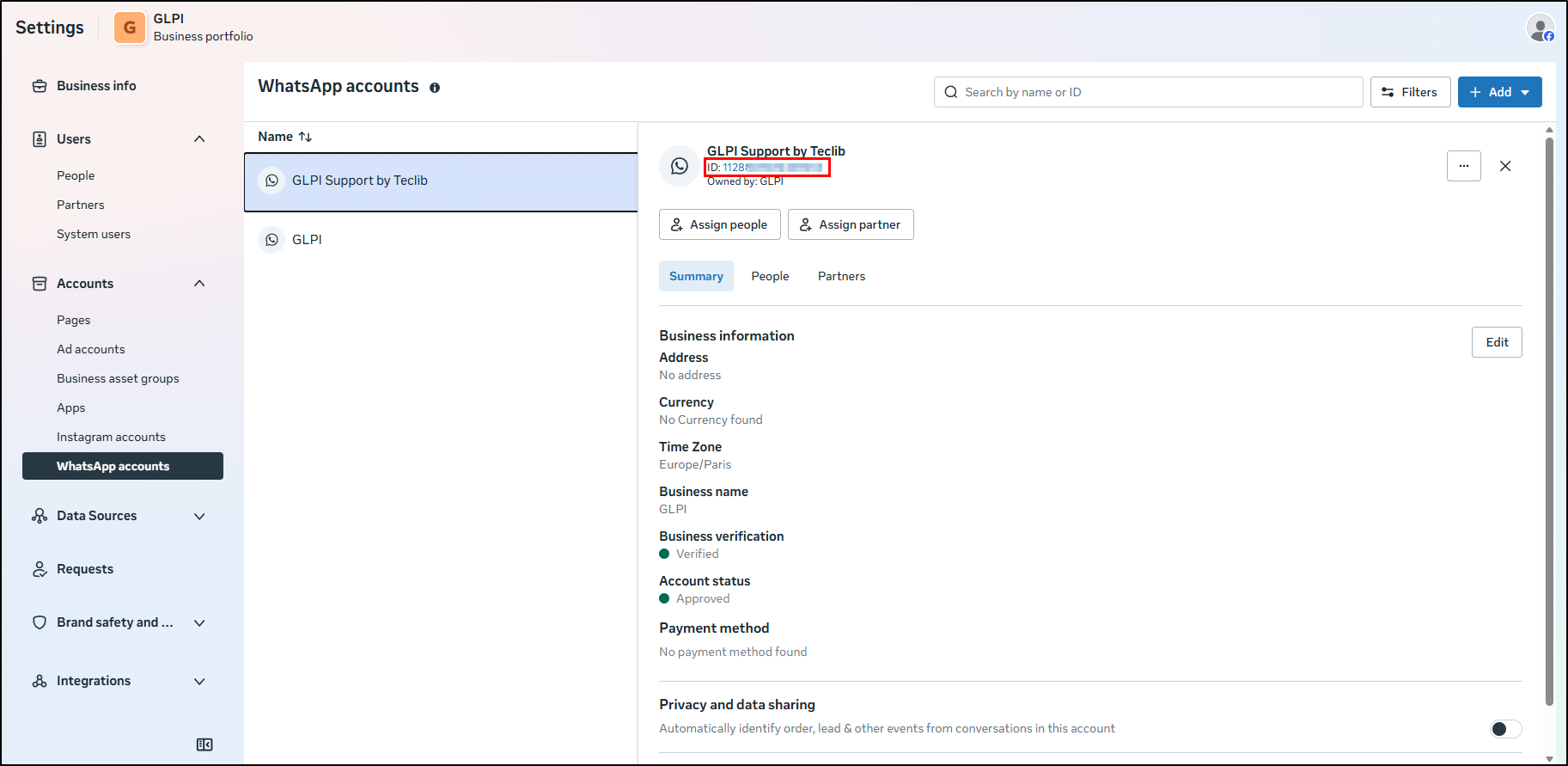
  • In WhatsApp Business Account ID, enter the WhatsApp account ID (available in your account settings Metaarrow-up-right then Accounts > WhatsApp Accounts https://business.facebook.com/latest/settings/whatsapp_account)

Retrieve the Meta Application ID
  • In Access Token, enter the previously generated token.

  • Save your entry.

If everything is OK, a message will appear informing you that your configuration is valid.

Validate your GLPI configuration

Setting up Notification Templates

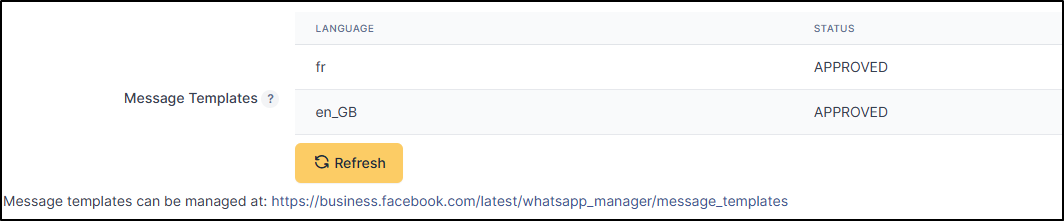
You don't need to do anything special regarding the templates. They are generated directly by the plugin and are visible in the Message Templates section of the WhatsApp plugin configuration on GLPI.

Templates GLPI's messages

The refresh button allows you to resynchronize the templates with WhatsApp if they are not APPROVED (or when adding new languages ​​via the plugin).


Before publishing your application

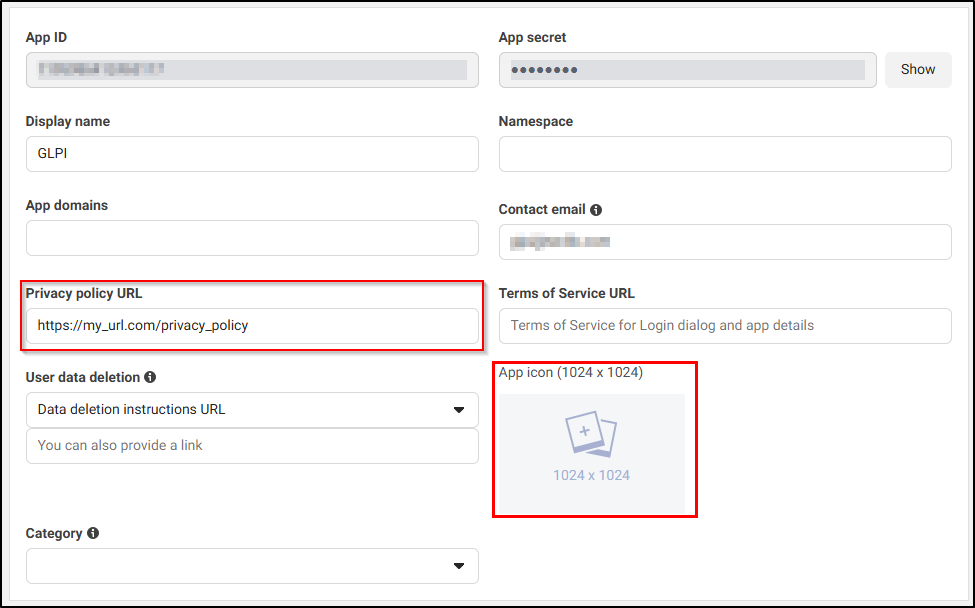
Before activating your application, you will need to specify a URL for the privacy policy.

  • From Application Configuration > Basic, specify the appropriate URL.

  • Also add a logo (the one that will appear publicly on WhatsApp contacts).

Information required before publication

Payment Method

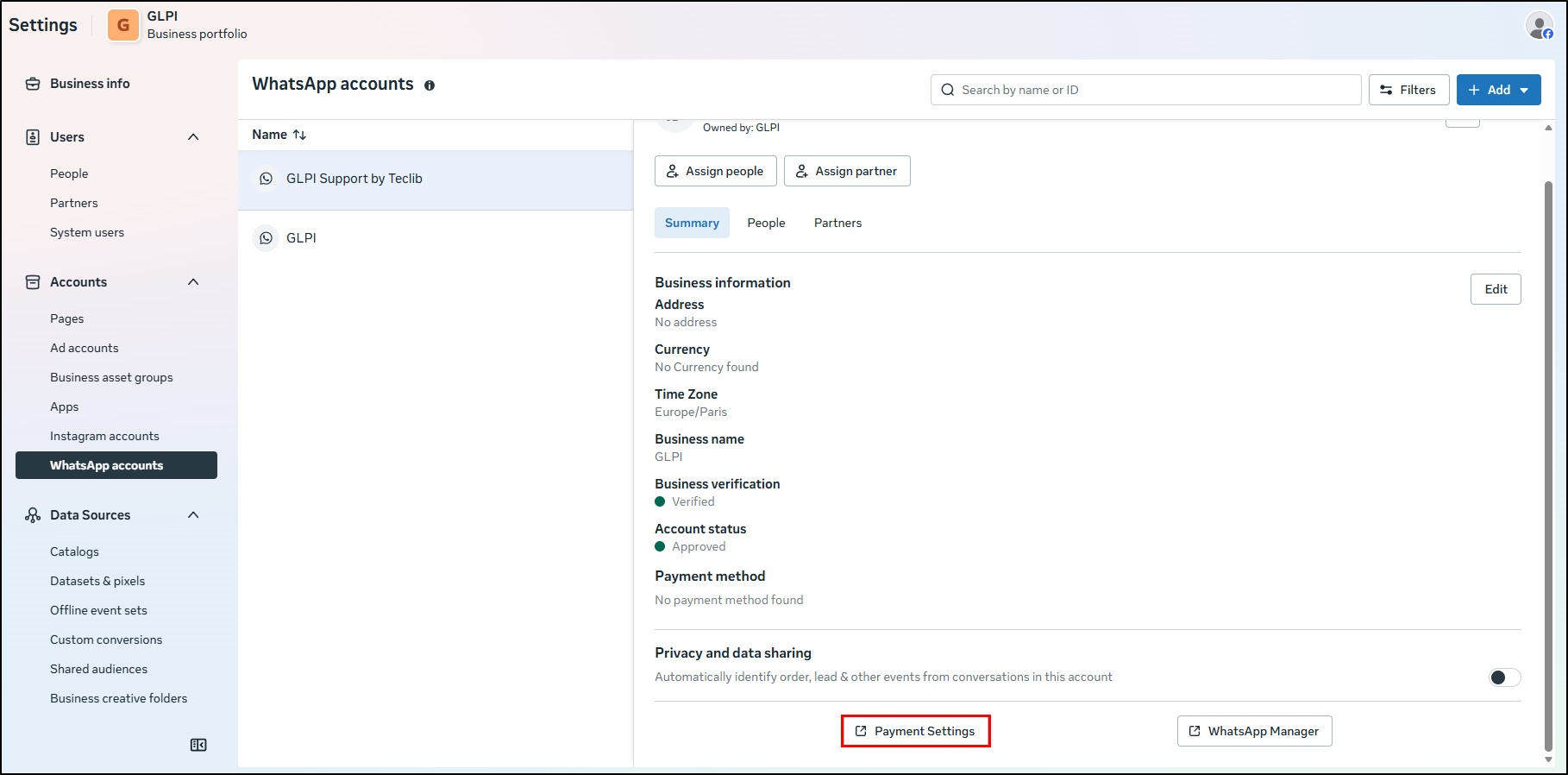
A payment method must be activated, otherwise message templates cannot be sent.

  • From your Meta accountarrow-up-right, go to Accounts > WhatsApp accounts

  • Select the desired account

  • Click on Payment settings and follow the steps

Payment information

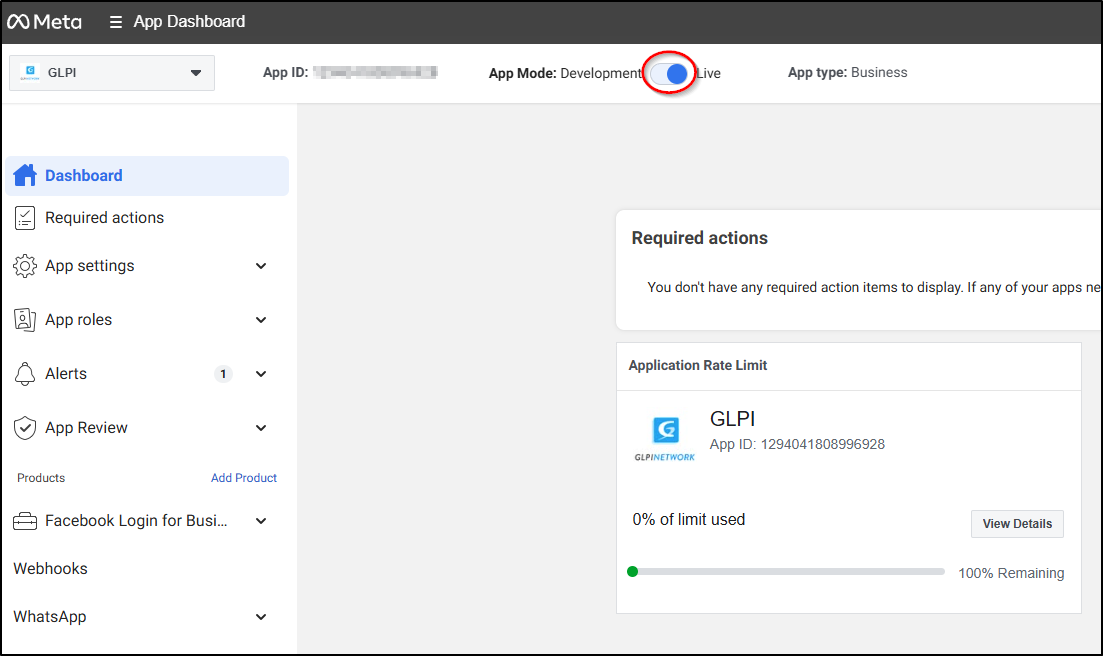
Publish the application

You can now publish your application.

Publish your application

Ticket Configuration

Anonymous Access
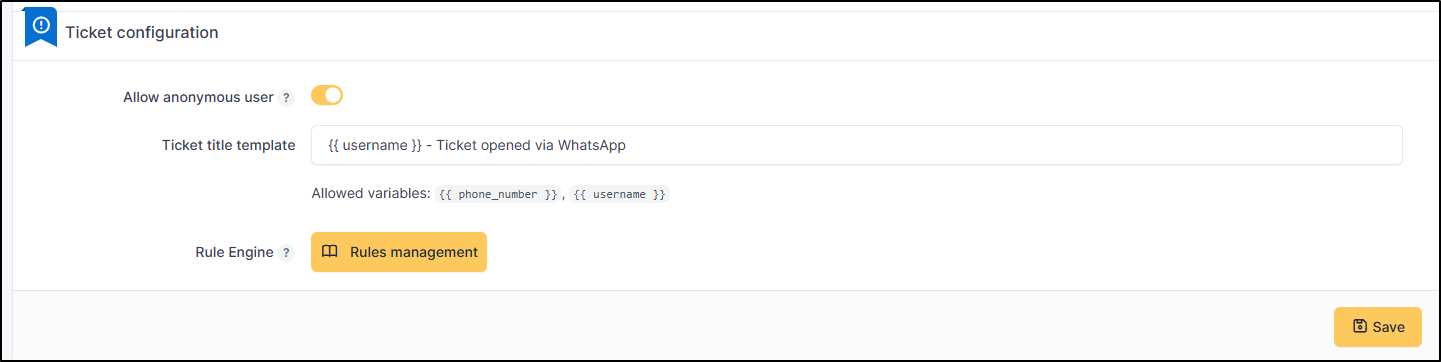
You can allow or deny access to anonymous users (those not present in the database).

Anonymous access

Ticket Title Template

You can add variables and/or text that will be included in the ticket title.

Example of a ticket title template

Business Rules

To customize the plugin's behavior, you can add business rules. The engine works like the GLPI rules engine.

Rule management is located in Administration > Rules > WhatsApp - Ticket Rules

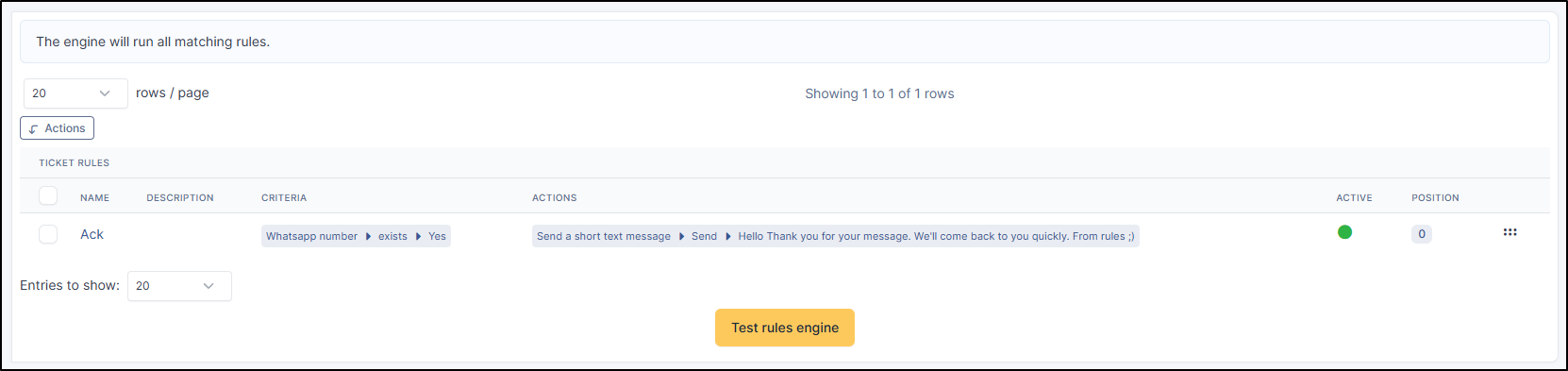
Example of rules

The criteria relate to either anonymous users or WhatsApp numbers and will trigger actions such as sending a message upon receipt of a ticket, updating the entity, category, urgency, etc.


Current Limitations

  • Only ticket status updates and solutions are sent to the user. Tasks and satisfaction surveys are not supported.

Last updated